
GOOGLE DRIVE ZAPIER INTEGRATION: AUTOMATE GOOGLE DRIVE WITH ZAPIER
Looking to automate Google Drive with Zapier? You’re in the right place. The Google Drive Zapier integration gives you access to 4 triggers and 21 actions to build powerful automations around your file management workflows—all without writing a single line of code.
Whether you need to automatically organize files when they’re uploaded, sync documents across platforms, or trigger notifications when important folders are updated, this integration has you covered. You can connect Google Drive to thousands of other applications, creating seamless workflows that save hours of manual file handling every week.
In this guide, you’ll discover exactly how to connect Google Drive to Zapier, explore every available trigger and action in detail, and learn practical use cases that will transform how you manage your cloud storage.


Zapier Google Drive Workflow: demonstration of an automation connecting Google Drive to other applications via Zapier. This video illustrates how Google Drive triggers and actions integrate into a Zapier workflow to automate your processes without code.
WHY AUTOMATE GOOGLE DRIVE WITH ZAPIER?
The Google Drive Zapier integration gives you access to 4 triggers and 21 actions that cover virtually every file management scenario you can imagine. From detecting new uploads to creating folders, moving files, managing permissions, and even making API requests—you have complete control over your Google Drive through automated workflows.
The benefits are substantial and immediate. Time savings come first: no more manually downloading files from one place and uploading them elsewhere, or checking folders repeatedly to see if something new appeared. Improved responsiveness means your team gets notified instantly when critical documents are added or modified. Zero oversight is possible because Zapier monitors your Drive 24/7—every new file, every folder change, every update triggers your workflow automatically without you lifting a finger. And with seamless integration to over 6,000 applications in Zapier’s ecosystem, Google Drive becomes the central hub connecting your entire tech stack.
Concrete workflow examples include: automatically backing up email attachments to specific Google Drive folders, creating organized folder structures when new clients sign up in your CRM, syncing uploaded invoices to your accounting software, notifying Slack channels when proposal documents are updated, or generating reports when files land in designated folders. The possibilities genuinely are endless.
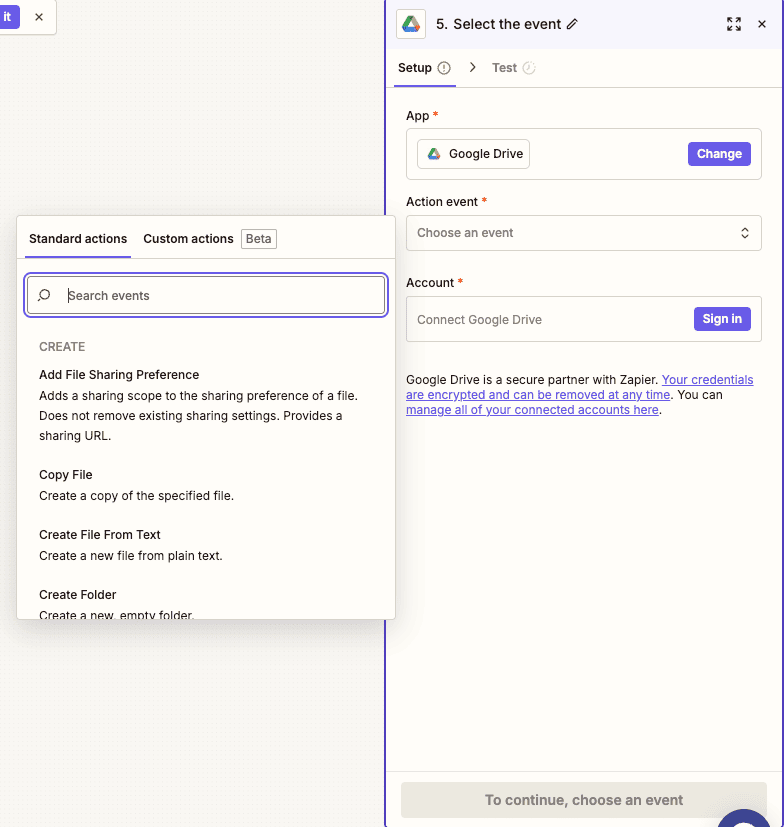
HOW TO CONNECT GOOGLE DRIVE TO ZAPIER?
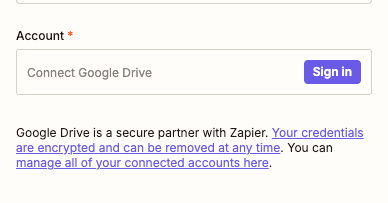
Basic configuration:
- Create a new Zap: Log into your Zapier account and click “Create Zap” to start building your automation.
- Select Google Drive as your app: In the trigger or action step, search for “Google Drive” and select it from the app list.
- Choose your event: Pick the specific trigger or action you want to use (we’ll cover all of them below).
- Connect your account: Click “Sign in” and you’ll be redirected to Google’s authentication page. Log in with your Google credentials and grant Zapier the necessary permissions to access your Drive.
- Select your Drive: If you have access to multiple drives (personal and shared), choose which one the automation should work with.
💡 TIP: If you manage multiple Google accounts (personal and work), be careful which account you’re logged into when connecting. Zapier will authenticate with whichever Google account is currently active in your browser. Consider using an incognito window if you need to connect a specific account that isn’t your default.
GOOGLE DRIVE TRIGGERS AVAILABLE IN ZAPIER
New File
This trigger fires whenever a new file is added to your Google Drive account, making it the foundation for countless automation workflows. Whether someone uploads a document, creates a new spreadsheet, or saves an image, this trigger catches it immediately and kicks off your Zap.
The configuration is straightforward but important to get right. App is pre-set to Google Drive and is required. Trigger event must be set to “New File”—this is what tells Zapier exactly what to watch for. Account lets you select which connected Google Drive account to monitor; if you have multiple accounts linked to Zapier, make sure you choose the correct one.
Typical use cases include: automatically sending new uploaded documents to a Slack channel for team visibility, copying new files to a backup location in another cloud service, extracting text from uploaded PDFs and adding it to a database, or triggering an email notification when specific file types are uploaded.
This trigger is ideal when you need to react to any new file across your entire Drive, regardless of where it’s placed. For more targeted monitoring, consider the “New File in Folder” trigger instead.

New File in Folder
This trigger activates when a new file is uploaded specifically to a designated folder in your Google Drive, offering more precise control than the general “New File” trigger. It’s perfect when you’ve set up organized folder structures and only want automations to fire for specific locations.
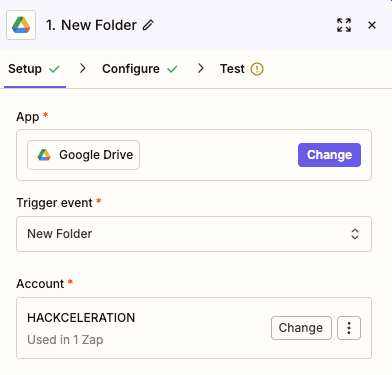
Configuration requires three parameters. App must be Google Drive (required). Trigger event should be set to “New File in Folder” (required)—this tells Zapier to watch a specific location rather than your entire Drive. Account identifies which Google Drive account to use (required), with the ability to switch accounts via the “Change” button.
Typical use cases include: monitoring a “Client Uploads” folder and automatically notifying your team when new files arrive, watching an “Invoices” folder to trigger accounting workflows, tracking a shared folder where team members submit weekly reports, or processing files from a “To Review” folder and moving them to “Reviewed” after action.
Use this trigger when folder organization is central to your workflow. It prevents noise from files uploaded elsewhere and ensures your automations only activate for relevant uploads.
New Folder
This trigger fires when a new folder is created anywhere in your Google Drive account. It’s particularly useful for workflows that depend on folder structures, such as client onboarding processes or project management systems.
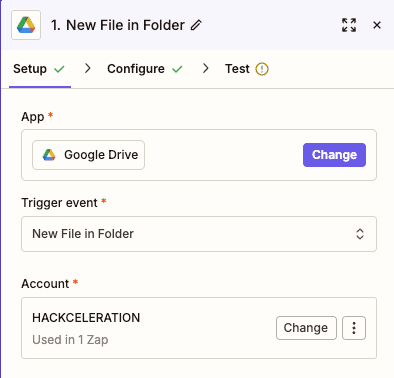
The configuration includes three essential parameters. App is set to Google Drive and accepts a dropdown selection from connected apps (required). Trigger event must be “New Folder” to specify this particular monitoring behavior (required). Account allows you to select which Google Drive account to watch for new folders (required), showing how many Zaps are currently using that account.
Typical use cases include: automatically creating sub-folder templates when a new project folder is created, notifying team members via email or Slack when a new client folder appears, syncing new folder structures to other cloud storage platforms, or updating a project management tool when new project folders are established.
This trigger is best suited for organizations with structured folder hierarchies. If you create folders for each new client, project, or campaign, this trigger lets you automate the subsequent setup steps.
Updated File
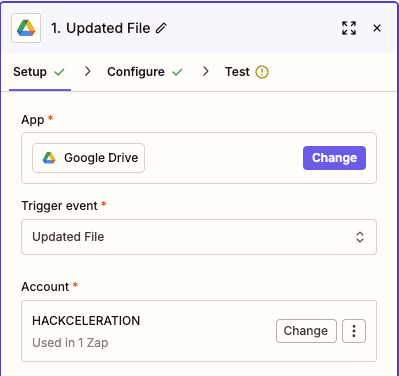
This trigger activates whenever an existing file in your Google Drive is modified, allowing you to track changes and react to updates in real-time. It’s essential for collaborative environments where documents evolve over time.
Configuration involves three parameters. App specifies Google Drive via a dropdown selection (required). Trigger event should be set to “Updated File” (required), which monitors for any modifications to existing files. Account identifies the connected Google Drive account to use (required), selectable from a dropdown of your authenticated accounts.
Typical use cases include: sending notifications when a shared proposal document is edited, creating version snapshots in another system whenever critical files change, triggering approval workflows when draft documents are updated, or logging file changes to a spreadsheet for audit purposes.
This trigger shines in collaborative workflows where multiple people edit documents. Rather than constantly checking for changes manually, your automation handles the monitoring and ensures nothing slips through the cracks.
NEED HELP AUTOMATING GOOGLE DRIVE WITH ZAPIER?
We’ll get back to you in minutes ✔
GOOGLE DRIVE ACTIONS AVAILABLE IN ZAPIER
Move File
This action moves a file from one location to another within your Google Drive, helping you automate file organization without manual drag-and-drop operations.
Key parameters: App: Must be set to Google Drive (required dropdown selection). Action event: Set to “Move File” to specify the operation (required). Account: Select the Google Drive account to execute the move (required).
Use this action to automatically sort incoming files into appropriate folders, archive processed documents, or maintain organized folder structures based on file attributes or workflow stages.

Add File Sharing Preference
This action configures sharing permissions for files in Google Drive, enabling you to automate access control as part of your workflows.
Key parameters: App: Google Drive selection from dropdown (required). Action event: Set to “Add File Sharing Preference” (required). Account: The Google Drive account to use (required).
Perfect for automatically sharing project files with team members when projects kick off, or granting client access to deliverables without manual permission management.

Create Folder
This action creates a new folder in your Google Drive, essential for maintaining organized file structures automatically.
Key parameters: App: Google Drive (required dropdown). Action event: “Create Folder” (required dropdown). Account: The authenticated Google Drive account (required).
Use this to automatically generate client folders when new deals close in your CRM, create project structures when tasks are assigned, or build organized archives based on dates or categories.

Export File
This action exports files from Google Drive to other applications within your Zapier workflow, facilitating file transfers across your tech stack.
Key parameters: App: Google Drive (required). Action event: “Export File” (required). Account: Your connected Google Drive account (required).
Ideal for workflows that need to send Drive files to other platforms, such as attaching documents to emails, uploading to different cloud services, or processing through conversion tools.

Delete File
This action removes a specified file from your Google Drive, moving it to trash. Use with caution but highly effective for cleanup automations.
Key parameters: App: Google Drive (required dropdown). Action event: “Delete File” (required dropdown). Account: The Google Drive account to use (required).
Great for automatically cleaning up temporary files, removing outdated documents after archiving, or maintaining folder hygiene as part of regular workflow processes.

Remove File Permission
This action revokes sharing access from specific files, helping you manage security and access control automatically.
Key parameters: App: Google Drive (required dropdown). Action event: “Remove File Permission” (required). Account: Connected Google Drive account (required).
Use this when projects end and client access should be revoked, when team members leave, or when temporary access periods expire.

Create File From Text
This action generates a new file in Google Drive from text content, perfect for automatically creating documents from form submissions or other data sources.
Key parameters: App: Google Drive (required dropdown). Action event: “Create File From Text” (required). Account: Your Google Drive account (required).
Excellent for generating reports from collected data, creating documentation from form responses, or building files from information gathered across multiple applications.

Delete File (Permanent)
This action permanently deletes a file from Google Drive, bypassing the trash entirely. Use with extreme caution as this cannot be undone.
Key parameters: App: Google Drive (required dropdown). Action event: “Delete File (Permanent)” (required). Account: The connected account (required).
Reserved for situations where files must be completely removed for compliance, security, or storage management reasons, and you’re certain recovery won’t be needed.

Create Shortcut
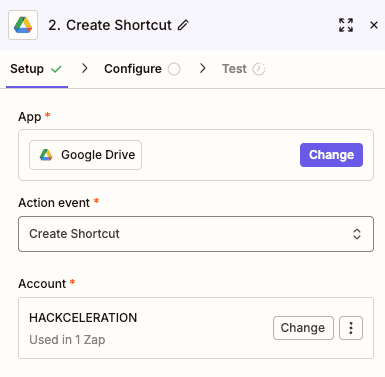
This action creates shortcuts to files or folders within Google Drive, helping users access content from multiple locations without duplication.
Key parameters: App: Google Drive (required dropdown). Action event: “Create Shortcut” (required). Account: Your authenticated account (required).
Useful for making files accessible from multiple folder structures, creating team-wide shortcuts to important resources, or building personalized folder views without duplicating content.
Copy File
This action creates a duplicate of a specified file within Google Drive, useful for templating and backup workflows.
Key parameters: App: Google Drive (required dropdown). Action event: “Copy File” (required dropdown). Account: Connected Google Drive account (required).
Perfect for creating working copies from master templates, generating backups before modifications, or distributing personalized copies of standard documents.

Create Shared Drive
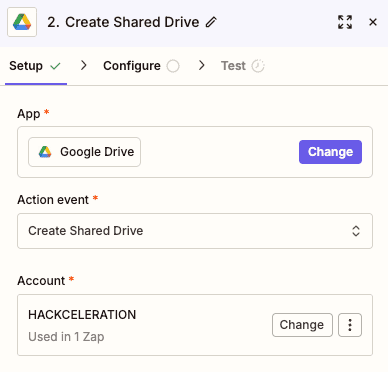
This action creates a new shared drive in Google Drive, enabling automated setup of collaborative spaces for teams or projects.
Key parameters: App: Google Drive (required dropdown). Action event: “Create Shared Drive” (required). Account: An account with permissions to create shared drives (required).
Ideal for automatically provisioning team workspaces when new departments form, projects launch, or organizational structures change.
Update File/Folder Name
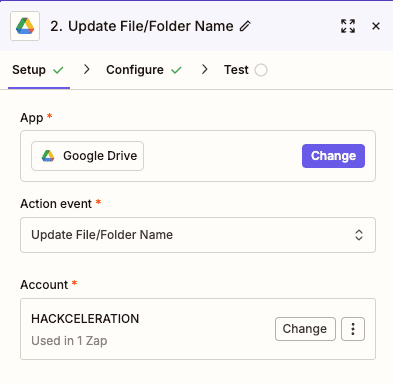
This action renames files or folders in your Google Drive, enabling automated naming conventions and organization.
Key parameters: App: Google Drive (required dropdown). Action event: “Update File/Folder Name” (required dropdown). Account: Your Google Drive account (required).
Use this to standardize file naming across uploads, add timestamps or project codes to files, or maintain consistent naming conventions automatically.
Replace File
This action replaces an existing file in Google Drive with new content while maintaining the same file ID and sharing settings.
Key parameters: App: Google Drive (required dropdown). Action event: “Replace File” (required dropdown). Account: Your connected account (required).
Essential for updating reports, refreshing template documents, or maintaining versioned files where the file link must remain constant.
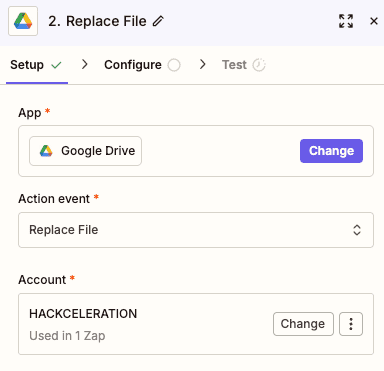
Retrieve File or Folder by ID
This action fetches specific files or folders using their unique Google Drive identifiers, allowing precise targeting in complex workflows.
Key parameters: App: Google Drive (required dropdown). Action event: “Retrieve File or Folder by ID” (required). Account: Your authenticated account (required).
Use when you have file IDs from other systems and need to pull file details, verify existence, or use file data in subsequent workflow steps.
Find a Folder
This action locates a specific folder within your Google Drive account based on search criteria, useful for dynamic workflow targeting.
Key parameters: App: Google Drive (required). Action event: “Find a Folder” (required dropdown). Account: Your Google Drive account (required).
Perfect for workflows that need to find destination folders dynamically, verify folder existence before creating files, or route content based on folder structures.

API Request (Beta)
This action allows direct requests to Google Drive’s API, providing flexibility for advanced use cases not covered by standard actions.
Key parameters: App: Google Drive (required dropdown). Action event: “API Request (Beta)” (required). Account: Your connected account (required).
Reserved for power users who need specific API functionality. Requires understanding of Google Drive’s API documentation but unlocks virtually unlimited possibilities.

Get File Permissions
This action retrieves the current sharing permissions set on a specific file, useful for auditing and conditional workflows.
Key parameters: App: Google Drive (required dropdown). Action event: “Get File Permissions” (required). Account: Connected Google Drive account (required).
Use for security audits, verifying access before sharing, or building conditional workflows based on current permission states.

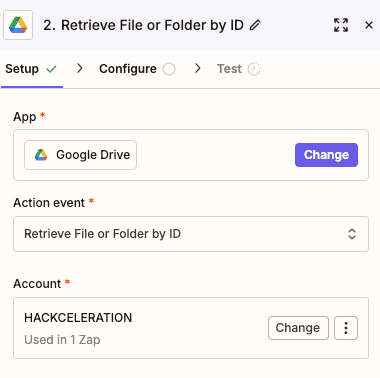
Find a File
This action searches for files in your Google Drive based on criteria you specify, enabling dynamic file targeting in workflows.
Key parameters: App: Google Drive (required dropdown). Action event: “Find a File” (required dropdown). Account: Your connected account (required).
Essential for workflows where file names or locations aren’t known in advance, or when you need to locate files based on properties like name, type, or modification date.
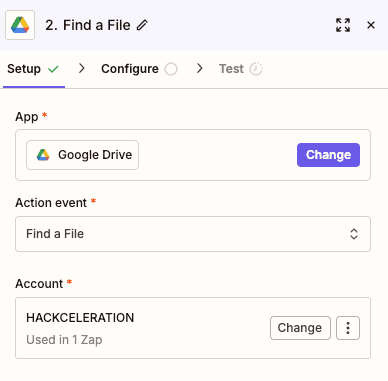
Retrieve Files from Google Drive
This action fetches multiple files from Google Drive based on your configuration, enabling batch operations in your workflows.
Key parameters: App: Google Drive (required dropdown). Action event: “Retrieve Files from Google Drive” (required). Account: Your Google Drive account (required).
Useful for workflows that need to process multiple files, generate reports on Drive contents, or sync batches of files to other systems.

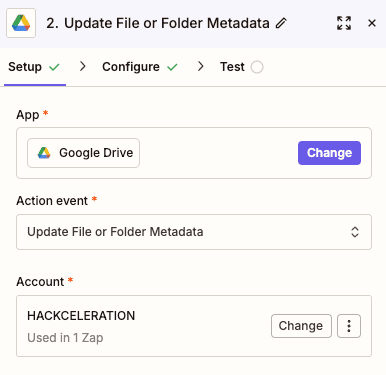
Update File or Folder Metadata
This action modifies metadata properties of files or folders in Google Drive, such as descriptions or custom properties.
Key parameters: App: Google Drive (required dropdown). Action event: “Update File or Folder Metadata” (required). Account: Your linked account (required).
Perfect for adding tracking information to files, updating descriptions based on workflow progress, or maintaining searchable metadata automatically.
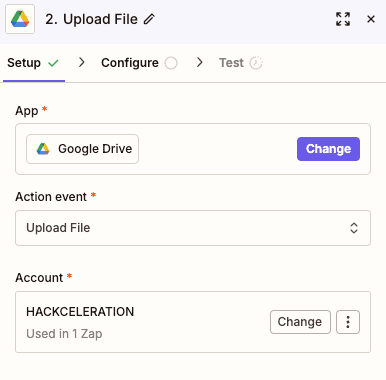
Upload File
This action uploads files to Google Drive from other applications in your Zapier workflow, making Drive the destination for content from across your tech stack.
Key parameters: App: Google Drive (required). Action event: “Upload File” (required). Account: Your Google Drive account (required).
Essential for centralizing files from email attachments, form submissions, other cloud services, or any application that generates files you want stored in Drive.
NEED HELP AUTOMATING GOOGLE DRIVE WITH ZAPIER?
We’ll get back to you in minutes ✔
FREQUENTLY ASKED QUESTIONS ABOUT GOOGLE DRIVE ZAPIER INTEGRATION
Is the Google Drive Zapier integration free?
The Google Drive integration itself is free to use within Zapier, but you'll need a Zapier account to access it. Zapier offers a free tier that includes 100 tasks per month and up to 5 single-step Zaps, which may be sufficient for basic Google Drive automations. However, for multi-step workflows—which are common when working with file management—you'll need a paid Zapier plan. Google Drive is classified as a "Premium" app on some plans, so verify your specific plan includes premium app access. Most professional use cases benefit from Zapier's Starter or Professional plans.
What types of files can I manage through the Google Drive Zapier integration?
The Google Drive Zapier integration works with virtually any file type that Google Drive supports. This includes documents (DOC, DOCX, PDF, TXT), spreadsheets (XLS, XLSX), presentations (PPT, PPTX), images (JPG, PNG, GIF), videos (MP4, MOV), audio files (MP3, WAV), and Google's native formats (Docs, Sheets, Slides). You can trigger workflows when any of these files are added or updated, and actions like upload, copy, move, and delete work across all file types. For Google-native files specifically, the Export File action can convert them to other formats during your workflow.
How quickly does the Google Drive Zapier trigger detect new files?
Zapier checks for new files based on your plan's polling interval. On free plans, Zapier polls every 15 minutes, meaning there could be up to a 15-minute delay between a file upload and your Zap triggering. Paid plans check every 2 minutes for faster response times. If you need instant triggers, you can use Zapier's "Instant" triggers where available or manually run your Zap to test immediately. For most file management workflows, the 2-15 minute delay is acceptable, but time-sensitive processes may require considering the polling frequency in your automation design.