
ACUITY SCHEDULING N8N INTEGRATION: AUTOMATE ACUITY SCHEDULING WITH N8N
Looking to automate Acuity Scheduling with n8n? You’re in the right place. The Acuity Scheduling n8n integration gives you access to 5 powerful triggers that automatically launch your workflows whenever something happens in your scheduling platform—no manual intervention required.
Whether you run a coaching practice, a consulting firm, or any appointment-based business, this integration lets you react instantly to new bookings, cancellations, reschedules, and completed orders. Imagine automatically sending a personalized SMS when a client books, updating your CRM when an appointment changes, or triggering a follow-up sequence the moment an order completes.
In this guide, you’ll discover exactly how to connect Acuity Scheduling to n8n, explore each available trigger in detail, and learn practical use cases to streamline your scheduling operations.


n8n Acuity Scheduling Workflow: demonstration of an automation connecting Acuity Scheduling to other applications via n8n. This video illustrates how Acuity Scheduling triggers integrate into an n8n workflow to automate your processes without code.
WHY AUTOMATE ACUITY SCHEDULING WITH N8N?
The Acuity Scheduling n8n integration gives you access to 5 event-based triggers that monitor your scheduling activity around the clock. These triggers cover the complete appointment lifecycle: new bookings, changes, reschedules, cancellations, and order completions. This means every critical moment in your client journey can automatically kick off a tailored workflow.
Significant time savings come from eliminating repetitive tasks. Instead of manually checking for new appointments and copying data into your CRM, email tool, or project management system, n8n handles it instantly. You reclaim hours every week—time better spent on actual client work. Improved responsiveness means your clients receive confirmation emails, reminder texts, or onboarding materials within seconds of booking, not hours later when you finally check your calendar.
Zero oversight is perhaps the biggest win. Triggers monitor Acuity 24/7, so even bookings made at 2 AM on a Sunday get processed immediately. Every canceled appointment triggers your refund workflow. Every rescheduled meeting updates your team’s calendar. Nothing slips through the cracks.
Here’s what you can build: automatically add new clients to HubSpot when they book their first session, send Slack notifications to your team when appointments change, trigger SMS reminders via Twilio 24 hours before each meeting, update Google Sheets with daily booking reports, or initiate onboarding sequences in your email platform when orders complete.

HOW TO CONNECT ACUITY SCHEDULING TO N8N?
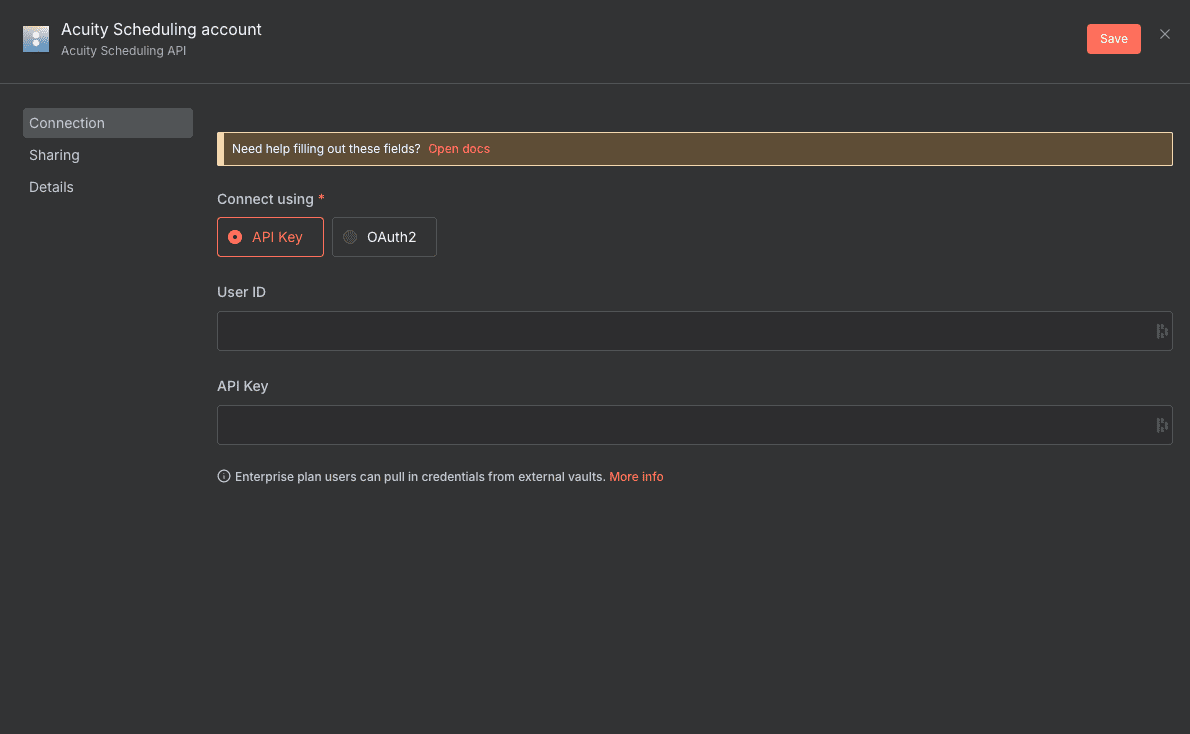
The Acuity Scheduling n8n integration uses API credentials for authentication. You’ll need your User ID and API Key from your Acuity account to establish the connection.
Basic configuration:
- Access your Acuity Scheduling account: Log in to Acuity Scheduling and navigate to Integrations → API in your account settings. This is where you’ll find your API credentials.
- Copy your credentials: Locate your User ID and API Key on the API page. Keep these handy—you’ll need them in the next step.
- Create credentials in n8n: In your n8n instance, go to Credentials → New → Acuity Scheduling API. Paste your User ID and API Key into the corresponding fields.
- Test the connection: Save your credentials and add an Acuity Scheduling trigger to a new workflow. Select your newly created credentials from the dropdown. If everything is configured correctly, n8n will connect without errors.
- Activate your workflow: Once connected, configure your trigger event and toggle the workflow to active. Your automation is now live.
💡 TIP: Create a dedicated API credential for n8n rather than using your main account’s key. This way, if you ever need to revoke access, you can do so without affecting other integrations. It’s also easier to track API usage and troubleshoot issues when each integration has its own credentials.
AVAILABLE TRIGGERS IN ACUITY SCHEDULING
Appointment Scheduled Trigger
This trigger fires the moment a new appointment is booked in your Acuity Scheduling calendar. It’s the foundation of most scheduling automations—capturing new bookings as they happen so you can immediately act on them. Whether you want to send a welcome email, add the client to your CRM, or notify your team, this trigger makes it possible in real-time.
Configuration parameters:
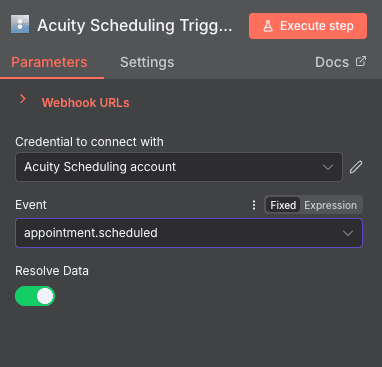
- Credential to connect with: Select your Acuity Scheduling account from the dropdown menu. This establishes the authenticated connection between n8n and your calendar. This parameter is required.
- Event: Fixed to
appointment.scheduled, meaning the trigger activates exclusively when new appointments are created. This parameter is required. - Resolve Data: An optional toggle that, when enabled, enriches the webhook payload with additional appointment details. This makes the data more accessible for subsequent workflow steps.
Typical use cases: Automatically create a new contact in HubSpot or Salesforce when a first-time client books, send a personalized confirmation email via SendGrid or Mailchimp with meeting details, post a notification to a Slack channel so your team knows a new booking came in, or add the appointment to a Google Sheet for reporting and analytics.
When to use it: This is your go-to trigger for any automation that should happen immediately after someone books. It’s essential for client onboarding sequences, team notifications, and keeping your CRM synchronized with your calendar.
Appointment Changed Trigger
This trigger activates whenever an existing appointment is modified in any way—time changes, service updates, client information edits, or any other alteration. It ensures your connected systems stay perfectly synchronized even when appointments evolve after the initial booking.
Configuration parameters:
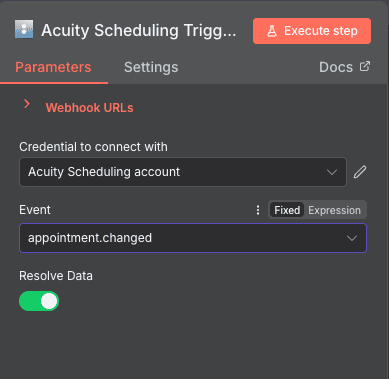
- Credential to connect with: A dropdown menu to select your authenticated Acuity Scheduling account. This is required for the trigger to function.
- Event: Fixed to
appointment.changed, so the automation only fires when modifications occur to existing appointments. This parameter is required. - Resolve Data: An optional toggle switch. When enabled, the trigger resolves comprehensive appointment data, making all updated fields easily accessible in subsequent workflow nodes.
Typical use cases: Update the corresponding event in Google Calendar when appointment details change, send an automated notification to your team via Slack or email about the modification, sync updated client information to your CRM record, or log all changes to a Google Sheet for audit purposes.
When to use it: Deploy this trigger whenever you need downstream systems to reflect appointment modifications. It’s particularly valuable for keeping calendars synchronized, maintaining accurate CRM records, and ensuring your team always has current information.
Appointment Rescheduled Trigger
This trigger specifically monitors for rescheduled appointments—when a client or you move a booking to a different time slot. Rescheduling is a distinct event from general changes, and this trigger lets you handle it with tailored automations that acknowledge the time shift explicitly.
Configuration parameters:
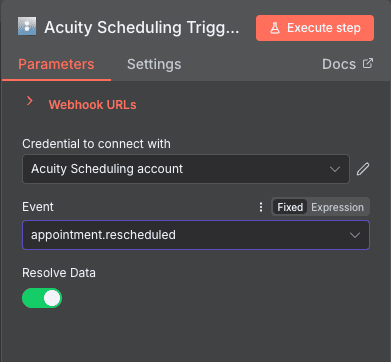
- Credential to connect with: Select your Acuity Scheduling account credentials from the dropdown. This establishes the API connection and is required.
- Event: Set to
appointment.rescheduled, the trigger responds exclusively to time-based modifications. This parameter is required. - Resolve Data: A boolean toggle that, when enabled, processes incoming data into a more structured format. This makes rescheduling details (old time, new time) more accessible. This parameter is optional.
Typical use cases: Send a rescheduling confirmation email with the new date and time clearly highlighted, update your Google Calendar or Outlook calendar with the revised timing, trigger an SMS reminder via Twilio with the updated appointment details, or notify team members who need to adjust their schedules accordingly.
When to use it: Use this trigger when rescheduling requires distinct handling from other appointment changes. It’s ideal for sending time-specific communications, updating calendars, and ensuring everyone involved knows the new timing.
Appointment Canceled Trigger
This trigger fires whenever an appointment is canceled, whether by the client or by you. Cancellations often require immediate action—refund processing, calendar updates, waitlist notifications, or follow-up outreach to reschedule. This trigger ensures nothing gets missed when bookings fall through.
Configuration parameters:
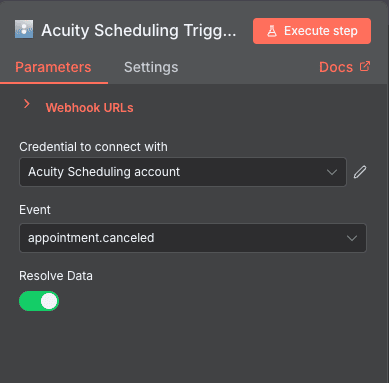
- Credential to connect with: A dropdown menu for selecting your Acuity Scheduling account. Authentication is required for the trigger to work.
- Event: Fixed to
appointment.canceled, the trigger activates exclusively on cancellation events. This parameter is required. - Resolve Data: An optional toggle that, when enabled, parses and structures the incoming webhook data. This makes cancellation details easier to work with in subsequent automation steps.
Typical use cases: Automatically initiate a refund workflow in Stripe when paid appointments are canceled, send a follow-up email offering to reschedule at a convenient time, notify your waitlist that a slot has opened up, update your CRM to reflect the cancellation and log the reason if provided, or remove the event from connected calendars.
When to use it: Essential for any business that needs to act quickly on cancellations. Whether you’re processing refunds, filling empty slots from a waitlist, or simply keeping records accurate, this trigger provides the real-time notification you need.
Order Completed Trigger
This trigger activates when an order is completed in Acuity Scheduling—typically associated with package purchases, product sales, or completed payment transactions tied to appointments. It’s your signal that a financial transaction has finalized, making it perfect for post-purchase automations.
Configuration parameters:
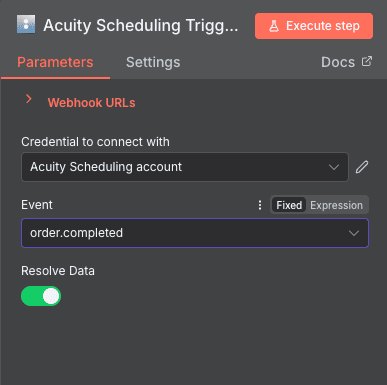
- Credential to connect with: Select your pre-configured Acuity Scheduling credentials from the dropdown. This is required to authenticate the trigger.
- Event: Fixed to
order.completed, meaning the trigger fires specifically when orders reach completion status. This parameter is required. - Resolve Data: A toggle switch to determine whether incoming data should be resolved before passing to subsequent nodes. When enabled, it provides more detailed, structured order information. This parameter is optional.
Typical use cases: Send a thank-you email with receipt and next steps after purchase, trigger an onboarding sequence in your email marketing platform, update your accounting software or Google Sheet with the sale details, grant access to a course or membership area after package purchase, or notify your fulfillment team about completed orders.
When to use it: Deploy this trigger for any automation that should follow a completed purchase. It’s particularly powerful for delivering digital products, initiating customer onboarding, updating financial records, and triggering post-sale nurture sequences.
NEED HELP AUTOMATING ACUITY SCHEDULING WITH N8N?
We’ll get back to you in minutes ✔
FREQUENTLY ASKED QUESTIONS ABOUT ACUITY SCHEDULING N8N INTEGRATION
Is the Acuity Scheduling n8n integration free to use?
The integration itself is completely free—n8n is open-source, and connecting Acuity Scheduling doesn't require any additional payment beyond your existing Acuity subscription. You can self-host n8n at no cost, or use n8n Cloud which offers a free tier with limited executions. Your Acuity Scheduling plan must include API access, which is available on most paid tiers. There are no per-trigger fees or hidden costs for using the Acuity Scheduling triggers in your workflows.
What appointment data can I access through Acuity Scheduling triggers in n8n?
When a trigger fires, you receive comprehensive appointment data including client name, email, phone number, appointment type, scheduled date and time, duration, any custom field responses, payment information, and calendar details. Enabling the "Resolve Data" toggle enriches this payload with additional structured information. You can use this data in subsequent workflow nodes to personalize emails, update CRM records, populate spreadsheets, or feed into any other connected application.
How quickly do Acuity Scheduling triggers fire in n8n after an event occurs?
Triggers fire in near real-time—typically within seconds of the event occurring in Acuity Scheduling. The integration uses webhooks, which means Acuity pushes notifications to n8n immediately when appointments are scheduled, changed, rescheduled, canceled, or when orders complete. Your workflow executes almost instantly after the triggering event, ensuring timely responses like confirmation emails or team notifications reach their destinations without delay.