
AIRTABLE N8N INTEGRATION: AUTOMATE AIRTABLE WITH N8N
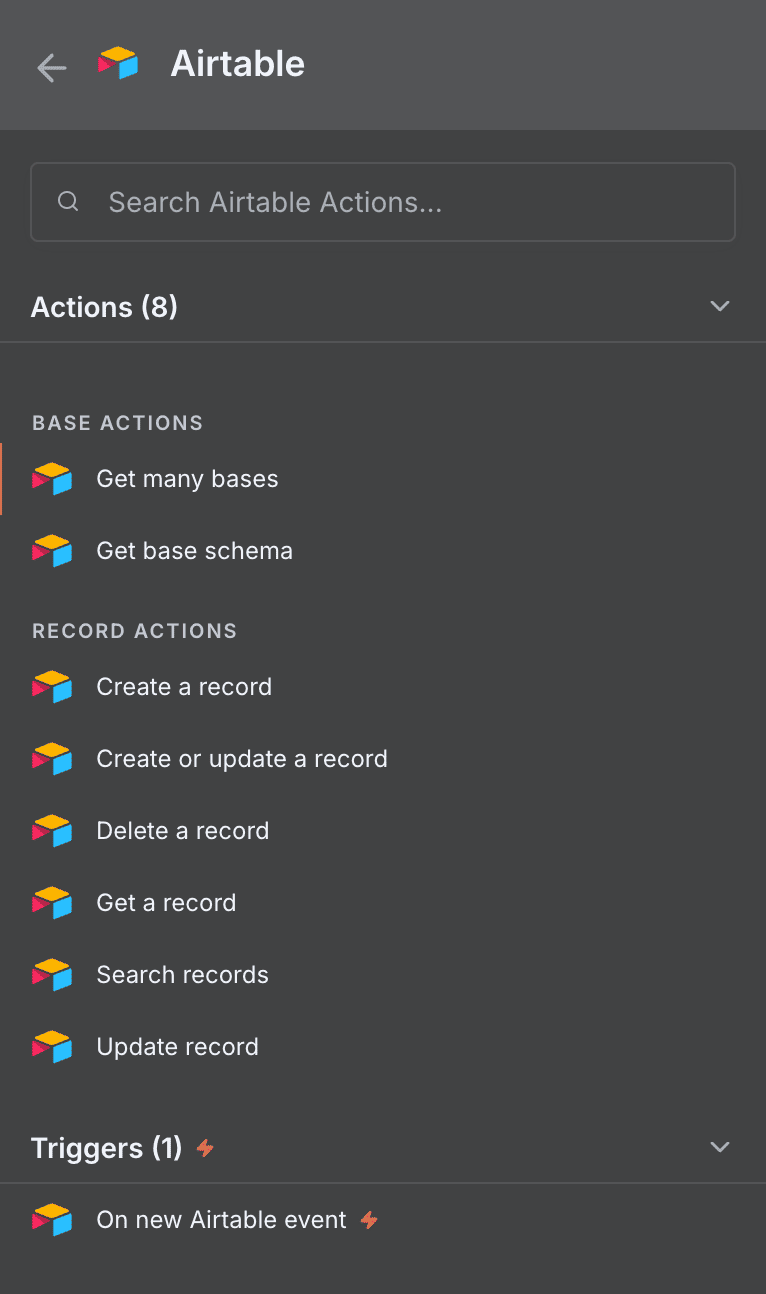
Looking to automate Airtable with n8n? You’re in the right place. The Airtable n8n integration gives you access to 1 powerful trigger and 8 versatile actions to build sophisticated automations without writing a single line of code.
Whether you need to sync data between Airtable and other tools, automatically create records when events occur elsewhere, or trigger complex workflows whenever your Airtable base changes, this integration has you covered. From retrieving base schemas to searching, creating, updating, and deleting records, you can orchestrate your entire data workflow directly within n8n.
In this guide, we’ll walk you through everything: connecting your Airtable account, understanding each trigger and action in detail, and discovering practical use cases to supercharge your productivity.


n8n Airtable Workflow: demonstration of an automation connecting Airtable to other applications via n8n. This video illustrates how Airtable triggers and actions integrate into a n8n workflow to automate your processes without code.
WHY AUTOMATE AIRTABLE WITH N8N?
The Airtable n8n integration opens up 1 trigger and 8 actions that let you build powerful, hands-free automations. Instead of manually checking your bases for updates or copying data between applications, you can set up workflows that handle everything automatically—24 hours a day, 7 days a week.
The benefits are substantial. Time savings come first: no more tedious copy-paste sessions between Airtable and your CRM, email platform, or project management tool. Set up your automation once, and let n8n handle the repetitive work. Improved responsiveness is another major advantage. The Airtable Trigger monitors your tables and fires your workflow the moment something changes—new records, updates, or any field modification you specify. Zero oversight means every single change gets caught. No more “I forgot to update the spreadsheet” moments. And with n8n’s ability to connect Airtable to hundreds of other applications, your data flows seamlessly across your entire tech stack.
Concrete examples? Automatically add new Airtable records to your email marketing list. Sync inventory changes to your e-commerce platform in real-time. Send Slack notifications whenever a specific status field changes. Create invoices in your accounting software when deals close. The possibilities are virtually endless.
HOW TO CONNECT AIRTABLE TO N8N?

Basic configuration:
- Generate your token in Airtable: Navigate to your Airtable account settings, find the “Developer hub” section, and create a new Personal Access Token. Make sure to grant it the necessary scopes (data.records:read, data.records:write, schema.bases:read) based on what your workflows need.
- Open n8n and add credentials: In your n8n instance, go to Credentials → Add Credential → Search for “Airtable Personal Access Token” and select it.
- Paste your token: Copy the Personal Access Token you generated and paste it into the credential configuration field in n8n.
- Test the connection: Click “Save” and then test by adding an Airtable node to a workflow. If your bases appear in the dropdown, you’re all set.
- Start building: Your Airtable credential is now ready to use across all your n8n workflows.
💡 TIP: Create a dedicated Personal Access Token specifically for n8n with only the permissions your automations need. This follows the principle of least privilege and makes it easier to revoke access later if needed—without affecting other integrations.
AIRTABLE TRIGGERS AVAILABLE IN N8N
Airtable Trigger
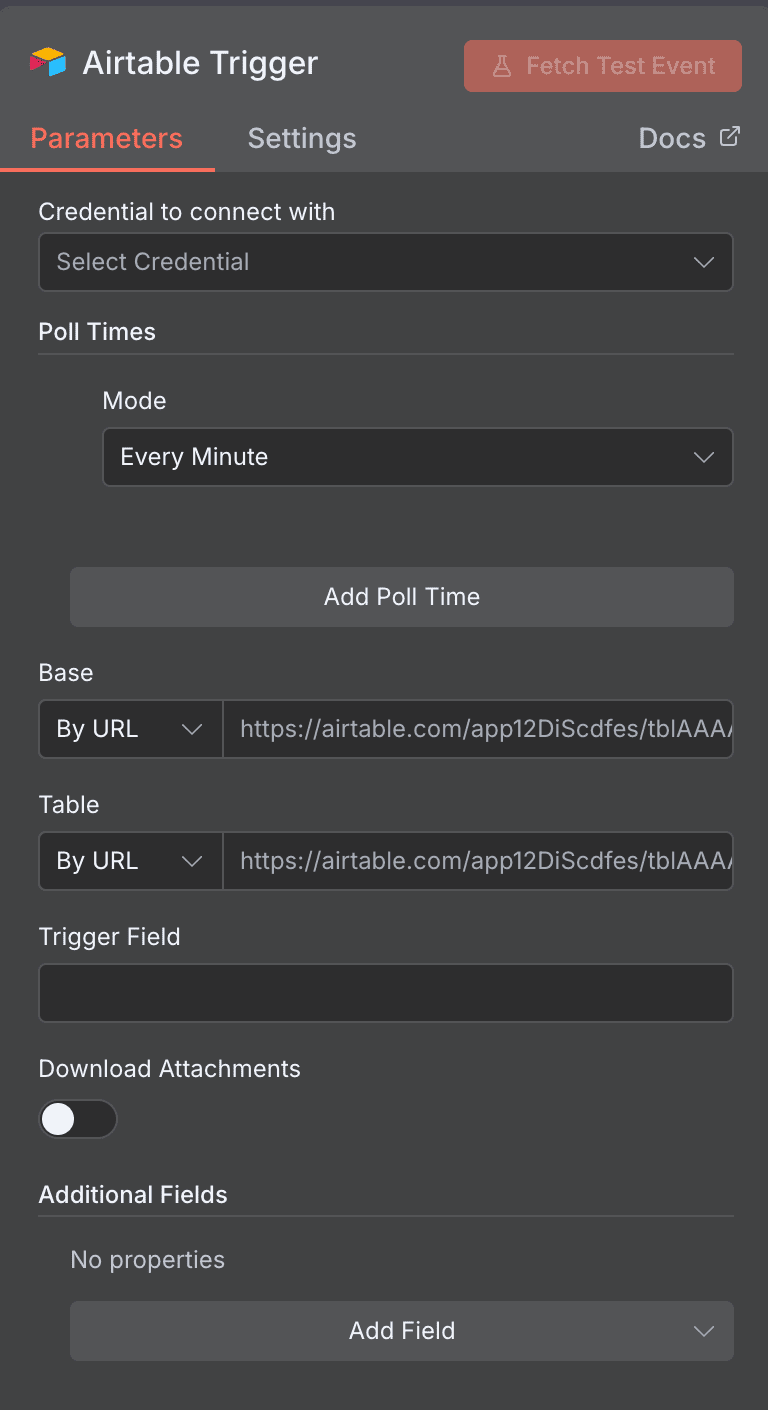
The Airtable Trigger is your gateway to event-driven automation. It continuously monitors a specified table in your Airtable base and fires your workflow whenever changes occur. This is incredibly powerful for building reactive systems—think of it as having a vigilant assistant watching your data around the clock, ready to take action the moment something happens.
Configuration parameters:
- Credential to connect with: Select your Airtable Personal Access Token from the dropdown. This is required to establish the connection.
- Poll Times: Configure how frequently n8n checks for changes. You can set intervals like “Every Minute” or customize based on your needs. More frequent polling catches changes faster but uses more execution cycles.
- Base: Specify which Airtable base to monitor. Input this by URL—simply paste the link to your base. This is required.
- Table: Select the specific table within your base. Also input by URL pointing to the desired table. Required.
- Trigger Field: An optional text field where you can specify a particular column that determines when the trigger fires. Useful for watching specific status changes or date fields.
- Download Attachments: A toggle switch (off by default) that lets you automatically download any attachments from triggered records. Handy when you need to process files downstream.
- Additional Fields: An expandable section for adding custom fields to enhance your automation’s functionality.
Typical use cases:
- Trigger a Slack notification whenever a new lead is added to your CRM table
- Automatically send welcome emails when someone fills out your Airtable form
- Sync new product entries to your e-commerce platform instantly
- Create calendar events when project deadlines are updated
When to use it: The Airtable Trigger is ideal whenever you need real-time (or near-real-time) reactions to data changes. If your workflow should respond to events in Airtable rather than running on a fixed schedule, this trigger is your go-to choice.
NEED HELP AUTOMATING AIRTABLE WITH N8N?
We’ll get back to you in minutes ✔
AIRTABLE ACTIONS AVAILABLE IN N8N
Get base schema
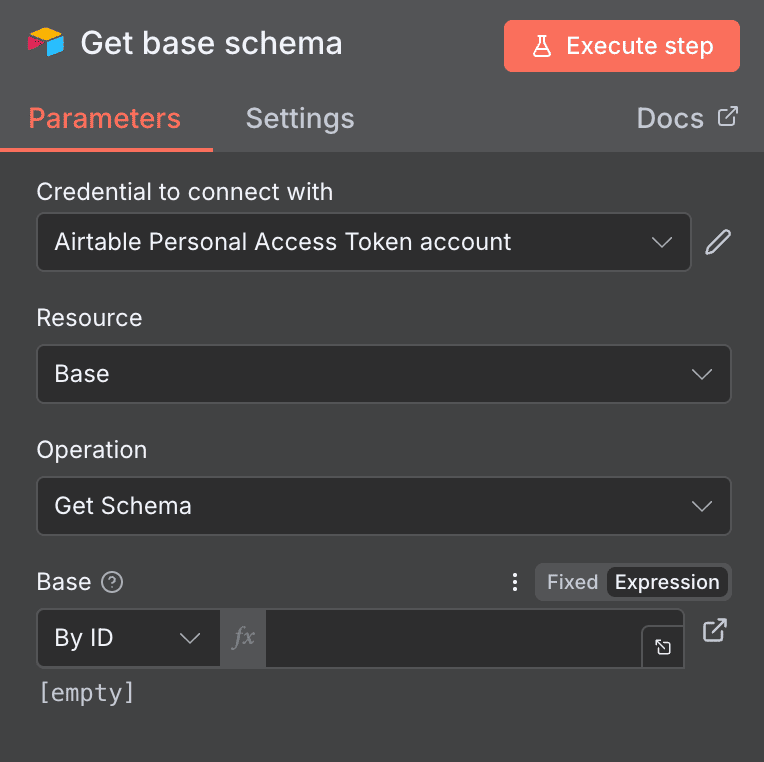
This action retrieves the complete schema of a specified Airtable base, giving you programmatic access to its structure—tables, fields, and their configurations. It’s particularly useful when you need to understand a base’s architecture before performing other operations or when building dynamic workflows that adapt to different base structures.
Key parameters:
- Credential to connect with: Select your Airtable Personal Access Token. Required.
- Resource: Fixed to “Base”—this action specifically works with base-level data.
- Operation: Fixed to “Get Schema”.
- Base: Select the base by ID from a dropdown, or use an expression for dynamic selection. Optional but necessary to specify which base’s schema you want.
Use cases:
- Validate that expected tables and fields exist before running data operations
- Build dynamic forms that adapt to Airtable’s structure
- Document your base architecture automatically for team reference
Get many bases
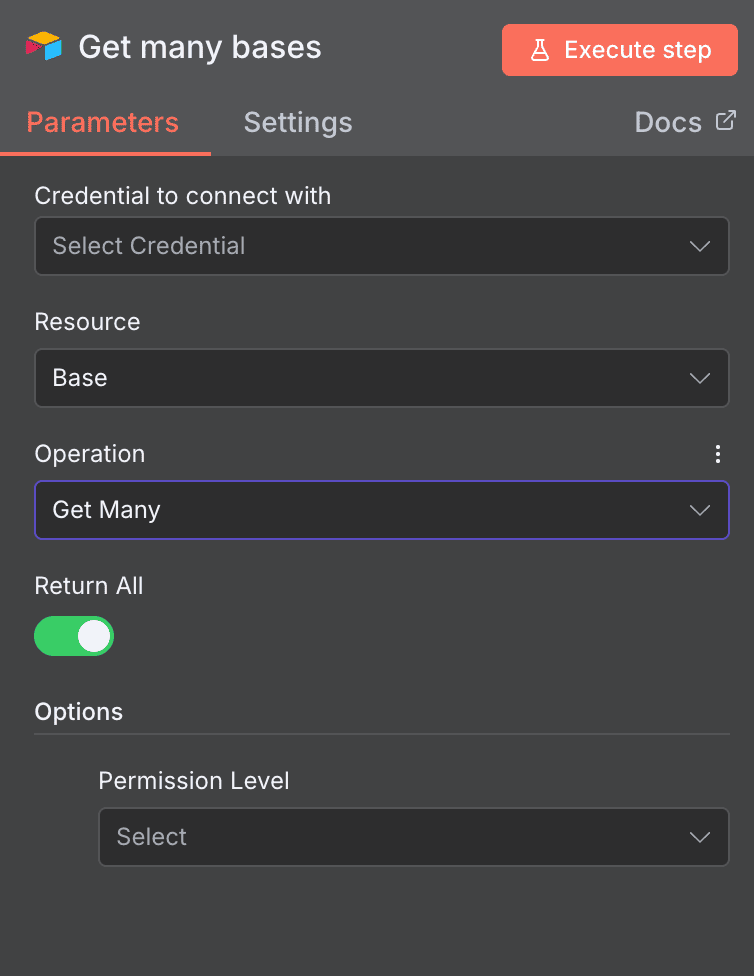
Need to work with multiple Airtable bases or list all bases accessible to your account? This action retrieves information about multiple bases at once, making it perfect for account-wide operations or building base selection interfaces.
Key parameters:
- Credential to connect with: Your Airtable Personal Access Token. Required.
- Resource: Set to “Base”. Required.
- Operation: Fixed to “Get Many”.
- Return All: A toggle switch—when enabled, retrieves all available bases instead of a limited subset. Optional.
- Permission Level: Dropdown to filter bases by permission level (e.g., only bases you can edit). Optional.
Use cases:
- Build a dashboard showing all your organization’s Airtable bases
- Create a base selection step in multi-base workflows
- Audit which bases exist under your account for compliance purposes
Get a record
This action fetches a single, specific record from your Airtable base when you know its unique Record ID. It’s the most efficient way to retrieve detailed information about one particular entry—perfect for lookup operations or when processing items one at a time.
Key parameters:
- Credential to connect with: Your Airtable Personal Access Token. Required.
- Resource: Fixed to “Record”.
- Operation: Fixed to “Get”.
- Base: Select the base by ID. Required.
- Table: Select the table by ID. Required.
- Record ID: Enter the specific Airtable Record ID (starts with “rec”). Required.
- Options: Additional configuration options available for advanced use cases.
Use cases:
- Fetch customer details when processing an order
- Retrieve project information when triggered by an external event
- Look up product data for inventory checks

Create or update a record
This versatile action handles both creation and updates in a single node—commonly called an “upsert” operation. It checks if a record matching your criteria exists; if so, it updates that record. If not, it creates a new one. This is invaluable for maintaining synchronized, deduplicated data.
Key parameters:
- Credential to connect with: Your Airtable Personal Access Token. Required.
- Resource: Set to “Record”. Required.
- Operation: Set to “Create or update”. Required.
- Base: Select by ID. Required.
- Table: Select by ID. Required.
- Mapping Column Mode: Determines how incoming data fields map to Airtable columns. “Map Automatically” assumes field names match column names exactly. Optional but important for data accuracy.
- Options: Additional configurations as needed.
Use cases:
- Sync contacts from your CRM—create new ones, update existing ones
- Maintain inventory counts that update or create as products come in
- Keep customer records current across multiple data sources

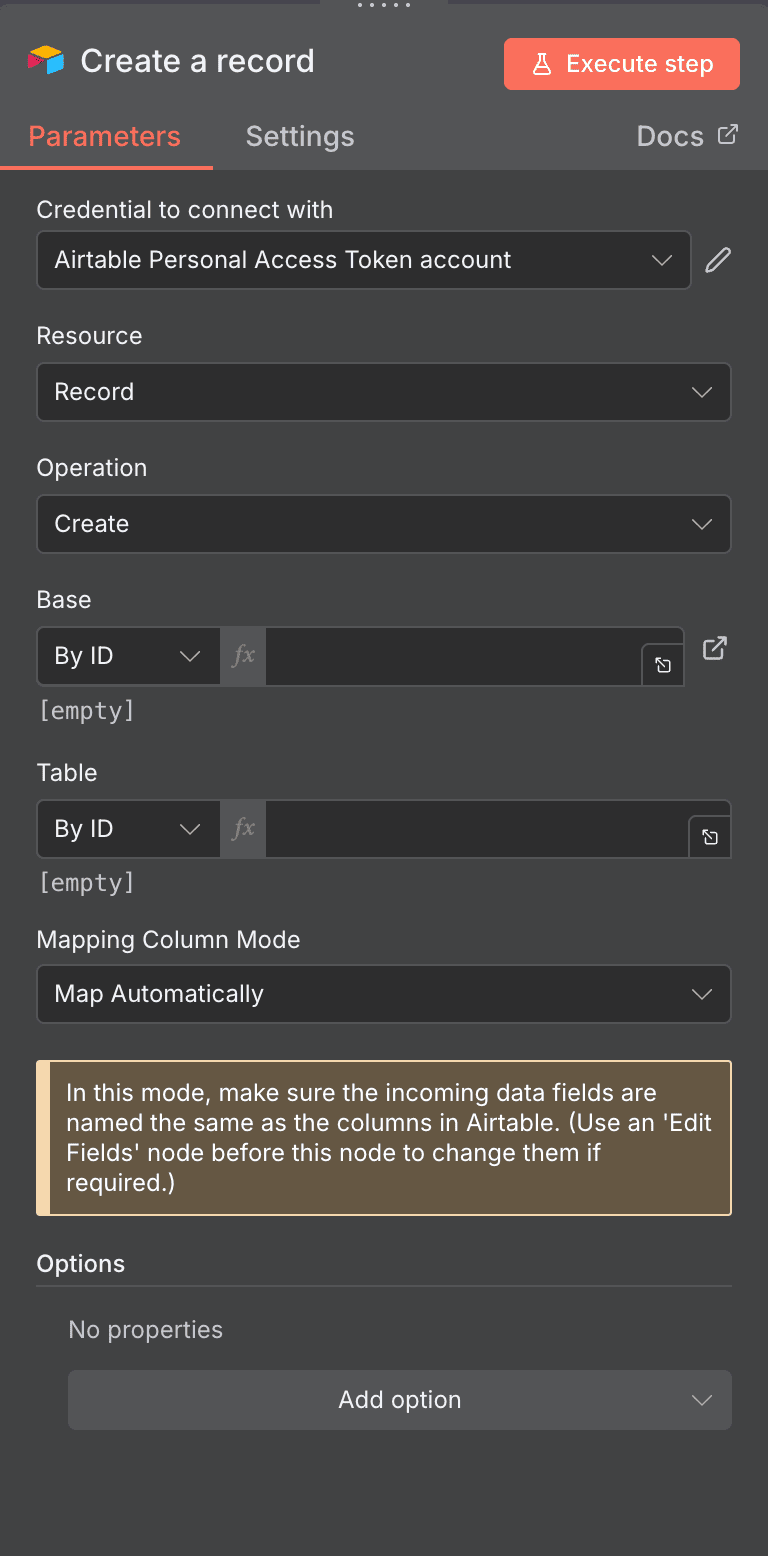
Create a record
The straightforward choice when you simply need to add new records to your Airtable base. This action creates a fresh entry every time it runs—no checking for duplicates, no updates. Fast and simple for pure insert operations.
Key parameters:
- Credential to connect with: Your Airtable Personal Access Token. Required.
- Resource: Fixed to “Record”.
- Operation: Fixed to “Create”.
- Base: Select by ID. Required.
- Table: Select by ID. Required.
- Mapping Column Mode: Choose “Map Automatically” (default) if your incoming data field names match your Airtable column names. Otherwise, configure manual mapping. A tip: use an “Edit Fields” node beforehand to ensure proper naming.
- Options: Additional settings for customization.
Use cases:
- Log form submissions as new Airtable records
- Create task entries from incoming emails
- Add new leads from webhook data
Delete a record
When you need to remove records programmatically, this action permanently deletes a specific entry based on its Record ID. Use with appropriate caution—deleted Airtable records cannot be recovered through the API.
Key parameters:
- Credential to connect with: Your Airtable Personal Access Token. Required.
- Resource: Set to “Record”. Optional (typically pre-configured).
- Operation: Set to “Delete”. Optional (typically pre-configured).
- Base: Select by ID. Required.
- Table: Select by ID. Required.
- Record ID: The unique identifier of the record to delete. Required.
Use cases:
- Remove canceled orders from your tracking table
- Clean up test data automatically after workflow testing
- Delete archived items past their retention period

Search records
Need to find records matching specific criteria? The Search action queries your Airtable table and returns all records that match your filter formula. It’s essential for workflows that need to process subsets of data based on conditions.
Key parameters:
- Credential to connect with: Your Airtable Personal Access Token. Required.
- Resource: Set to “Record”.
- Operation: Set to “Search”.
- Base: Select by ID. Required.
- Table: Select by ID. Required.
- Filter By Formula: An optional text field where you define Airtable formula syntax to filter results. Leave empty to return all records. Example:
{Status} = "Active". - Return All: Toggle to retrieve all matching records or limit the result set. Enabled by default.
- Options: Additional configuration possibilities.
- Sort: Add sorting rules to order your results.
Use cases:
- Find all orders with “Pending” status for batch processing
- Retrieve contacts tagged for a specific marketing campaign
- List overdue tasks for reminder notifications

Update record
When you need to modify an existing record and you already know its Record ID, this action updates the specified entry with new values. Unlike “Create or update,” this action purely updates—it won’t create anything new if the record doesn’t exist.
Key parameters:
- Credential to connect with: Your Airtable Personal Access Token. Required.
- Resource: Fixed to “Record”.
- Operation: Fixed to “Update”.
- Base: Select by ID. Required.
- Table: Select by ID. Required.
- Mapping Column Mode: Choose how fields map to columns. “Map Automatically” is the default, assuming matching names between your data and Airtable columns. Optional.
- Options: Additional customization possibilities.
Use cases:
- Update order status after payment confirmation
- Mark tasks as complete when triggered by another system
- Refresh contact information from external data sources

NEED HELP AUTOMATING AIRTABLE WITH N8N?
We’ll get back to you in minutes ✔
FREQUENTLY ASKED QUESTIONS ABOUT AIRTABLE N8N INTEGRATION
Is the Airtable n8n integration free?
The integration itself is completely free to use—n8n is open-source, so there's no additional cost for connecting Airtable. However, you'll need to consider two factors: your Airtable plan (free tier has API rate limits of 5 requests per second) and your n8n hosting. If you self-host n8n, you only pay for server costs. If you use n8n Cloud, pricing depends on your execution volume. For most small to medium automation needs, the free tiers of both services work perfectly well together.
What data can I sync between Airtable and n8n?
You can sync virtually any data stored in your Airtable bases. This includes all standard field types: text, numbers, dates, checkboxes, single/multi-select options, attachments, and linked records. The trigger captures changes across all fields, while actions let you read, create, update, and delete records. You can also retrieve base schemas to understand your data structure programmatically. With the "Download Attachments" option in the trigger, even files stored in Airtable can flow through your workflows.
How long does it take to set up the Airtable n8n integration?
Most users complete the setup in under 10 minutes. Generating your Personal Access Token in Airtable takes about 2-3 minutes. Adding the credential in n8n takes another minute. From there, dragging in an Airtable node and configuring your first workflow is straightforward—the interface guides you through selecting your base and table. If you're already familiar with automation platforms like Make, you could have a working automation running in as little as 5 minutes from start to finish.