
GOOGLE SHEET N8N INTEGRATION: AUTOMATE GOOGLE SHEET WITH N8N
Looking to automate Google Sheet with n8n? You’re in the right place. The Google Sheet n8n integration gives you access to 3 triggers and 10 actions to build powerful automations that eliminate manual data entry and keep your spreadsheets synchronized with all your other tools.
Whether you need to automatically capture form submissions, sync CRM data, update inventory counts, or trigger notifications when specific rows change, this integration turns Google Sheets into the central nervous system of your workflows. Connect your spreadsheets to hundreds of other applications and let n8n handle the repetitive work while you focus on what actually matters.
In this guide, you’ll discover exactly how to connect Google Sheet to n8n, explore every available trigger and action in detail, and learn practical tips to get your automations running smoothly from day one.


n8n Google Sheet Workflow: demonstration of an automation connecting Google Sheet to other applications via n8n. This video illustrates how Google Sheet triggers and actions integrate into a n8n workflow to automate your processes without code.
WHY AUTOMATE GOOGLE SHEET WITH N8N?
The Google Sheet n8n integration gives you access to 3 triggers and 10 actions that cover virtually every spreadsheet automation scenario you can imagine. From monitoring new rows and updates to creating entire spreadsheets programmatically, you have complete control over your data workflows without writing complex scripts or managing clunky add-ons.
Significant time savings: No more copying and pasting data between applications. Set up smart rules that automatically append rows when leads come in from your website, update customer records when CRM data changes, or populate spreadsheets from API responses. What used to take hours of manual work now happens in milliseconds, running 24/7 without your intervention.
Improved responsiveness: Triggers monitor your spreadsheets constantly and fire your workflow the instant something changes. Every new row, every update, every modification immediately triggers downstream actions—sending notifications, updating databases, or kicking off entire business processes before you’d even notice the change manually.
Zero oversight with seamless integration: Connect Google Sheet to over 400+ applications in n8n’s ecosystem. Sync Airtable records to Sheets, push HubSpot contacts into spreadsheets, generate reports from Stripe transactions, or feed spreadsheet data into Slack channels. The possibilities are genuinely endless when your spreadsheets become active participants in your automation infrastructure.

HOW TO CONNECT GOOGLE SHEET TO N8N?
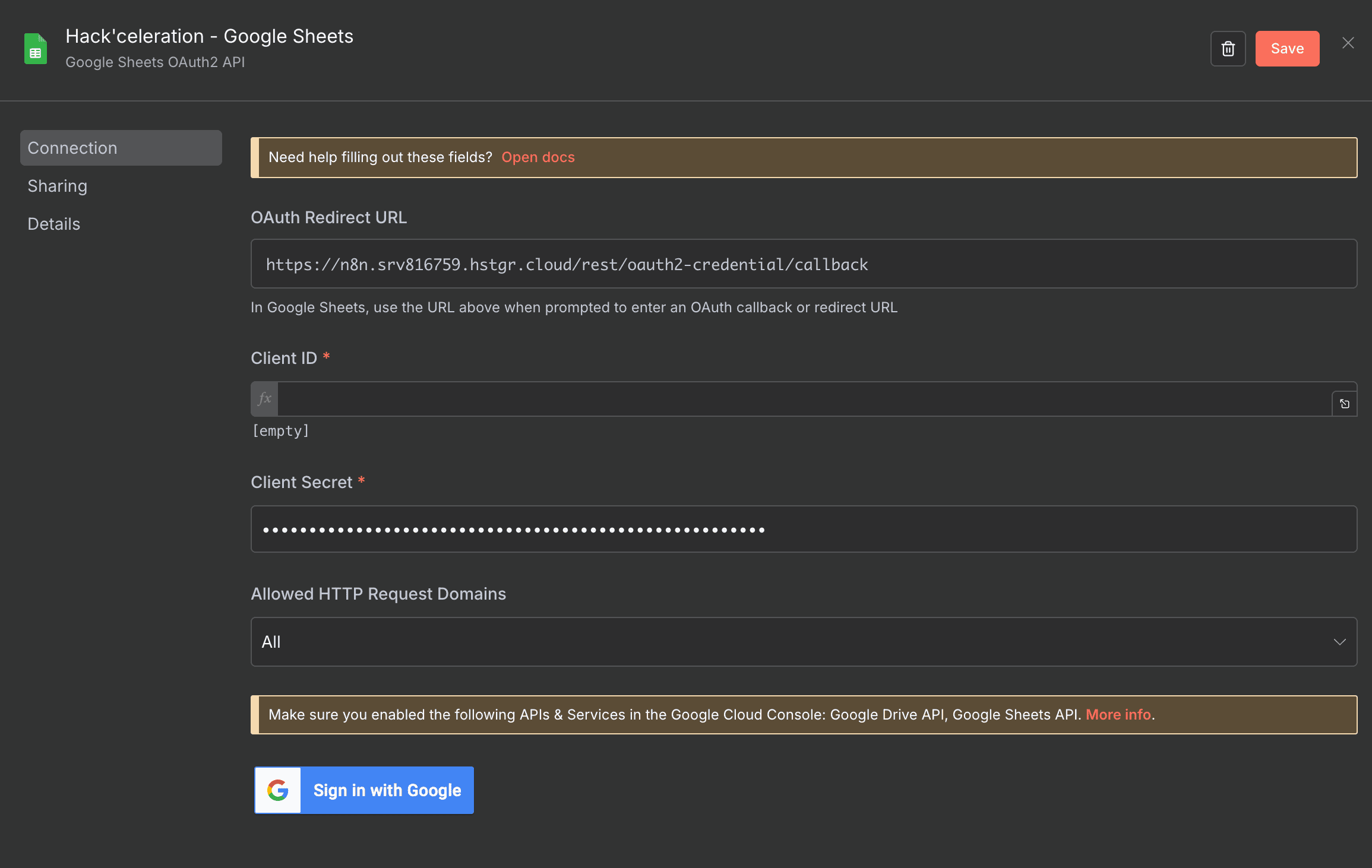
Basic configuration:
- Open the credentials panel: In your n8n workflow, add a Google Sheets node and click on “Credential to connect with” dropdown, then select “Create New Credential.”
- Choose OAuth2 authentication: Select the OAuth2 option to initiate the secure connection process with Google’s authentication system.
- Authorize access: Click the sign-in button and log into your Google account. Review the permissions n8n requests (access to view and manage your spreadsheets) and click “Allow.”
- Confirm the connection: Once authorized, your Google Sheets credential appears in the dropdown. Select it and your node is ready to interact with any spreadsheet in your account.
- Test the connection: Create a simple workflow with a Google Sheets node, select a document and sheet, and execute it to verify everything works correctly.
💡 TIP: Create a dedicated Google account for your automations if you’re working with sensitive business data. This keeps your personal spreadsheets separate and makes it easier to manage permissions across your team without sharing individual credentials.
GOOGLE SHEET TRIGGERS AVAILABLE IN N8N
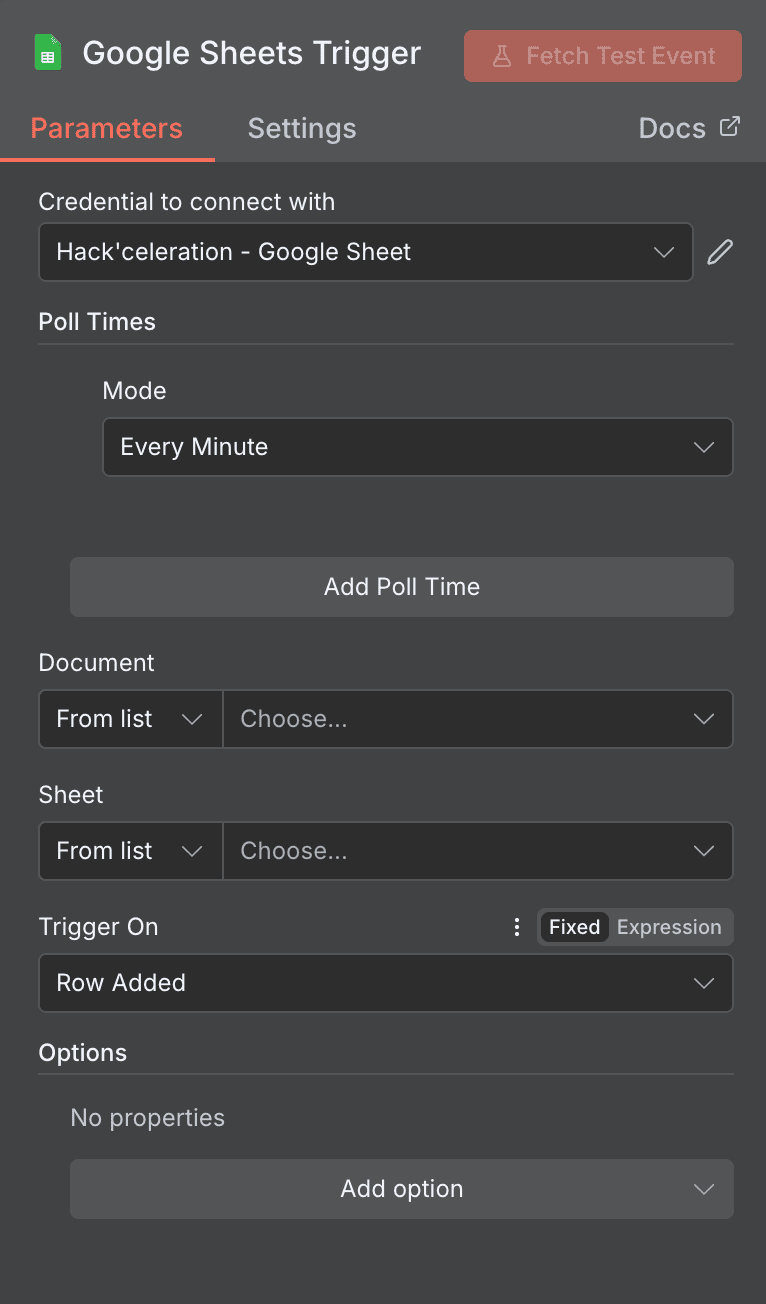
Google Sheets Trigger – Row Added
This trigger automatically monitors your specified Google Sheet and fires your workflow the moment a new row is added. It’s the foundation for countless automation scenarios—from capturing form submissions to processing incoming data feeds without any manual intervention.
The trigger polls your spreadsheet at regular intervals, comparing the current state against the previous check to detect new entries. When a fresh row appears, it sends that row’s data downstream to whatever actions you’ve configured.
Configuration parameters:
- Credential to Connect With: Select your authorized Google Sheets account from the dropdown. This is required for authentication.
- Poll Times / Mode: Determines how frequently n8n checks for new rows. Options include ‘Every Minute’, ‘Every Hour’, and custom intervals. Required setting that balances responsiveness with API usage.
- Document: Select which Google Sheets document to monitor from your available spreadsheets. Required dropdown field.
- Sheet: Specify the individual sheet tab within your document. Required dropdown selection.
- Trigger On: Set to “Row Added” to fire only when new rows appear. Required dropdown field.
- Options: Optional section for additional configurations like limiting columns to return or specifying header row locations.
When to use this trigger:
- Capturing form responses the instant they’re submitted
- Processing new orders from e-commerce integrations that dump data to Sheets
- Monitoring inventory additions or new product entries
- Building notification systems that alert your team when new data arrives
Practical workflow examples:
- New row added → Send Slack notification to sales team
- New row added → Create contact in HubSpot CRM
- New row added → Generate invoice in QuickBooks
- New row added → Add task in Asana or Monday.com
Google Sheets Trigger – Row Updated
When existing data changes in your spreadsheet, this trigger catches it immediately and pushes the updated information through your workflow. It’s essential for keeping external systems synchronized with your spreadsheet as the source of truth.
The trigger compares row states between polling intervals and identifies modifications. When values change, it outputs the new version of that row’s data so downstream actions can process the updates.
Configuration parameters:
- Credential to Connect With: Your authorized Google Sheets credential. Required dropdown selection.
- Poll Times / Mode: Frequency of update checks—’Every Minute’ provides near-real-time detection. Required setting.
- Document: The specific spreadsheet document to watch. Required dropdown.
- Sheet: The individual sheet tab containing the data you’re monitoring. Required dropdown.
- Trigger On: Set to “Row Updated” to fire when existing rows change. Required dropdown.
- Include in Output: Determines what data version to return, such as ‘New Version’ to get the post-update values. Required dropdown for output preferences.
When to use this trigger:
- Syncing status changes to external project management tools
- Updating CRM records when spreadsheet data is modified
- Triggering recalculations or report regeneration when source data changes
- Notifying stakeholders when critical values are updated
Practical workflow examples:
- Row status changed to “Approved” → Send approval notification email
- Price column updated → Sync new pricing to e-commerce platform
- Contact info modified → Update record in Salesforce
- Project deadline changed → Update task due date in ClickUp

Google Sheets Trigger – Row Added or Updated
This combined trigger gives you maximum coverage—it fires whether a row is newly created or an existing row is modified. Perfect when you need a single workflow to handle all data changes without building separate automation paths.
The trigger monitors for both conditions simultaneously, making it ideal for sync scenarios where you want external systems to always reflect the current state of your spreadsheet regardless of how that state changed.
Configuration parameters:
- Credential to Connect With: Google Sheets authentication credential. Required dropdown.
- Poll Times / Mode: Polling frequency setting, accepts options like “Every Minute”. Required configuration.
- Document: Target spreadsheet document selection. Required dropdown by ID.
- Sheet: Specific sheet tab within the document. Required dropdown by ID.
- Trigger On: Set to “Row Added or Updated” for comprehensive monitoring. Required dropdown.
- Include in Output: Specifies output data version, typically “New Version” for post-change values. Required dropdown.
- Options: Optional advanced settings section for additional customization—currently supports custom configurations as needed.
When to use this trigger:
- Building two-way sync systems where Sheets is one source of truth
- Creating unified notification systems for any spreadsheet activity
- Feeding data warehouses or analytics platforms that need current data
- Simplifying workflows where add vs. update distinction doesn’t matter
Practical workflow examples:
- Any row change → Upsert record to Airtable
- Any row change → Update corresponding entry in Notion database
- Any row change → Trigger webhook to external service
- Any row change → Log activity to monitoring system

NEED HELP AUTOMATING GOOGLE SHEET WITH N8N?
We’ll get back to you in minutes ✔
GOOGLE SHEET ACTIONS AVAILABLE IN N8N
Create spreadsheet
This action creates a brand new Google Sheets spreadsheet in your account, complete with custom title and optional pre-configured sheets. It’s perfect for automations that need to generate fresh documents—think monthly reports, client-specific workbooks, or project documentation.
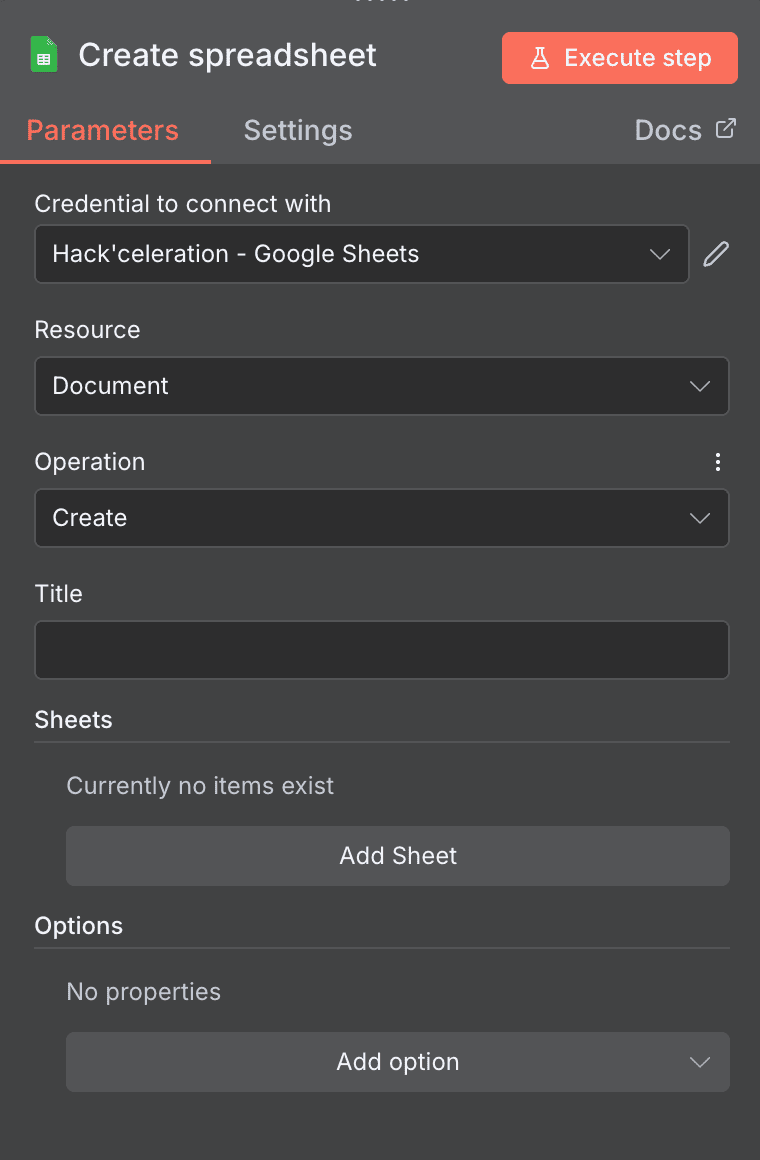
Key parameters:
- Credential to Connect With: Your Google Sheets authentication. Required dropdown.
- Resource: Set to “Document” for spreadsheet-level operations. Required.
- Operation: Fixed as “Create” for this action.
- Title: The name for your new spreadsheet. Required text field—make it descriptive!
- Sheets: Optional section to add multiple sheet tabs to your new spreadsheet during creation.
- Options: Additional configuration for advanced customization.
Use cases:
- Generate monthly report templates automatically at month-end
- Create client-specific spreadsheets when new accounts are onboarded
- Build project workbooks automatically when projects are created in PM tools
Delete spreadsheet
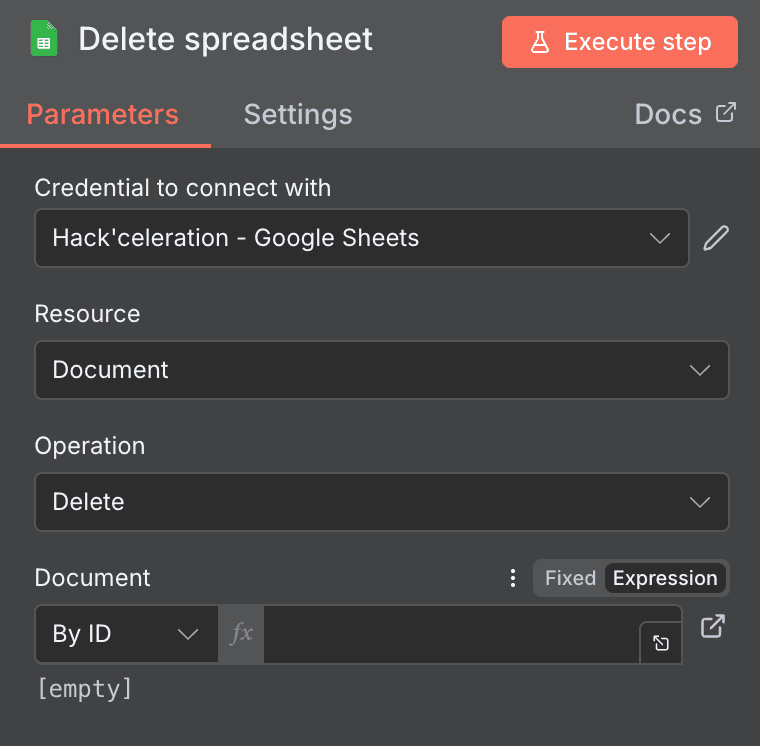
Remove entire spreadsheet documents from your Google Drive when they’re no longer needed. This action permanently deletes the specified document by its ID, useful for cleanup automations or archival workflows.
Key parameters:
- Credential to Connect With: Authentication credential selection. Required dropdown.
- Resource: Set to “Document” for spreadsheet operations. Required.
- Operation: Fixed as “Delete” for removal.
- Document: Specify the spreadsheet by ID to delete. Required selection.
Use cases:
- Clean up temporary spreadsheets after data processing completes
- Remove outdated reports on scheduled intervals
- Delete draft documents when finalized versions are created
Append row in sheet
Add new rows of data to the bottom of your existing spreadsheet. This is one of the most commonly used actions—feeding data from forms, APIs, webhooks, or any other source directly into your Sheets.
Key parameters:
- Credential to Connect With: Google Sheets credential. Required dropdown.
- Resource: “Sheet Within Document” for row-level operations. Required.
- Operation: Fixed as “Append Row”.
- Document: Target spreadsheet by ID. Required dropdown.
- Sheet: Specific sheet tab by ID. Required dropdown.
- Mapping Column Mode: Choose “Map Automatically” to match incoming data field names with column headers, or configure manual mapping. Required dropdown.
Use cases:
- Log webhook data to a tracking spreadsheet
- Append new leads from Facebook Lead Ads or Typeform
- Record API responses for debugging or analytics
- Create activity logs from various application events

Get row(s) in sheet
Retrieve one or more rows from your spreadsheet based on optional filter criteria. Essential for workflows that need to read existing data—lookups, validations, or feeding spreadsheet data into other applications.
Key parameters:
- Credential to Connect With: Your Google Sheets credential. Required.
- Resource: “Sheet Within Document” for sheet-level access. Required.
- Operation: Fixed as “Get Row(s)”.
- Document: Source spreadsheet by ID. Required dropdown.
- Sheet: Target sheet tab by ID. Required dropdown.
- Filters: Optional filter criteria to return specific rows matching conditions.
- Combine Filters: Specify AND/OR logic when using multiple filters. Optional.
- Options: Additional retrieval configurations.
Use cases:
- Look up customer data before processing orders
- Retrieve configuration values stored in spreadsheets
- Pull product inventory for availability checks
- Feed spreadsheet data into email templates or documents

Append or Update Row
This intelligent action checks if a matching row exists—if so, it updates that row; if not, it appends a new one. Perfect for sync scenarios where you want to maintain a single source of truth without creating duplicate entries.
Key parameters:
- Credential to Connect With: Authentication credential. Required dropdown.
- Resource: “Sheet Within Document”. Required.
- Operation: Fixed as “Append or Update Row”.
- Document: Target spreadsheet by ID. Required.
- Sheet: Specific sheet tab by ID. Required.
- Mapping Column Mode: “Map Automatically” matches incoming data with column headers. Ensure your data field names align with sheet columns. Required.
- Options: Additional configuration for matching logic.
Use cases:
- Sync CRM contacts—update existing, add new
- Maintain inventory counts with upsert logic
- Keep order status spreadsheets current without duplicates
- Two-way sync between databases and spreadsheets

Create sheet
Add a new sheet tab to an existing spreadsheet document. Useful for organizing data into separate tabs within a single workbook—monthly sheets, category-specific tabs, or client segments.
Key parameters:
- Credential to Connect With: Google Sheets credential. Required.
- Resource: “Sheet Within Document”. Required.
- Operation: Fixed as “Create”.
- Document: Parent spreadsheet by ID. Required dropdown.
- Title: Name for the new sheet tab. Required text field.
- Options: Additional sheet configuration options.
Use cases:
- Create monthly report tabs automatically (January 2025, February 2025, etc.)
- Add department-specific sheets when new teams are created
- Generate client sheets within a master workbook

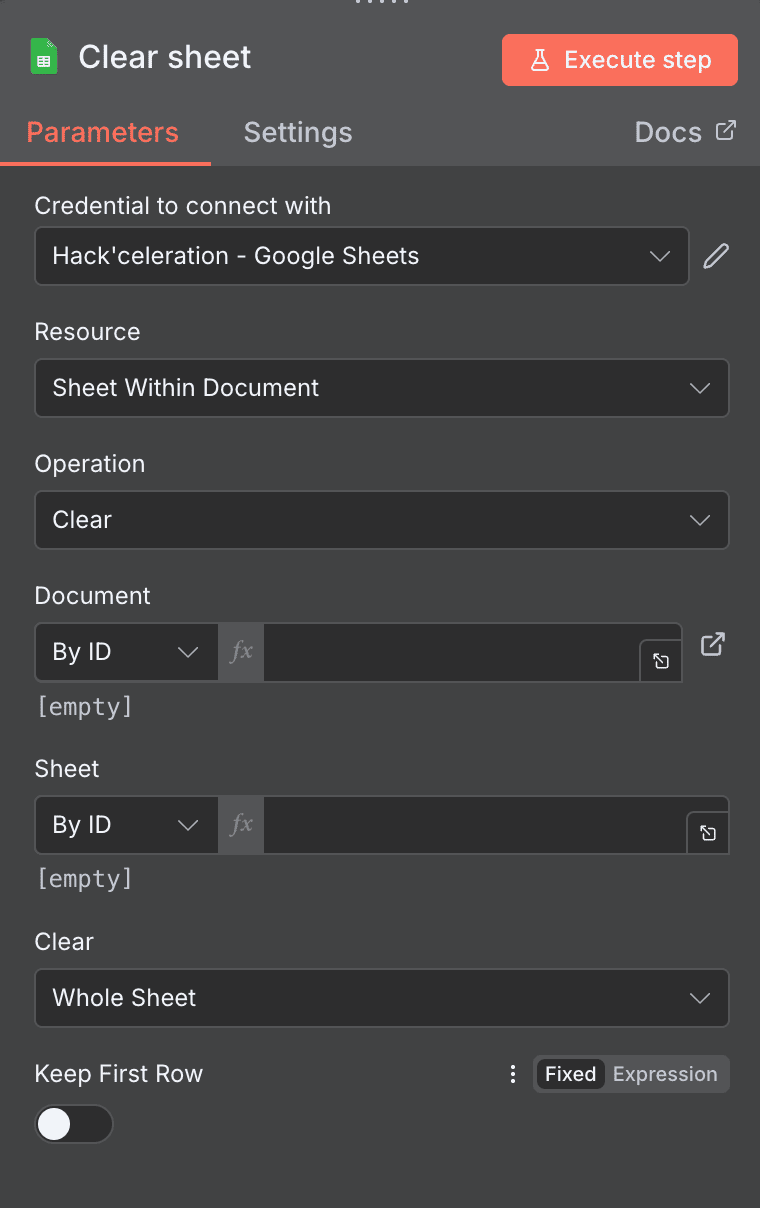
Clear sheet
Wipe all content from a specified sheet while optionally preserving the header row. Ideal for reset operations—clearing staging sheets before fresh imports or resetting templates for reuse.
Key parameters:
- Credential to Connect With: Your credential. Required.
- Resource: “Sheet Within Document”. Required.
- Operation: Fixed as “Clear”.
- Document: Target spreadsheet by ID. Required.
- Sheet: Sheet to clear by ID. Required.
- Clear: Scope of clearing—”Whole Sheet” removes everything. Required dropdown.
- Keep First Row: Toggle to preserve header row while clearing data. Optional but highly useful.
Use cases:
- Reset daily import sheets before new data loads
- Clear staging areas after successful processing
- Prepare templates for fresh data entry
- Clean up testing data from development sheets
Delete sheet
Permanently remove a sheet tab from a spreadsheet document. Unlike Clear (which keeps the sheet but removes content), Delete eliminates the sheet tab entirely.
Key parameters:
- Credential to Connect With: Authentication credential. Required.
- Resource: “Sheet Within Document”. Required.
- Operation: Fixed as “Delete”.
- Document: Parent spreadsheet by ID. Required dropdown.
- Sheet: Sheet tab to delete by ID. Required dropdown.
Use cases:
- Remove obsolete monthly tabs after archiving
- Clean up temporary processing sheets
- Delete sheets generated by failed automation runs

Update row in sheet
Modify specific rows in your spreadsheet by matching existing entries and applying new values. Unlike Append or Update, this action specifically targets existing rows for updates—it won’t create new entries.
Key parameters:
- Credential to Connect With: Your Google Sheets credential. Required.
- Resource: “Sheet Within Document”. Required.
- Operation: Fixed as “Update Row”.
- Document: Target spreadsheet by ID. Required dropdown.
- Sheet: Sheet containing the row by ID. Required dropdown.
- Mapping Column Mode: Determines how incoming data maps to columns—”Map Automatically” recommended. Required.
- Options: Additional update configuration.
Use cases:
- Update order status when shipments are confirmed
- Modify contact information from CRM updates
- Change task priorities based on external triggers
- Update inventory counts after sales transactions

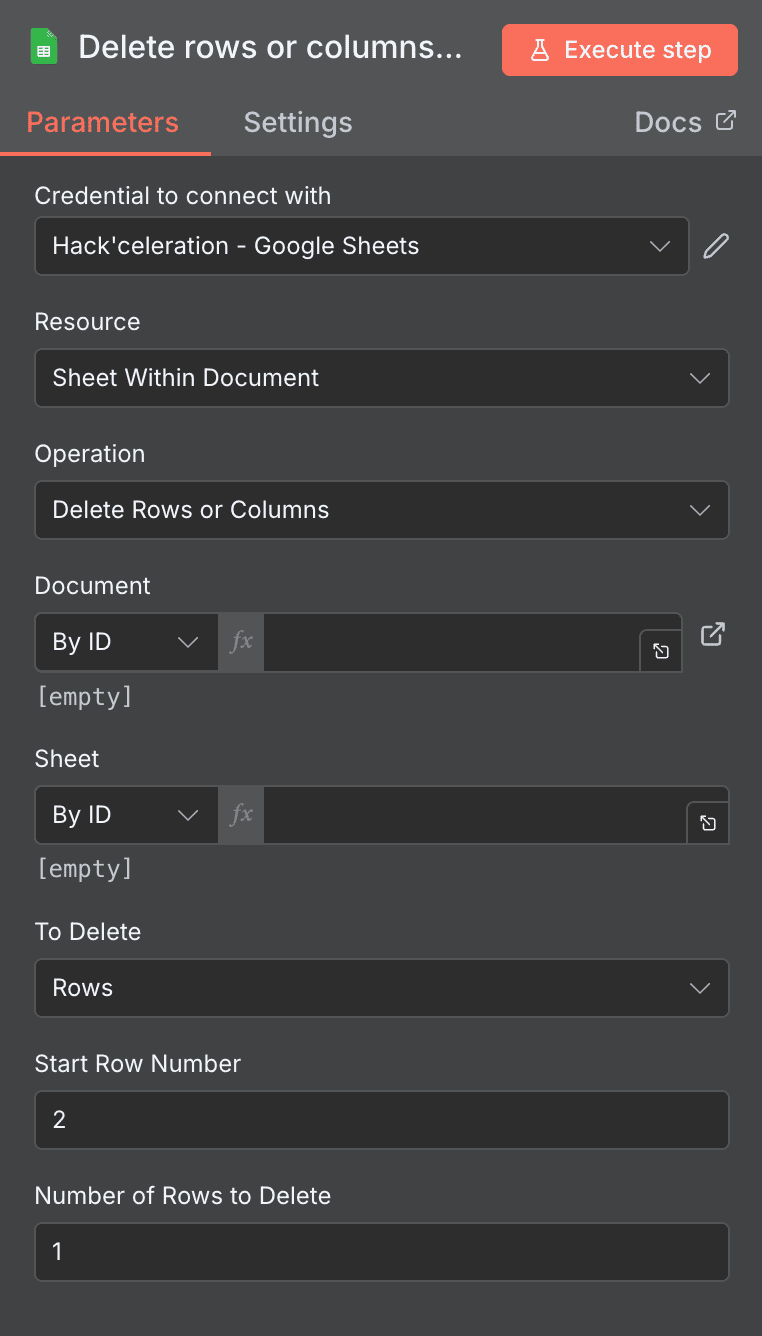
Delete Rows or Columns
Remove specific rows or columns from your spreadsheet by position. Powerful for data cleanup—eliminating processed rows, removing obsolete columns, or trimming spreadsheets to manageable sizes.
Key parameters:
- Credential to Connect With: Authentication credential. Required.
- Resource: “Sheet Within Document”. Required.
- Operation: Fixed as “Delete Rows or Columns”.
- Document: Target spreadsheet by ID. Required dropdown.
- Sheet: Sheet to modify by ID. Required dropdown.
- To Delete: Choose “Rows” or “Columns”. Required dropdown.
- Start Row Number: Beginning position for deletion (positive integer). Required for row deletion.
- Number of Rows to Delete: How many rows to remove from the start position. Required for row deletion.
Use cases:
- Remove processed rows after successful data migration
- Delete header duplicates or empty rows
- Clean up test data rows from production sheets
- Trim large spreadsheets by removing outdated entries
NEED HELP AUTOMATING GOOGLE SHEET WITH N8N?
We’ll get back to you in minutes ✔
FREQUENTLY ASKED QUESTIONS ABOUT GOOGLE SHEET N8N INTEGRATION
Is the Google Sheet n8n integration free?
Yes, the Google Sheet integration is included with n8n at no additional cost—there's no premium tier or plugin to purchase. If you're self-hosting n8n (the Community Edition), you can use it completely free. n8n Cloud plans include the integration as well, with pricing based on workflow executions rather than which integrations you use. The only consideration is Google's own API rate limits, which are generous for typical automation use cases but may require a Google Cloud project upgrade for extremely high-volume scenarios.
What data can I sync between Google Sheet and n8n?
You can sync virtually any structured data that lives in spreadsheet rows and columns. This includes contact information, order details, inventory data, project tasks, form responses, financial records, and custom data schemas you've designed. The integration supports reading individual cells, entire rows, filtered row sets, and sheet metadata. When writing data, you can append new rows, update existing ones, or use upsert logic to intelligently handle both scenarios. Text, numbers, dates, and formulas all transfer correctly between n8n and your spreadsheets.
How long does it take to set up the Google Sheet n8n integration?
The initial connection takes about 2-3 minutes—click through the OAuth2 authorization, grant permissions, and you're connected. Building your first working workflow typically takes 5-15 minutes depending on complexity. Simple scenarios like "new row → send Slack message" can be running in under 5 minutes. More complex multi-step workflows with data transformations might take 15-30 minutes to configure properly. The trigger polling setup is instant, and n8n's visual interface makes it straightforward to test and iterate quickly without coding knowledge.