
AWS S3 N8N INTEGRATION: AUTOMATE AWS S3 WITH N8N
Looking to automate your AWS S3 file management with n8n? You’re in the right place. The AWS S3 n8n integration gives you direct access to 12 powerful actions that let you manage buckets, files, and folders programmatically within your automation workflows.
Whether you need to automatically upload files when a form is submitted, sync data between cloud storage solutions, or trigger backups based on specific events, this integration transforms AWS S3 from a standalone storage service into a fully automated component of your business processes. No more manual uploads, no more forgotten backups, no more scattered files.
In this guide, you’ll discover exactly how to connect AWS S3 to n8n, explore each available action in detail, and learn how to build workflows that handle your cloud storage operations automatically.


AWS S3 n8n Workflow: demonstration of an automation connecting AWS S3 to other applications via n8n. This video illustrates how AWS S3 actions integrate into a n8n workflow to automate your cloud storage processes without code.
WHY AUTOMATE AWS S3 WITH N8N?
The AWS S3 n8n integration gives you access to 12 distinct actions covering every aspect of cloud storage management: bucket creation and deletion, file uploads and downloads, folder operations, and multi-file retrievals. This means you can build complete storage automation pipelines without writing a single line of code or manually navigating the AWS console.
Significant time savings become immediately apparent when you stop manually uploading files or organizing folders. Set up smart rules that automatically place incoming files in the correct bucket, apply consistent naming conventions, and maintain your storage structure—all without your intervention. Teams report saving hours weekly by eliminating repetitive S3 management tasks.
Zero oversight on critical operations is perhaps the biggest advantage. Your automated workflows handle file operations 24/7, ensuring that backup routines never miss a beat, uploads happen instantly when triggered, and file organization stays consistent. Consider these practical use cases:
- Automatically upload processed reports to S3 when a data pipeline completes
- Sync files between S3 and other cloud services like Notion or Dropbox
- Create organized folder structures when onboarding new clients
- Delete temporary files after a set retention period
- Download files for processing when external systems require them

HOW TO CONNECT AWS S3 TO N8N?

Basic configuration:
- Create an IAM user in AWS: Navigate to your AWS Console, go to IAM, and create a new user specifically for n8n automation. This keeps your credentials organized and permissions isolated.
- Generate access keys: For your new IAM user, create an Access Key ID and Secret Access Key. Store these securely—you’ll only see the secret key once during creation.
- Set appropriate permissions: Attach S3 policies to your IAM user. For full functionality, grant permissions for bucket operations (s3:CreateBucket, s3:DeleteBucket, s3:ListBucket) and object operations (s3:GetObject, s3:PutObject, s3:DeleteObject).
- Add credentials in n8n: In your n8n instance, go to Credentials, select AWS S3, and enter your Access Key ID and Secret Access Key. Optionally specify your default region.
- Test the connection: Create a simple workflow with the “Get Many Buckets” action to verify your credentials work correctly.
💡 TIP: Create a dedicated IAM user exclusively for n8n rather than using your root account or personal credentials. This follows AWS security best practices and makes it easy to revoke access if needed without affecting other services. Apply the principle of least privilege—only grant the specific S3 permissions your workflows actually need.
NEED HELP AUTOMATING AWS S3 WITH N8N?
We’ll get back to you in minutes ✔
AWS S3 ACTIONS AVAILABLE IN N8N
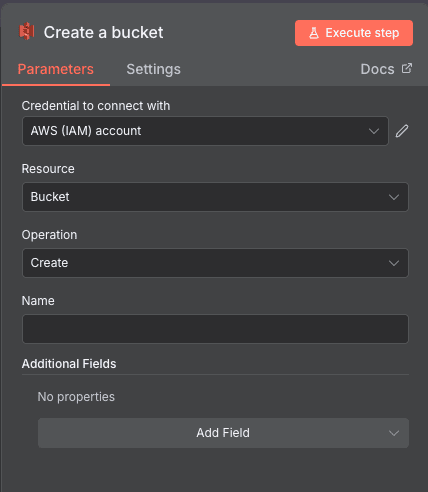
Create a bucket
This action creates a new S3 bucket directly from your n8n workflow, enabling you to dynamically provision storage space as your automation requires. It’s particularly valuable for scenarios where you need to set up isolated storage environments on-the-fly—think client onboarding, project initialization, or environment setup.
Key parameters: The action requires configuration of various parameters to successfully create a bucket. The Credential to connect with dropdown menu allows users to select their AWS IAM account credentials (required for authentication). The Name parameter accepts a text input for the bucket name being created (required and must follow S3 naming conventions). The Additional Fields section allows users to add optional configurations like region settings, versioning preferences, or encryption options.
Use cases: Automatically create a dedicated storage bucket when a new client signs a contract in your HubSpot CRM. Set up project-specific buckets when tasks are created in project management tools. Provision isolated backup locations for different departments or teams.
When to use it: Whenever your workflow logic requires new, isolated storage space rather than adding files to existing buckets.
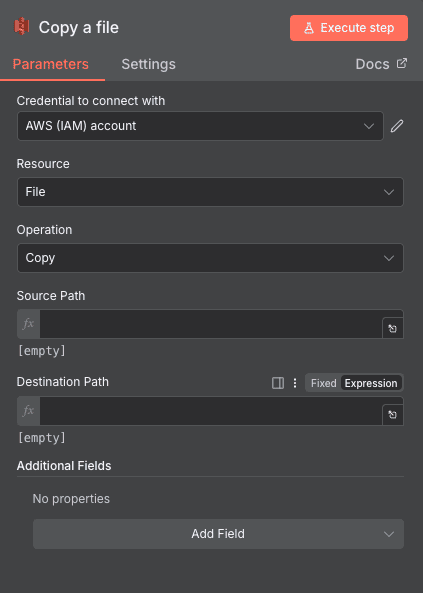
Copy a file
The Copy a file action duplicates an existing file from one location to another within your AWS S3 environment. This is essential for creating backups, distributing files across different bucket structures, or preparing files for different processing pipelines without affecting the original.
Key parameters: The configuration consists of Credential to connect with (AWS IAM account credentials dropdown, required), Source Path (text input defining the path of the file you want to copy, required), Destination Path (text input specifying where the copied file will be placed, required and accepts fixed values or expressions), and Additional Fields (optional section for specifying metadata, storage class, or ACL settings).
Use cases: Create daily backup copies of critical configuration files. Duplicate files to a public bucket for sharing while keeping originals private. Copy processed files to archive locations after workflow completion.
Search a bucket
This action searches within a specified S3 bucket, allowing your workflows to discover files and folders based on bucket contents. It’s the foundation for building dynamic workflows that respond to what’s actually stored in your S3 environment rather than assuming fixed file locations.
Key parameters: The action has several configurable parameters including Credential to connect with (AWS IAM credentials dropdown, required), Bucket Name (text input for the S3 bucket name, required), Return All (toggle switch to retrieve all results, optional), Limit (numeric input to cap the number of results returned, optional), and Additional Fields (optional filters or prefix specifications).
Use cases: Find all files uploaded in the last 24 hours for processing. Check if a specific file exists before attempting to download it. List contents of a folder before performing batch operations.

AWS S3: Get Many Buckets
This action retrieves a list of all buckets in your AWS account, giving your workflows visibility into your complete S3 infrastructure. It’s essential for monitoring, auditing, and building workflows that need to operate across multiple buckets.
Key parameters: The action includes Credential to connect with (AWS IAM credentials dropdown, required), Return All (boolean toggle to fetch every bucket without limitations, optional), and Limit (numeric input specifying the maximum number of buckets to retrieve, required if Return All is disabled).
Use cases: Generate weekly reports of all active buckets and their status. Audit bucket existence before running multi-bucket operations. Monitor your S3 infrastructure for unexpected bucket creation.

Delete a bucket
The Delete a bucket action permanently removes an S3 bucket from your AWS account. This is useful for cleanup operations, decommissioning old projects, or maintaining a tidy cloud infrastructure through automated housekeeping.
Key parameters: This action includes Credential to connect with (AWS IAM credentials dropdown, required), Resource (dropdown set to ‘Bucket’, required), Operation (set to ‘Delete’, required), and Name (text input for the exact name of the bucket to delete, required).
Use cases: Automatically remove temporary buckets after processing jobs complete. Clean up test environments at the end of development cycles. Decommission client storage when contracts end (after proper data migration).
⚠️ Important: Buckets must be empty before deletion. Build workflows that first remove all files before attempting bucket deletion.

Download a file
This action retrieves a file from S3 and makes it available in your workflow for further processing, transformation, or delivery to other systems. It’s the bridge between cloud storage and active data processing.
Key parameters: The action requires Credential to connect with (AWS IAM credentials, required), Bucket Name (text input for the bucket containing your target file, required), File Key (text input for the specific key/path of the file within the bucket, required), and Put Output File in Field (text input specifying the binary field name where the downloaded file will be stored, required).
Use cases: Download invoices from S3 for email attachment delivery. Retrieve configuration files for processing in data transformation workflows. Pull images from storage for automated editing or resizing pipelines.

Upload a file
The Upload a file action sends files from your n8n workflow directly into S3 storage. This is fundamental for any workflow that generates, processes, or receives files that need cloud storage.
Key parameters: This action includes Credential to connect with (AWS IAM credentials, required), Bucket Name (destination bucket text input, required), File Name (customizable text field for the file name in S3, required), Binary File (toggle to indicate binary file upload, optional), Input Binary Field (specifies which workflow field contains the file data, required when Binary File is enabled), Tags (optional metadata tags for organization), and Additional Fields (optional section for storage class, encryption, ACL configurations).
Use cases: Automatically store form attachments submitted through your website. Upload generated reports at the end of data processing workflows. Archive email attachments to S3 for compliance and backup.

Delete a folder
This action removes a folder and its organizational structure from an S3 bucket. In S3’s flat structure, this effectively removes the folder prefix, helping maintain clean and organized storage.
Key parameters: The action has Credential to connect with (AWS IAM credentials, required), Bucket Name (text input for the bucket containing the folder, required), and Folder Key (string input for the path of the folder to delete, can use expressions for dynamic paths, required).
Use cases: Clean up temporary processing folders after batch jobs complete. Remove outdated project folders during archival workflows. Delete expired folder structures based on retention policies.

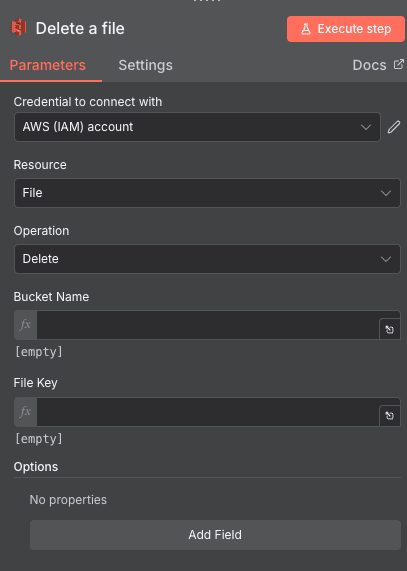
Delete a file
The Delete a file action permanently removes a specific file from your S3 bucket. Essential for cleanup operations, data lifecycle management, and maintaining storage efficiency.
Key parameters: This action features Credential to connect with (AWS IAM credentials dropdown, required), Resource (set to ‘File’, fixed), Operation (set to ‘Delete’, fixed), Bucket Name (text input for the bucket name, required), and File Key (text input for the precise key/path of the file to delete, required).
Use cases: Remove temporary files after processing workflows complete. Delete outdated versions of files when new ones are uploaded. Implement retention policies that automatically purge old data.
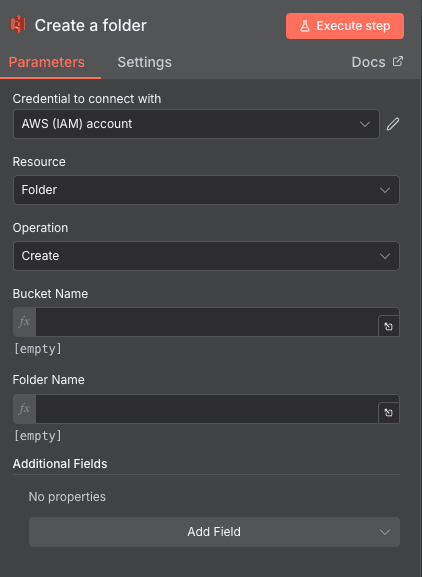
Create a folder
This action creates a new folder within an S3 bucket, helping you maintain organized storage structures programmatically. While S3 technically uses prefixes rather than true folders, this action handles the implementation details.
Key parameters: The action includes Credential to connect with (AWS IAM credentials dropdown, required), Resource (fixed to ‘Folder’, informational), Operation (set to ‘Create’, predefined), Bucket Name (text input for the S3 bucket where the folder will be created, required), Folder Name (text input for the name of the folder, must follow S3 naming conventions, required), and Additional Fields (optional properties for additional configuration).
Use cases: Create dated folder structures for daily backup organization. Set up client-specific folders when new accounts are created in your CRM. Build project folder hierarchies when projects are initiated in PM tools.
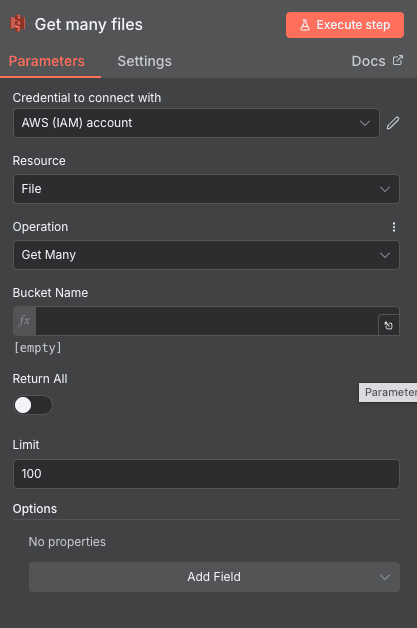
Get many files
This action retrieves information about multiple files from an S3 bucket, perfect for building workflows that need to process, audit, or react to file collections rather than individual items.
Key parameters: This action includes Credential to connect with (AWS IAM credentials, required), Resource (set to ‘File’, required), Operation (set to ‘Get Many’, pre-selected), Bucket Name (text input for the bucket to retrieve files from, required), Return All (boolean toggle to fetch all files, optional), Limit (numeric field for maximum files to return, default 100, optional), and Options (optional additional parameters for filtering).
Use cases: List all files for batch processing workflows. Generate file inventories for reporting and auditing. Find files matching specific patterns for targeted operations.
Get many folders
This action retrieves multiple folder entries from an S3 bucket, enabling workflows that need to understand and work with your storage organization structure.
Key parameters: The action includes Credential to connect with (AWS IAM credentials, required), Resource (set to ‘Folder’, required), Operation (set to ‘Get Many’, fixed), Bucket Name (text input for target bucket, required), Return All (toggle for complete results, optional), Limit (numeric limit on folders returned, default 100, optional), and Options (additional configuration parameters, optional).
Use cases: Audit folder structures for organizational compliance. Generate folder trees for documentation or navigation interfaces. Identify folders requiring cleanup based on naming conventions or age.

NEED HELP AUTOMATING AWS S3 WITH N8N?
We’ll get back to you in minutes ✔
FREQUENTLY ASKED QUESTIONS ABOUT AWS S3 N8N INTEGRATION
Is the AWS S3 n8n integration free?
The n8n AWS S3 integration itself is free and included in both n8n's self-hosted open-source version and n8n Cloud plans. However, you'll still incur standard AWS S3 charges based on your usage—storage costs, request costs, and data transfer fees apply according to your AWS pricing tier. For most automation use cases, these costs are minimal, often pennies per month for typical file operations. The real value comes from time saved on manual operations, which typically far outweighs any incremental AWS costs.
What types of files can I upload and download with the AWS S3 n8n integration?
The AWS S3 n8n integration handles any file type that S3 supports—which is essentially everything. Documents (PDFs, Word files), images (JPEG, PNG, WebP), data files (CSV, JSON, XML), archives (ZIP, TAR), media files (MP4, MP3), and binary executables all transfer seamlessly. The integration uses binary data handling in n8n, so file type doesn't limit functionality. Just ensure your IAM permissions allow the object operations you need, and mind S3's single object size limits (5GB via single PUT, up to 5TB via multipart upload for very large files).
How long does it take to set up the AWS S3 n8n integration?
Most users complete the full setup in under 15 minutes. The longest part is typically creating the IAM user in AWS and configuring appropriate permissions—about 5-10 minutes if you're familiar with the AWS console. Adding credentials to n8n takes under a minute, and building your first workflow with S3 actions can be done in 2-3 minutes by simply dragging in a node and configuring parameters. If you've never used IAM before, allow an extra 10 minutes to navigate the AWS interface and understand the permission policies you need to attach.