
CALENDLY N8N INTEGRATION: AUTOMATE CALENDLY WITH N8N
Looking to automate Calendly with n8n? You’re in the right place. The Calendly n8n integration gives you access to powerful triggers that automatically launch your workflows whenever scheduling events occur in your calendar.
With this native integration, you can monitor your Calendly account in real-time and trigger instant actions when meetings are booked or cancelled. Whether you need to sync new appointments to your CRM, send custom confirmation emails, update your team’s project management tool, or log cancellations for follow-up—n8n handles it automatically.
Discover how to connect Calendly to n8n and fully leverage these automation capabilities to streamline your scheduling workflows and save hours of manual work every week.


n8n Calendly Workflow: demonstration of an automation connecting Calendly to other applications via n8n. This video illustrates how Calendly triggers integrate into an n8n workflow to automate your scheduling processes without code.
WHY AUTOMATE CALENDLY WITH N8N?
The Calendly n8n integration gives you access to 4 triggers that monitor your scheduling events around the clock. You can automatically detect when new meetings are created or when appointments get cancelled—at both the user and organization level—giving you complete visibility over your scheduling activity.
Significant time savings: No more checking Calendly manually to see who booked a call or cancelled last minute. Set up smart rules that automatically push new meeting data to your CRM like HubSpot, create tasks in your project management tool like Notion, or trigger personalized email sequences. What used to take 15-20 minutes of daily admin work now happens in seconds.
Improved responsiveness: The moment someone books a meeting, your workflow springs into action. Send instant Slack notifications to your team, add the prospect to a nurture sequence, or pre-populate your meeting notes template. When cancellations happen, trigger immediate follow-up emails or reschedule prompts before the lead goes cold.
Zero oversight guaranteed: Calendly triggers monitor 24/7, even on weekends and holidays. Every booking and every cancellation immediately triggers your automation—no missed appointments, no forgotten follow-ups, no data entry errors.
Seamless integration: Connect Calendly to over 400 applications in n8n including Notion, HubSpot, Google Sheets, Slack, Airtable, and more. Build sophisticated workflows that span your entire tech stack without writing a single line of code.

HOW TO CONNECT CALENDLY TO N8N?

Basic configuration:
- Generate your Calendly API token: Log into your Calendly account, navigate to Integrations → API & Webhooks, and create a new Personal Access Token. Copy this token securely.
- Open n8n and add credentials: In your n8n instance, go to Credentials → New Credential → search for “Calendly”. Select either “Calendly Personal Access Token” or “Calendly OAuth2 API” based on your needs.
- Paste your token: Enter your Personal Access Token in the designated field. For OAuth2, you’ll need to complete the authorization flow by logging into Calendly when prompted.
- Test the connection: Click “Save” and n8n will verify your credentials. You should see a success confirmation if everything is configured correctly.
- Add the Calendly Trigger to your workflow: Drag the Calendly Trigger node onto your canvas and select your newly created credentials from the dropdown.
💡 TIP: If you’re automating for an entire organization (not just your personal calendar), make sure your Calendly account has admin permissions and use the “Organization” scope. Personal Access Tokens with user-level access won’t be able to monitor other team members’ events.
CALENDLY TRIGGERS AVAILABLE IN N8N
Calendly Trigger – Event Created (User Scope)
This trigger fires automatically whenever a new event is created on your personal Calendly calendar. It’s your go-to option for monitoring individual scheduling activity and launching workflows based on new bookings.
When someone books a meeting through your Calendly link, this trigger captures the event data and passes it to the rest of your n8n workflow. You get access to all the meeting details: attendee name, email, scheduled time, event type, answers to custom questions, and more.
Configuration parameters:
- Credential to connect with: Select your Calendly account from the dropdown menu. This is required to authenticate with the Calendly API.
- Scope: Set to “User” to monitor only your personal calendar events. This parameter is ignored if using an API Key, making it optional in that scenario.
- Events: Select “Event Created” from the dropdown to trigger on new bookings. This field is required.
Typical use cases:
- Automatically add new meeting attendees to your CRM (HubSpot, Salesforce, Pipedrive)
- Send custom confirmation emails via SendGrid or Mailchimp with personalized meeting prep details
- Create a new row in Google Sheets or Airtable logging each booking for reporting
- Post a Slack notification to your sales channel when a high-value prospect books a demo
When to use it: Perfect for solopreneurs, freelancers, or team members who want to automate actions based on their own calendar. If you only need to track your personal bookings, this is the simplest and most efficient setup.

Calendly Trigger – Event Cancelled (User Scope)
This trigger activates the moment a scheduled event gets cancelled on your personal Calendly calendar. It’s essential for maintaining proactive follow-up with leads who cancel and preventing potential opportunities from slipping through the cracks.
Cancellations happen for many reasons—schedule conflicts, cold feet, or genuine emergencies. This trigger ensures you’re immediately notified and can take automated action, whether that’s sending a reschedule link, flagging the contact in your CRM, or removing them from pre-meeting sequences.
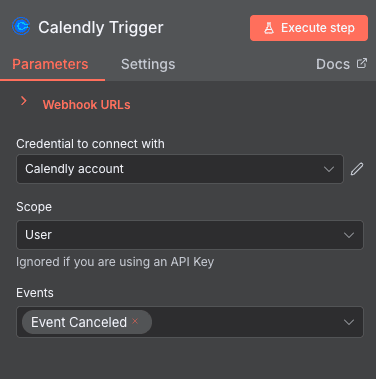
Configuration parameters:
- Credential to connect with: Choose your authenticated Calendly account from the dropdown. This is required for secure API communication.
- Scope: Set to “User” to monitor cancellations on your personal calendar only. This is optional if using an API Key.
- Events: Select “Event Canceled” to trigger specifically when meetings are cancelled. This field is required.
Typical use cases:
- Send an automatic follow-up email with a reschedule link within minutes of cancellation
- Update the contact’s status in your CRM like Attio to “Cancelled – Needs Follow-up”
- Remove the contact from automated meeting reminder sequences
- Log cancellation data in a spreadsheet for trend analysis (too many cancellations might indicate a booking process issue)
When to use it: Ideal for sales professionals and consultants who can’t afford to lose warm leads. By automating your cancellation response, you increase the chances of rebooking by 40-60% compared to manual follow-up.
Calendly Trigger – Event Created (Organization Scope)
This trigger monitors new event creation across your entire Calendly organization—not just your personal calendar. It’s designed for team leads, operations managers, and anyone who needs visibility over all scheduling activity within a company account.
When any team member receives a booking through Calendly, this trigger fires and captures the event data. This enables centralized reporting, team-wide CRM updates, and coordinated follow-up workflows that ensure consistent processes across your organization.
Configuration parameters:
- Credential to connect with: Select an account with organization-level admin permissions. This is required and must have appropriate access rights.
- Scope: Set to “Organization” to monitor events across all team members’ calendars. This is required for organization-wide visibility (ignored if using API Key).
- Events: Select “Event Created” from the dropdown. This is required to specify the trigger condition.
Typical use cases:
- Centralize all team bookings in a master Google Sheet or Airtable base for management reporting
- Automatically assign leads in your CRM to the rep who booked the meeting
- Send team-wide Slack notifications when demos or sales calls are scheduled
- Sync all appointments to a shared team calendar in Google Calendar or Outlook
When to use it: Essential for sales teams, agencies, and service businesses with multiple team members using Calendly. Gives you a bird’s-eye view of all scheduling activity and ensures no booking goes untracked.

Calendly Trigger – Event Cancelled (Organization Scope)
This trigger fires whenever any event is cancelled across your entire Calendly organization. It’s critical for maintaining oversight of team performance and ensuring that cancelled meetings trigger appropriate follow-up actions regardless of which team member was originally assigned.
Tracking cancellations at the organization level helps identify patterns: Are certain event types getting cancelled more often? Is one team member experiencing higher cancellation rates? This data is invaluable for optimizing your scheduling and sales processes.
Configuration parameters:
- Credential to connect with: Choose an admin-level Calendly account that has permissions to view organization-wide data. This is required.
- Scope: Must be set to “Organization” to capture cancellations from all team members. This is required for full organizational visibility.
- Events: Select “Event Canceled” to trigger on any cancellation within your organization. This field is required.
Typical use cases:
- Alert team leads via Slack or email when cancellations occur for key accounts
- Automatically reassign leads in your CRM like Pipedrive back to a “Needs Outreach” queue
- Track cancellation metrics in a dashboard to identify process improvements
- Trigger a manager notification if cancellation rates exceed a threshold
When to use it: Perfect for sales managers and operations teams who need to ensure no cancelled meeting falls through the cracks. Combine with organization-level event creation triggers for complete scheduling visibility.

NEED HELP AUTOMATING CALENDLY WITH N8N?
We’ll get back to you in minutes ✔
FREQUENTLY ASKED QUESTIONS ABOUT CALENDLY N8N INTEGRATION
Is the Calendly n8n integration free?
Yes, the Calendly integration is included natively in n8n at no additional cost—whether you're using n8n Cloud or self-hosting. However, you'll need a Calendly account with API access, which is available on Calendly's Professional plan and above. The free Calendly tier has limited API capabilities, so you may need to upgrade depending on your automation needs. On the n8n side, your usage counts toward your overall workflow execution limits based on your n8n plan.
What event data can I access from Calendly triggers in n8n?
When a Calendly trigger fires, you receive comprehensive event data including: the event type name and duration, scheduled start and end times, attendee name and email address, attendee timezone, any custom question responses they provided during booking, the event URL, cancellation reason (for cancelled events), and the Calendly user who owns the event. This data is available as JSON output that you can map to any subsequent node in your workflow—perfect for CRM updates, personalized emails, or custom notifications.
How long does it take to set up the Calendly n8n integration?
Most users complete the entire setup in under 10 minutes. Generating your Calendly API token takes about 2 minutes, adding credentials in n8n takes another 2-3 minutes, and building a basic trigger workflow takes 3-5 minutes. If you're setting up organization-level triggers, allow a few extra minutes to verify admin permissions. The integration uses webhooks for real-time data, so there's no polling delay—events fire within seconds of the actual booking or cancellation.