
GOOGLE CALENDAR N8N INTEGRATION: AUTOMATE GOOGLE CALENDAR WITH N8N
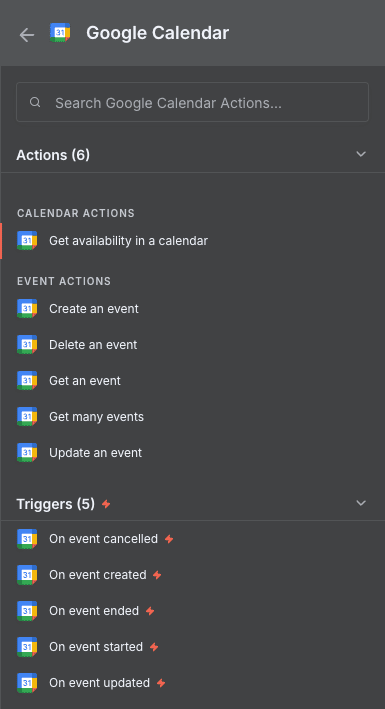
Looking to automate Google Calendar with n8n? You’re in the right place. The Google Calendar n8n integration gives you access to 5 triggers and 6 actions to build powerful automations around your calendar events without writing a single line of code.
With this integration, you can automatically react when events are created, updated, started, ended, or cancelled. On the action side, you can create new events, retrieve event details, check availability, update existing entries, or delete events—all triggered by any of the 400+ apps available in n8n. Whether you’re syncing meeting data with your CRM, sending Slack notifications when a call starts, or automatically blocking time based on external inputs, the Google Calendar n8n integration makes it seamless.
In this guide, you’ll discover every trigger and action available, understand their parameters, and learn how to connect Google Calendar to n8n in minutes.


n8n Google Calendar Workflow: demonstration of an automation connecting Google Calendar to other applications via n8n. This video illustrates how Google Calendar triggers and actions integrate into an n8n workflow to automate your processes without code.
WHY AUTOMATE GOOGLE CALENDAR WITH N8N?
The Google Calendar n8n integration gives you access to 5 triggers and 6 actions to automate virtually any calendar-related workflow. This means you can monitor events in real-time and take immediate action—whether that’s updating a database, notifying team members, or syncing data across platforms.
Significant time savings are the first benefit you’ll notice. No more manually copying meeting details into spreadsheets or checking your calendar to trigger follow-ups. Set up smart rules once, and let n8n handle the repetitive work. Improved responsiveness comes next: triggers fire the moment an event is created, updated, started, or cancelled. Your workflows react instantly, ensuring nothing falls through the cracks. Zero oversight is another major advantage—triggers monitor your calendar 24/7, so every new meeting or schedule change immediately triggers the appropriate automation. Finally, seamless integration lets you connect Google Calendar to over 400 applications in n8n, from Slack and Notion to HubSpot and Airtable.
Here are concrete examples of what you can build: automatically create a Notion page with meeting notes when an event starts; send a Slack reminder 15 minutes before each meeting; sync new calendar events to Airtable for reporting; update your CRM contact record when a sales call ends; block focus time on your calendar when tasks are due in your project management tool. The possibilities multiply when you combine Google Calendar with n8n’s logic nodes.
HOW TO CONNECT GOOGLE CALENDAR TO N8N?

Basic configuration:
- Open your n8n workflow and add a Google Calendar node (trigger or action).
- Click on “Credential to connect with” and select “Create new credential.”
- Choose Google Calendar OAuth2 from the credential type list.
- Complete the OAuth flow: n8n will redirect you to Google’s login page. Sign in with the Google account that owns the calendar you want to automate.
- Grant permissions: Review the access n8n is requesting and click “Allow.” You’ll be redirected back to n8n with your credential now active.
💡 TIP: If you manage multiple Google accounts (personal and work), double-check which account you’re logged into before authorizing. It’s easy to accidentally connect the wrong calendar. You can always create multiple credentials in n8n if you need to automate calendars across different accounts.
GOOGLE CALENDAR TRIGGERS AVAILABLE IN N8N
Event Cancelled
This trigger fires automatically whenever an event is cancelled in your specified Google Calendar. It’s incredibly useful for workflows that need to react to schedule changes—think automated notifications to attendees, updating a project tracker, or logging cancellations for reporting purposes.
Configuration parameters:
- Credential to connect with: Select your Google Calendar account from the dropdown. This is required to authenticate the trigger.
- Poll Times (Mode): Choose how frequently n8n checks for cancelled events. Options include “Every Minute” and other intervals. Required.
- Calendar: Specify which calendar to monitor. Select “By ID” and enter the calendar ID. Required.
- Trigger On: Set to “Event Cancelled” to activate this specific trigger. Required.
- Options: Additional settings can be added if needed, though none are required by default.
Typical use cases:
- Send a Slack message to your team when a meeting is cancelled
- Update a CRM deal status when a sales call is removed
- Log cancellation data to Google Sheets for analysis
- Trigger a follow-up task in Asana when a client meeting falls through
When to use it: This trigger is essential when cancellations have downstream implications—refunds to process, resources to reallocate, or stakeholders to notify.

Event Created
This trigger activates the moment a new event appears on your Google Calendar. It’s the foundation for any workflow that needs to respond to new meetings, appointments, or time blocks as soon as they’re scheduled.
Configuration parameters:
- Credential to connect with: Select your authenticated Google Calendar account. Required.
- Poll Times (Mode): Define the polling frequency (e.g., “Every Minute”). This determines how quickly n8n detects new events. Required.
- Calendar: Choose the calendar to monitor by selecting “By ID” and providing the calendar identifier. Required.
- Trigger On: Set to “Event Created” to fire on new events. Required.
- Options: Click “Add option” to include additional conditions if your workflow requires filtering.
Typical use cases:
- Automatically create a meeting notes document in Notion or Google Docs
- Add new client meetings to a HubSpot contact timeline
- Send a confirmation email when someone books an appointment
- Sync new events to Airtable for resource planning
When to use it: Perfect for onboarding workflows, appointment confirmations, and any scenario where a new calendar entry should trigger an immediate action.

Event Started
This trigger fires when an event’s start time is reached. It’s ideal for real-time actions that should happen exactly when a meeting begins—no manual intervention required.
Configuration parameters:
- Credential to connect with: Dropdown to select your Google Calendar credentials. Required.
- Poll Times (Mode): Set the check frequency. “Every Minute” ensures minimal delay between event start and trigger firing. Required.
- Calendar: Specify the target calendar using its ID. Required.
- Trigger On: Select “Event Started” to activate on event start times. Required.
- Options: No additional properties required, but you can add options for advanced filtering.
Typical use cases:
- Post a Slack message with the meeting agenda when a call starts
- Start a time tracker in Toggl or Clockify
- Send a “meeting in progress” status update to your team
- Log meeting start times to a database for attendance tracking
When to use it: Use this trigger when timing matters. It’s perfect for automations that should coincide precisely with meeting kickoffs.

Event Ended
This trigger activates when an event’s end time is reached. It’s the counterpart to “Event Started” and enables post-meeting automations without any manual prompting.
Configuration parameters:
- Credential to connect with: Select your Google Calendar account from the dropdown. Required.
- Poll Times (Mode): Choose the polling interval to determine how quickly the trigger responds after an event ends. Required.
- Calendar: Specify the calendar by ID. Required.
- Trigger On: Set to “Event Ended” to fire when events conclude. Required.
- Options: No mandatory additional properties, but expandable for custom configurations.
Typical use cases:
- Send a follow-up email to meeting attendees with action items
- Stop a running time tracker automatically
- Create a task in your project management tool for meeting follow-ups
- Update a CRM record with “meeting completed” status
When to use it: This trigger shines for follow-up workflows—anything that should happen immediately after a meeting wraps up.

Event Updated
This trigger fires whenever an existing event is modified. Time change, title edit, attendee added—any update to the event will activate this trigger.
Configuration parameters:
- Credential to connect with: Select your connected Google Calendar credentials. Required.
- Poll Times (Mode): Define how often n8n checks for event modifications. “Every Minute” is recommended for time-sensitive workflows. Required.
- Calendar: Specify the calendar to monitor by ID. Optional but recommended for targeted monitoring.
- Trigger On: Set to “Event Updated” to capture modifications. Required.
- Options: Additional configuration options can be added as needed.
Typical use cases:
- Notify attendees via Slack when meeting details change
- Update linked records in Airtable or Notion when event times shift
- Re-sync calendar data with external booking systems
- Log all event changes for audit purposes
When to use it: Essential when schedule accuracy matters across systems. If your team relies on calendar data being consistent everywhere, this trigger keeps everything in sync.

NEED HELP AUTOMATING GOOGLE CALENDAR WITH N8N?
We’ll get back to you in minutes ✔
GOOGLE CALENDAR ACTIONS AVAILABLE IN N8N
Get availability in a calendar
This action checks the availability of a specific calendar within a given time window. It’s particularly useful for scheduling workflows where you need to find open slots or verify someone is free before booking.
Key parameters:
- Credential to connect with: Select your Google Calendar account. Required.
- Calendar: Specify which calendar to check by ID. Required.
- Start Time: A datetime expression indicating when to begin the availability check (e.g.,
{{ $now }}). Required. - End Time: A datetime expression for when the check ends (e.g.,
{{ $now.plus(1, 'hour') }}). Required. - Options: Time zone settings default to n8n’s configuration but can be overridden.
Use cases:
- Build a custom booking system that checks availability before creating events
- Automate meeting scheduling by finding mutual free time
- Generate availability reports for team resource planning

Create an event
This action creates a new event in your Google Calendar with full control over timing, reminders, and additional details. It’s the core action for any workflow that needs to add entries to a calendar.
Key parameters:
- Credential to connect with: Select your authenticated Google Calendar account. Required.
- Calendar: Specify the target calendar by ID. Required.
- Start: Date-time value for when the event begins. Accepts dynamic expressions. Required.
- End: Date-time value for when the event concludes. Required.
- Use Default Reminders: Toggle to apply (or skip) Google Calendar’s default reminder settings.
- Additional Fields: Expand to add title, description, attendees, location, and more.
Use cases:
- Automatically schedule follow-up calls when a deal stage changes in your CRM
- Create calendar blocks for tasks marked “high priority” in your project tool
- Add team events from a form submission to a shared calendar

Delete an event
This action removes a specified event from your Google Calendar. It’s essential for workflows that need to clean up cancelled appointments or sync deletions across systems.
Key parameters:
- Credential to connect with: Select your Google Calendar credentials. Required.
- Calendar: Choose the calendar containing the event to delete. Required.
- Event ID: The unique identifier of the event to remove. Text input. Required.
- Options: Additional settings available if needed.
Use cases:
- Automatically remove calendar holds when a project is cancelled
- Sync event deletions between Google Calendar and an external booking system
- Clean up test events created during automation development

Get an event
This action retrieves the full details of a specific event using its unique ID. It’s useful when you need to pull event information into your workflow for processing or display.
Key parameters:
- Credential to connect with: Select your Google Calendar account. Required.
- Calendar: Specify the calendar by ID. Required.
- Event ID: The unique identifier of the event to retrieve. Required.
- Options: Time zone settings can be configured.
Use cases:
- Fetch meeting details to include in a follow-up email
- Pull event data to populate a Notion database entry
- Retrieve attendee information for a post-meeting survey

Get many events
This action retrieves multiple events from a calendar within a specified time range. It’s ideal for bulk operations, reporting, or syncing calendar data to other platforms.
Key parameters:
- Credential to connect with: Select your Google Calendar account. Required.
- Calendar: Specify the calendar by ID. Required.
- Return All: Toggle to retrieve all matching events (otherwise limited by “Limit” parameter).
- Limit: Maximum number of events to fetch (default: 50). Optional.
- After: Date-time for the start of the retrieval window. Required.
- Before: Date-time for the end of the retrieval window. Required.
Use cases:
- Export weekly meetings to a Google Sheet for time tracking
- Sync all upcoming events to Airtable for team visibility
- Generate a daily briefing email with today’s scheduled meetings

Update an event
This action modifies an existing event in your Google Calendar. You can change the time, title, attendees, or any other event property.
Key parameters:
- Credential to connect with: Select your Google Calendar credentials. Required.
- Calendar: Choose the calendar containing the event. Required.
- Event ID: The unique identifier of the event to update. Required.
- Use Default Reminders: Toggle to use or override default reminder settings.
- Update Fields: Click “Add Field” to specify which properties to modify (title, time, description, etc.).
Use cases:
- Automatically reschedule meetings when a conflict is detected
- Update event titles with dynamic data from your CRM
- Add attendees to a meeting when new team members are assigned to a project

NEED HELP AUTOMATING GOOGLE CALENDAR WITH N8N?
We’ll get back to you in minutes ✔
FREQUENTLY ASKED QUESTIONS ABOUT GOOGLE CALENDAR N8N INTEGRATION
Is the Google Calendar n8n integration free?
Yes, the Google Calendar integration is included with n8n at no additional cost. n8n itself offers a free self-hosted option and a cloud version with a free tier. Google Calendar's API is also free for standard usage within Google's quotas. The only costs you might encounter are related to your n8n hosting (if using cloud) and high-volume API usage that exceeds Google's free limits—though most users never hit these thresholds. To get started, you just need a Google account and an n8n instance.
What data can I sync between Google Calendar and n8n?
The Google Calendar n8n integration gives you access to comprehensive event data. You can sync event titles, descriptions, start and end times, attendee lists, location information, reminders, and unique event IDs. Triggers capture event state changes (created, updated, started, ended, cancelled), while actions let you create, read, update, and delete events. You can also check calendar availability for specific time windows. This data can then flow to any of n8n's 400+ integrations—CRMs, databases, messaging apps, project management tools, and more.
How long does it take to set up the Google Calendar n8n integration?
Most users complete the setup in under 5 minutes. The OAuth2 authentication process is straightforward: add a Google Calendar node, create a new credential, and authorize n8n to access your Google account. Once authenticated, you can immediately start building workflows. The triggers use polling (checking your calendar at intervals you define), so there's no webhook configuration needed. If you're building a simple automation—like sending a Slack message when a new event is created—you can have it running within 10-15 minutes from scratch.