
ZOOM N8N INTEGRATION: AUTOMATE ZOOM WITH N8N
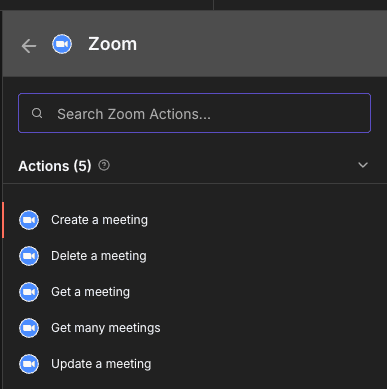
Looking to automate Zoom with n8n? You’re in the right place. The Zoom n8n integration gives you access to 5 powerful actions that let you manage your video meetings programmatically, without writing complex code or switching between applications.
With this integration, you can create meetings on the fly, retrieve meeting details in bulk, update scheduled sessions, and clean up your calendar by deleting obsolete meetings—all automatically. Whether you’re syncing meeting data with your CRM, auto-scheduling calls based on form submissions, or building a complete meeting management system, the Zoom n8n integration handles the heavy lifting.
In this guide, you’ll discover exactly how to connect Zoom to n8n, explore each available action in detail, and learn practical tips to build reliable automation workflows.


n8n Zoom Workflow: demonstration of an automation connecting Zoom to other applications via n8n. This video illustrates how Zoom actions integrate into a n8n workflow to automate your processes without code.
WHY AUTOMATE ZOOM WITH N8N?
The Zoom n8n integration gives you access to 5 actions that cover the complete lifecycle of meeting management: creation, retrieval, updates, and deletion. This means you can build end-to-end workflows that handle everything from scheduling to cleanup without manual intervention.
Significant time savings stand out as the primary benefit. Instead of manually creating meetings for every new client signup, sales call, or team session, you can trigger meeting creation automatically based on events in other apps. A form submission, a CRM deal stage change, or a calendar event can instantly spawn a properly configured Zoom meeting. No copy-pasting links, no manual scheduling—just seamless automation.
Improved data consistency is another major advantage. By using “Get many meetings” and “Get a meeting” actions, you can sync your Zoom data with databases, spreadsheets, or project management tools. Your meeting records stay accurate across all systems. Need to update a meeting topic when a deal name changes? The “Update a meeting” action handles it automatically.
Concrete use cases include: auto-creating onboarding calls when new customers sign up, syncing meeting data to Notion for reporting, bulk-retrieving meeting lists for weekly summaries, cleaning up cancelled meetings automatically, and updating meeting details based on CRM changes.
HOW TO CONNECT ZOOM TO N8N?

Basic configuration:
- Create a Zoom App: Go to the Zoom App Marketplace, click “Develop” → “Build App”, and select “OAuth” as the app type. Fill in the required information.
- Configure OAuth settings: In your Zoom app settings, add the redirect URL provided by n8n (found in your Zoom credentials configuration). Set the required scopes for meetings (typically
meeting:read,meeting:write). - Copy credentials to n8n: In n8n, go to Credentials → New → Zoom OAuth2 API. Paste your Client ID and Client Secret from the Zoom app.
- Authorize the connection: Click “Connect” in n8n and complete the OAuth flow by logging into your Zoom account and granting permissions.
- Test the connection: Add a Zoom node to a workflow and verify it can access your account data.
💡 TIP: When setting up your Zoom OAuth app, request only the scopes you actually need. Over-permissioning creates security risks, and Zoom may require additional review for apps with broad access. Start with meeting-related scopes and expand only if your workflows require it.
NEED HELP AUTOMATING ZOOM WITH N8N?
We’ll get back to you in minutes ✔
ZOOM ACTIONS AVAILABLE IN N8N
Create a meeting
The “Create a meeting” action lets you programmatically schedule new Zoom meetings directly from your n8n workflows. This is essential for any automation that needs to spin up video calls on demand—think customer onboarding, sales demos, or interview scheduling.
Key parameters:
- Credential to connect with: Dropdown menu to select your configured Zoom account credentials. This parameter is required.
- Resource: Dropdown set to “Meeting” to specify you’re working with meeting objects. Required.
- Operation: Set to “Create” for this action. Required.
- Topic: Text input field for the meeting subject line or title. This is what participants will see in their invitations. Required.
- Additional Fields: Expandable section for extra customization like duration, password, waiting room settings, or scheduling options. Optional.
Typical use cases: Automatically create onboarding calls when a new user signs up via Typeform, generate sales demo meetings when a lead reaches a specific pipeline stage in HubSpot, or schedule team standups triggered by recurring calendar events.

Get a meeting
The “Get a meeting” action retrieves detailed information about a specific Zoom meeting using its unique ID. This is perfect for checking meeting status, extracting join URLs, or syncing meeting details to other systems.
Key parameters:
- Credential to connect with: Dropdown to select your Zoom account. Required.
- Resource: Set to “Meeting”. Required.
- Operation: Set to “Get”. Required.
- ID: Text field where you enter the specific meeting ID to retrieve. Required.
- Additional Fields: Optional section for specifying extra data fields to include in the response.
Typical use cases: Fetch meeting details to send personalized reminder emails with join links, retrieve meeting status to update project management tools like Notion or Asana, or extract recording availability after a meeting ends.

Get many meetings
The “Get many meetings” action retrieves multiple meetings from your Zoom account in a single request. This bulk operation is invaluable for reporting, auditing, or syncing large datasets.
Key parameters:
- Credential to connect with: Your Zoom account credentials. Required.
- Resource: Set to “Meeting”. Required.
- Operation: Set to “Get Many”. Required.
- Return All: Toggle switch to retrieve all available meetings or just a subset. Optional.
- Limit: Numeric field to cap the number of meetings returned when “Return All” is off. Optional.
- Filters: Expandable section to refine results by criteria like date range or meeting type. Optional.
Typical use cases: Generate weekly meeting reports by fetching all meetings and sending a summary to Gmail, sync your complete meeting history to a Google Sheet for analysis, or audit upcoming meetings to ensure proper configurations.

Update a meeting
The “Update a meeting” action modifies existing Zoom meeting properties. Use it to change topics, reschedule times, update passwords, or adjust any other meeting settings dynamically.
Key parameters:
- Credential to connect with: Your Zoom account selection. Required.
- Resource: Set to “Meeting”. Required.
- Operation: Set to “Update”. Required.
- ID: The unique meeting identifier for the meeting you want to modify. Required.
- Update Fields: Expandable section where you specify which properties to change (topic, start time, duration, etc.). Optional but necessary to make actual changes.
Typical use cases: Automatically rename meetings when associated deal names change in your CRM, reschedule meetings based on calendar conflicts detected in Google Calendar, or update meeting passwords when security policies change.

Delete a meeting
The “Delete a meeting” action permanently removes a meeting from your Zoom account. This is essential for cleanup workflows, cancellation processes, or maintaining an organized meeting list.
Key parameters:
- Credential to connect with: Your Zoom credentials. Required.
- Resource: Set to “Meeting”. Required.
- Operation: Set to “Delete”. Required.
- ID: Text field for the meeting ID to delete. Required.
- Additional Fields: Optional section for additional deletion parameters.
Typical use cases: Automatically delete meetings when associated deals are marked as lost, clean up test meetings created during development, or remove cancelled appointments when customers reschedule via booking tools.

NEED HELP AUTOMATING ZOOM WITH N8N?
We’ll get back to you in minutes ✔
FREQUENTLY ASKED QUESTIONS ABOUT ZOOM N8N INTEGRATION
Is the Zoom n8n integration free to use?
The Zoom n8n integration itself is free within n8n—there's no additional cost for using the Zoom nodes. However, you need an active Zoom account, and certain features may require a paid Zoom plan. For example, meeting recordings and webinar functionality typically require Zoom Pro or higher. On the n8n side, self-hosted n8n is free and open-source, while n8n Cloud has usage-based pricing. The OAuth app you create in Zoom is also free, though apps requesting certain sensitive scopes may require Zoom's review process.
What meeting data can I access through the Zoom n8n integration?
Through the 5 available actions, you can access comprehensive meeting data including meeting IDs, topics, join URLs, start times, durations, timezone settings, passwords, and host information. The "Get" actions return detailed meeting objects with all associated metadata. You can also modify most of these properties through the "Update" action. However, accessing meeting recordings or participant lists may require additional API scopes configured in your Zoom OAuth app.
How do I handle Zoom API rate limits in n8n workflows?
Zoom enforces API rate limits that vary by endpoint and account type. In n8n, you can manage this by adding delay nodes between Zoom operations, especially in loops that process many meetings. For bulk operations, use the "Get many meetings" action with appropriate limits rather than making individual requests. If you hit rate limits, n8n will receive an error response—you can handle this with error workflows or retry logic. For high-volume use cases, consider spacing out your workflow executions or implementing exponential backoff patterns.