
GMAIL Make INTEGRATION: AUTOMATE GMAIL WITH MAKE
Looking to automate Gmail with Make? You're in the right place. The Gmail Make integration gives you access to 1 trigger and 14 actions to build powerful email automation workflows without writing a single line of code.
With this integration, you can automatically monitor incoming emails, send personalized messages, manage drafts, organize your inbox with labels, and much more. Whether you're handling customer support, lead nurturing, or internal communications, connecting Gmail to Make opens up endless possibilities for streamlining your email operations.
In this guide, you'll discover exactly how to connect Gmail to Make, explore every available trigger and action in detail, and learn practical tips to get the most out of your email automations. Let's dive in.
Need help automating Gmail with Make?
Our team will get back to you in minutes.
Why automate Gmail with Make?
The Gmail Make integration gives you access to 1 trigger and 14 actions that transform how you handle email. Instead of manually checking your inbox, sending repetitive messages, or copying data between applications, you can set up intelligent automations that work around the clock.
Here's what makes this integration powerful: significant time savings come from eliminating repetitive email tasks. No more copying contact information from emails to your CRM, manually sending follow-ups, or organizing messages into folders. Set up smart rules once, and let Make handle the rest. Improved responsiveness means your workflows trigger instantly when new emails arrive—customers get faster replies, leads get immediate attention, and important messages never slip through the cracks. Zero oversight ensures that Make monitors your Gmail 24/7. Every incoming email matching your criteria immediately triggers the appropriate workflow, even while you sleep. Seamless integration connects Gmail to over 2,000 applications in Make's ecosystem, from CRMs and project management tools to databases and communication platforms.
Concrete workflows you can build include: automatically adding new email senders to your CRM, sending personalized follow-ups when prospects reply, creating support tickets from customer emails, syncing attachments to cloud storage, and notifying your team on Slack when important emails arrive.
How to connect Gmail to Make?
! 1 stepHow to connect Gmail to Make?
- 01
Add the node
Search and add the node in your workflow.
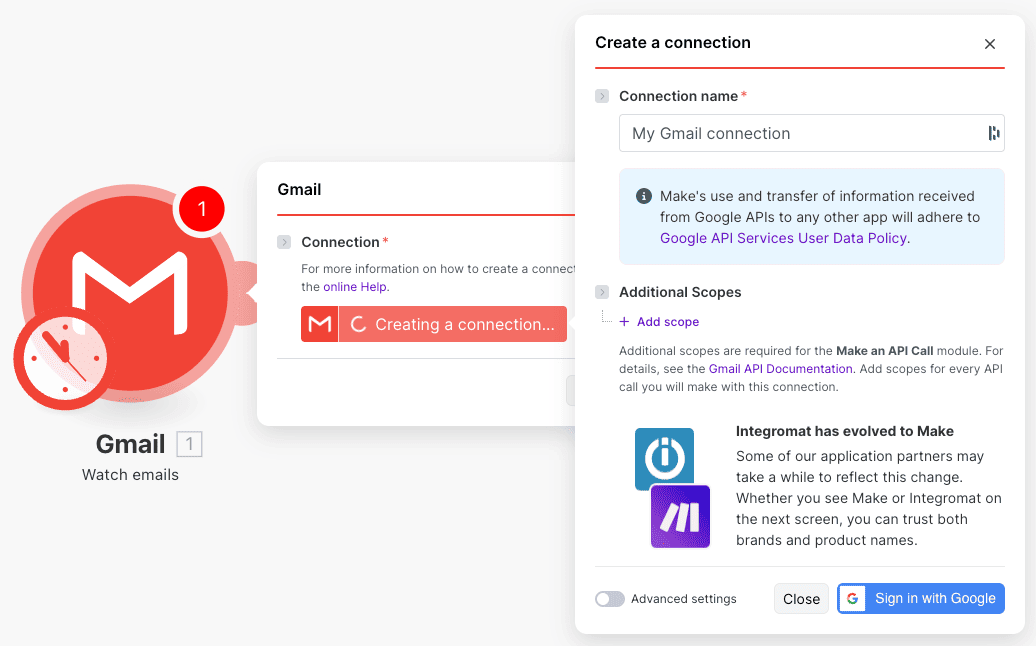
- 01
Need help automating Gmail with Make?
Our team will get back to you in minutes.
Gmail triggers available in Make
01 Trigger 01Watch emails
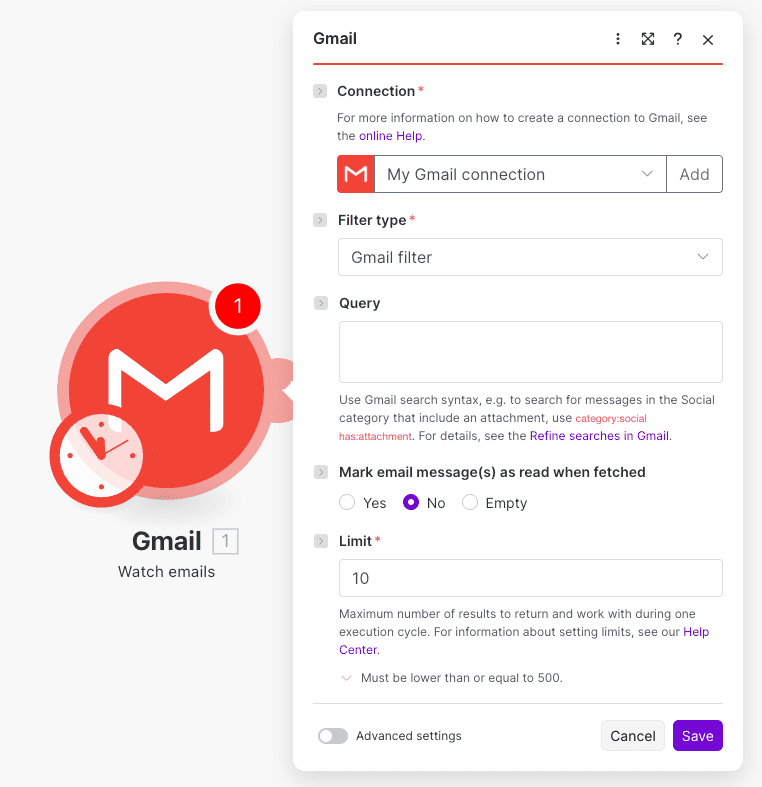
This trigger is the foundation of most Gmail automations in Make. It continuously monitors your inbox and fires your workflow whenever new emails arrive that match your specified criteria. Whether you're watching for customer inquiries, lead responses, or specific senders, this trigger ensures you never miss an important message.
The configuration is flexible and powerful. Connection is required—select your authorized Gmail connection from the dropdown. Filter type determines how you'll filter incoming emails, with Gmail's native filter being the primary option. Query is optional but incredibly useful—it accepts Gmail's search syntax, allowing you to filter by sender, subject, labels, attachments, and more (for example:
from:client@company.com has:attachmentorcategory:social). Mark email message(s) as read when fetched lets you choose whether processed emails should be marked as read automatically—options are Yes, No, or Empty. Limit sets the maximum number of emails to process per execution cycle, with a cap of 500.Typical use cases for this trigger include monitoring support emails to automatically create tickets in your helpdesk, watching for lead responses to trigger CRM updates and sales notifications, detecting emails with attachments to automatically save files to Google Drive or Dropbox, and filtering newsletters or social notifications for automatic archiving.
Use this trigger when you need real-time reactions to incoming emails. It's perfect for customer support automation, lead management, content collection, and any workflow where email arrival should initiate immediate action.
Gmail actions available in Make
01 Action 01Reply to an email
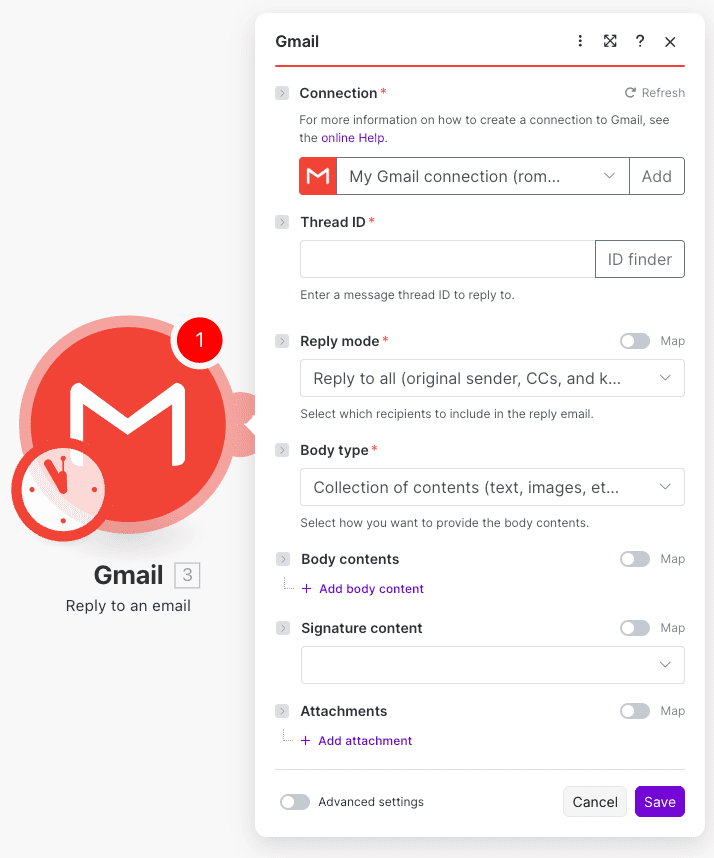
This action allows you to automatically reply to existing email threads, maintaining conversation context and ensuring your responses appear correctly in the original thread. It's essential for customer support automation, follow-up sequences, and any workflow requiring contextual responses.
Key parameters include: Connection to select your Gmail account, Thread ID to specify which email conversation you're replying to (use the ID finder tool for easy selection), Reply mode to choose whether to reply to all recipients, just the sender, or specific recipients, Body type to select between plain text or formatted content, and Body contents for your actual reply message. Optional parameters include Signature content for personalizing your sign-off and Attachments for including files.
Use cases include auto-acknowledging support tickets with estimated response times, sending follow-up information when leads reply to outreach emails, and automatically responding to meeting requests with availability.
02 Action 02Send an email
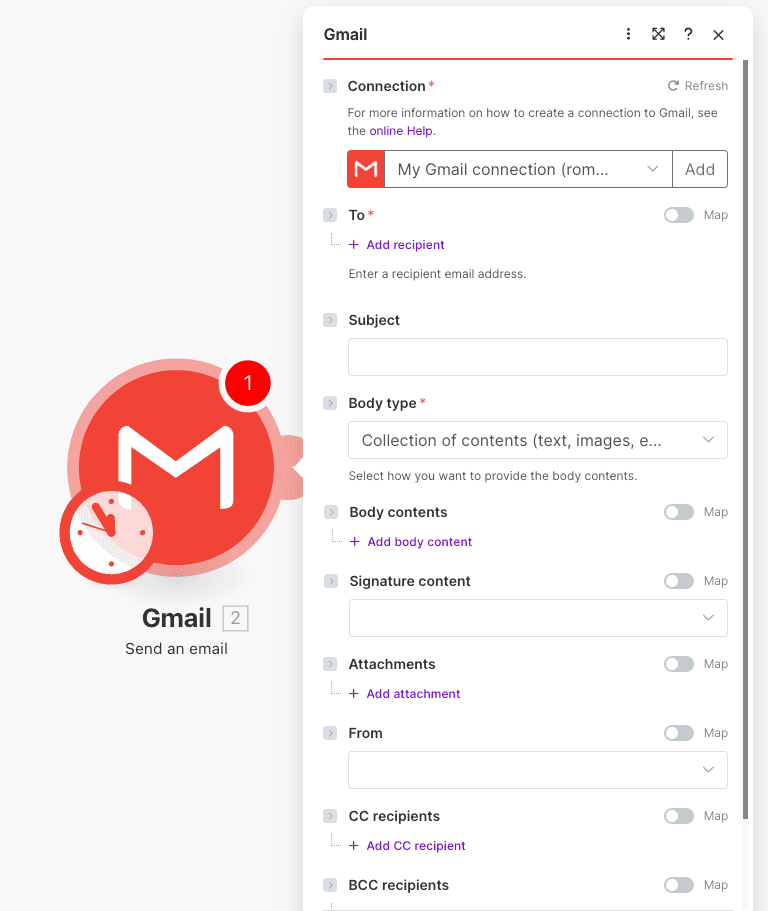
The most versatile action in the Gmail integration, Send an email lets you compose and dispatch new messages with full control over recipients, content, and attachments. It's the backbone of notification systems, outreach campaigns, and automated communications.
Configure it with: Connection and To (both required) for the recipient's address, Subject for your email's subject line, Body type and Body contents for the message itself. Optional fields include Signature content, Attachments, From (to customize the sender address if your account allows), CC recipients, and BCC recipients.
Use cases include sending welcome emails when new users sign up, dispatching automated reports with attached documents, and notifying team members about important events or deadlines.
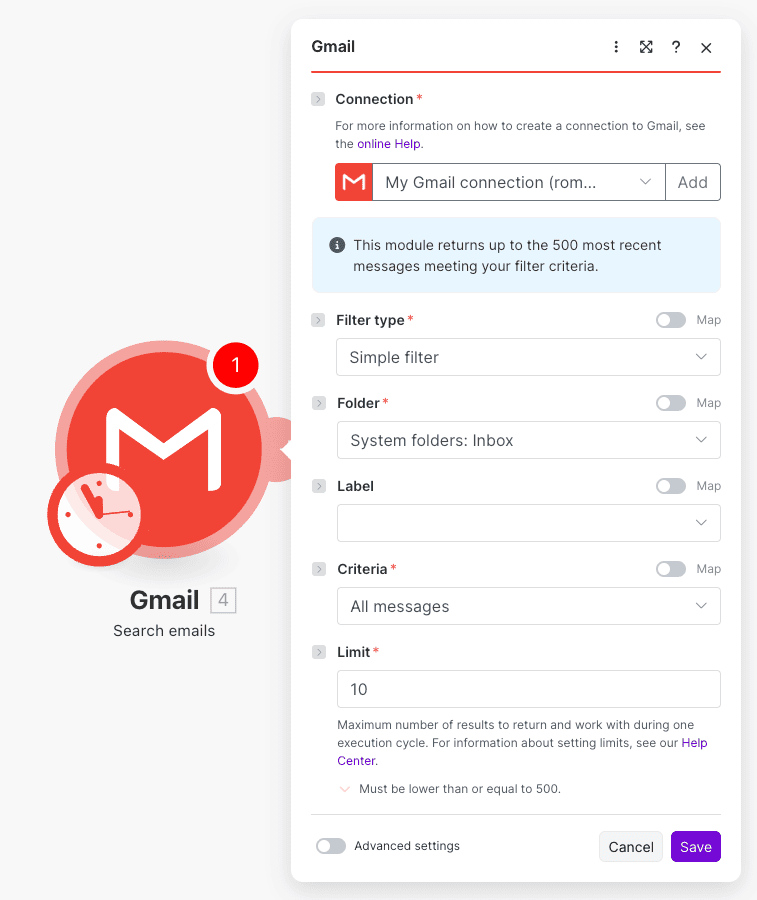
03 Action 03Search emails
This action retrieves emails from your Gmail account based on filter criteria, perfect for workflows that need to find specific messages or process batches of emails. Unlike the trigger that monitors in real-time, Search emails lets you query your existing inbox on demand.
Required parameters: Connection, Filter type (choose filtering method like "Simple filter"), Folder (select which folder to search, including Inbox), Criteria (specify which messages to return, such as "All messages"), and Limit (maximum results, capped at 500). The optional Label parameter lets you filter by Gmail labels.
Use cases include finding all unread emails from a specific sender for batch processing, retrieving emails with specific labels for data extraction, and searching for messages matching keywords before performing bulk operations.
04 Action 04Copy an email
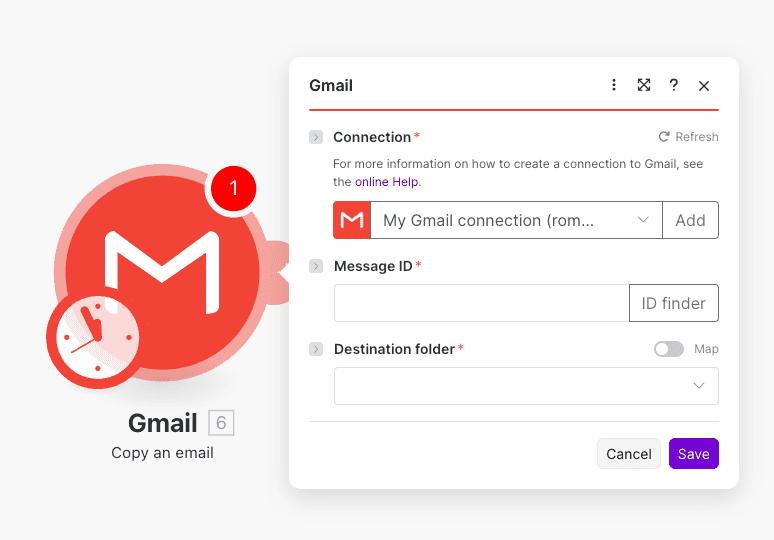
Copy an email duplicates a message to a different folder, useful for organizing your inbox without removing the original. This action helps maintain multiple organizational structures or backup important messages.
Parameters include: Connection (required), Message ID (the unique identifier of the email to copy—use the ID finder for assistance), and Destination folder (select from your Gmail folders where the copy will be placed).
Use cases include copying important emails to an archive folder while keeping them in Inbox, duplicating messages to project-specific folders for team reference, and creating backups of critical communications in multiple locations.
05 Action 05Get an email
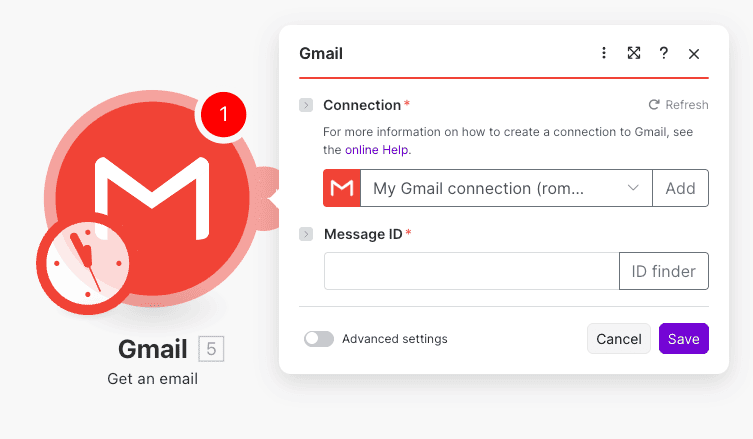
This action retrieves the full details of a specific email using its Message ID. It's essential when you need complete email data—headers, body, metadata—for processing in subsequent workflow steps.
Two required parameters: Connection to your Gmail account and Message ID (the unique identifier, selectable via ID finder). Both must be configured for the action to execute successfully.
Use cases include fetching email details after a trigger to extract specific information, retrieving full message content for parsing and data extraction, and getting email metadata for logging or reporting purposes.
06 Action 06Move an email
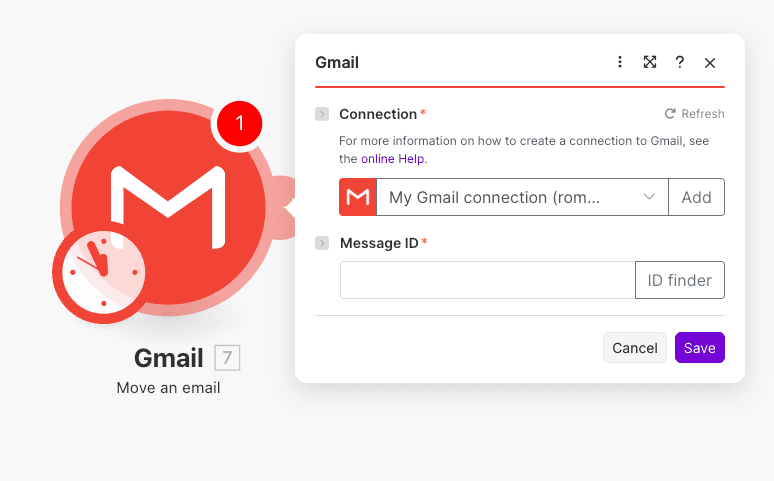
Move an email relocates a message from its current location to a specified folder, helping you organize your inbox automatically. Unlike Copy, this removes the email from its original location.
Required parameters: Connection and Message ID (text field with ID finder support). You'll specify the destination through subsequent configuration.
Use cases include automatically moving processed support emails to "Resolved" folder, organizing incoming emails into department-specific folders, and archiving old conversations after a certain period.
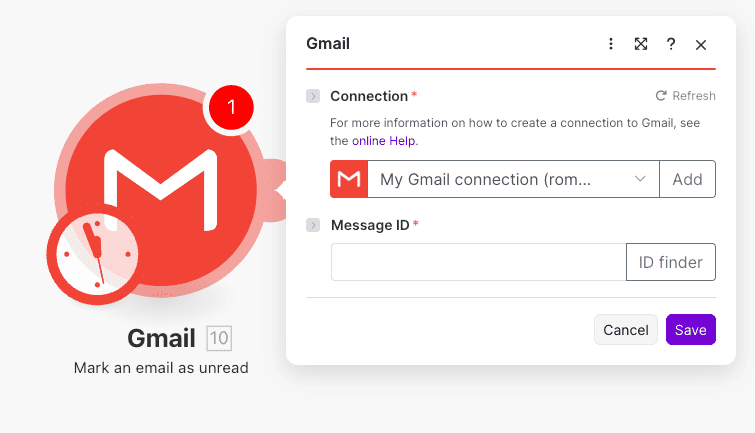
07 Action 07Mark an email as unread
This action changes an email's read status back to unread, useful for flagging messages that need attention or ensuring certain emails remain visible in your inbox count.
Configure with: Connection (dropdown selection of your Gmail connections) and Message ID (text input or ID finder selection). Both are required.
Use cases include marking emails as unread after automated processing fails for manual review, flagging important messages that need follow-up attention, and resetting read status for emails requiring team action.
08 Action 08Mark an email as read
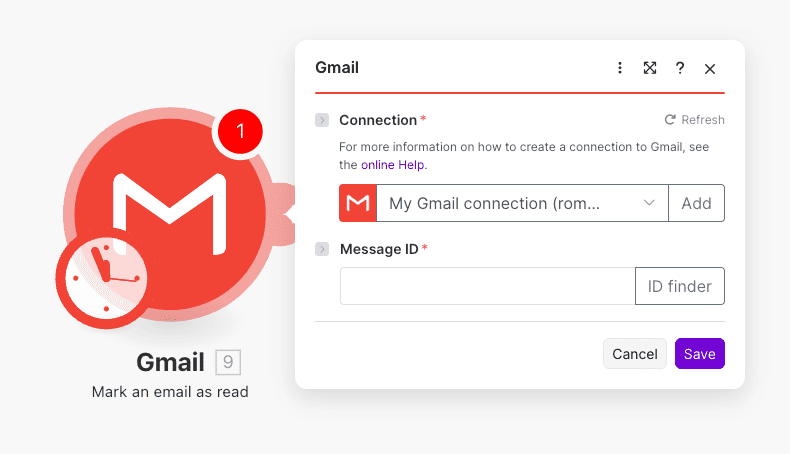
The counterpart to the previous action, this marks specified emails as read. Essential for cleaning up your inbox after automated processing or acknowledging messages without manual intervention.
Parameters: Connection (required dropdown) and Message ID (required text field with ID finder option).
Use cases include marking emails as read after successful automated processing, cleaning up notification emails after extracting their data, and acknowledging automated reports without manual inbox management.
09 Action 09Update email labels
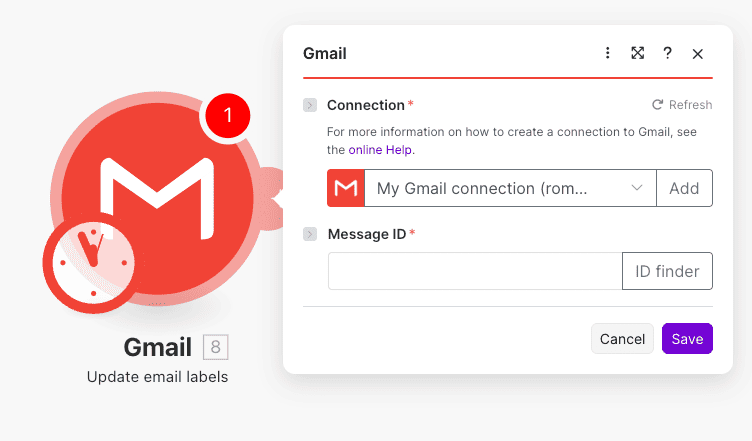
This action modifies the labels assigned to an email, enabling sophisticated inbox organization. Labels in Gmail act as tags, and automating their management keeps your email perfectly organized.
Required fields: Connection (establish Gmail account connection) and Message ID (specify which email to update using text input or ID finder).
Use cases include adding "Urgent" label to emails containing specific keywords, removing "Unprocessed" label after workflow completion, and tagging emails by project, client, or priority automatically.
10 Action 10Create a draft email
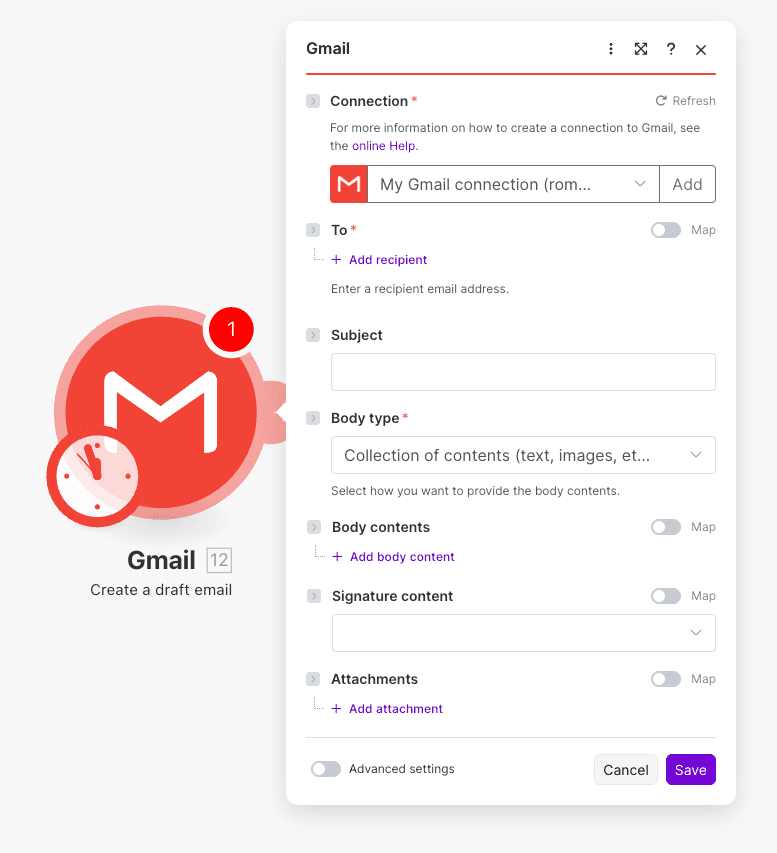
Create a draft email prepares a message without sending it, perfect for workflows requiring human review before dispatch or for staging emails for later sending.
Parameters include: Connection (required), To (required recipient address), Subject (optional), Body type (required—plain text or HTML), Body contents (optional), Signature content (optional), and Attachments (optional). Advanced settings offer additional customization.
Use cases include preparing personalized outreach drafts for sales review, staging weekly reports for manager approval before sending, and creating response templates that need human customization.
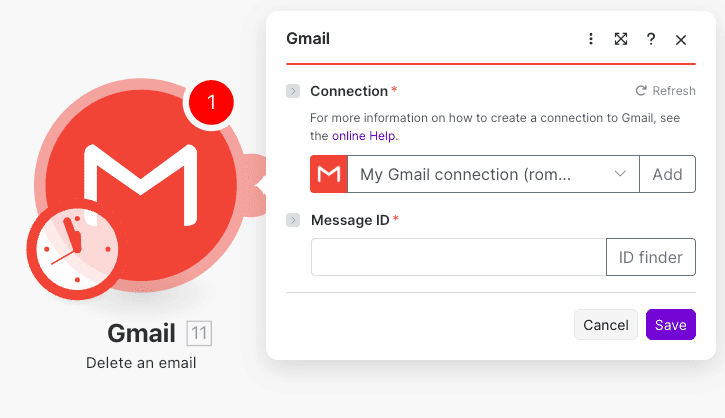
11 Action 11Delete an email
Permanently removes an email from your Gmail account. Use with caution—this action is irreversible and bypasses the trash folder.
Two mandatory parameters: Connection (dropdown menu of Gmail connections) and Message ID (text input or ID finder selection).
Use cases include automatically deleting spam or unwanted automated messages, cleaning up processed notification emails, and removing duplicate or obsolete messages from your inbox.
12 Action 12Send a draft email
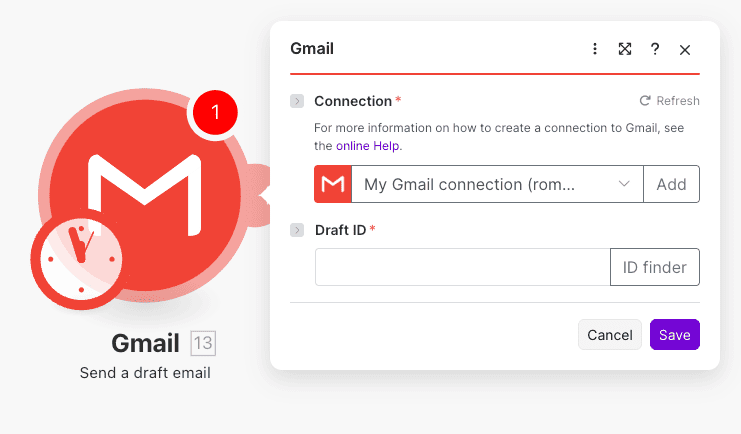
This action dispatches a previously created draft, completing the send process for staged messages. It's the companion to Create a draft, enabling review-then-send workflows.
Required parameters: Connection (dropdown selection with option to add new connections) and Draft ID (text input with ID finder to locate the correct draft).
Use cases include sending approved drafts after manager review, dispatching scheduled newsletters prepared in advance, and completing multi-step email approval workflows.
13 Action 13List email attachments and media
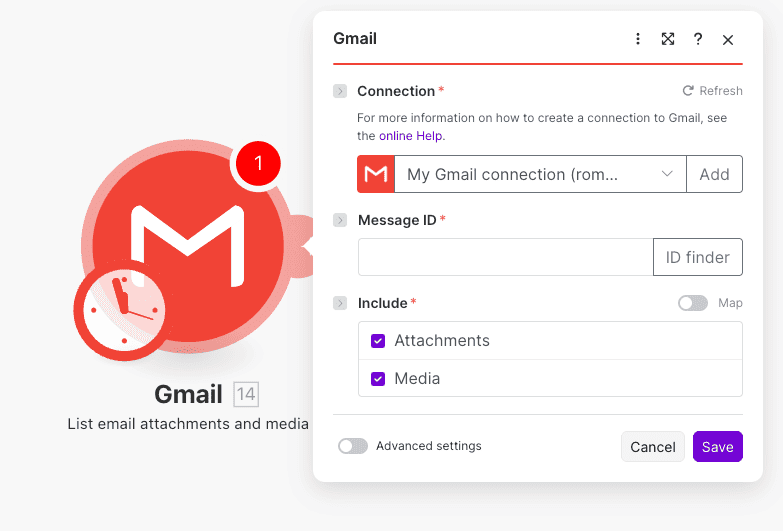
This action extracts and lists all attachments and embedded media from a specific email, enabling you to process, save, or analyze files automatically.
Parameters: Connection (required dropdown), Message ID (required text field with ID finder), and Include (required checkboxes to select Attachments, Media, or both).
Use cases include extracting invoice attachments for automated accounting processing, saving media files from emails directly to cloud storage, and cataloging attachments for compliance or record-keeping.
14 Action 14Make an API call
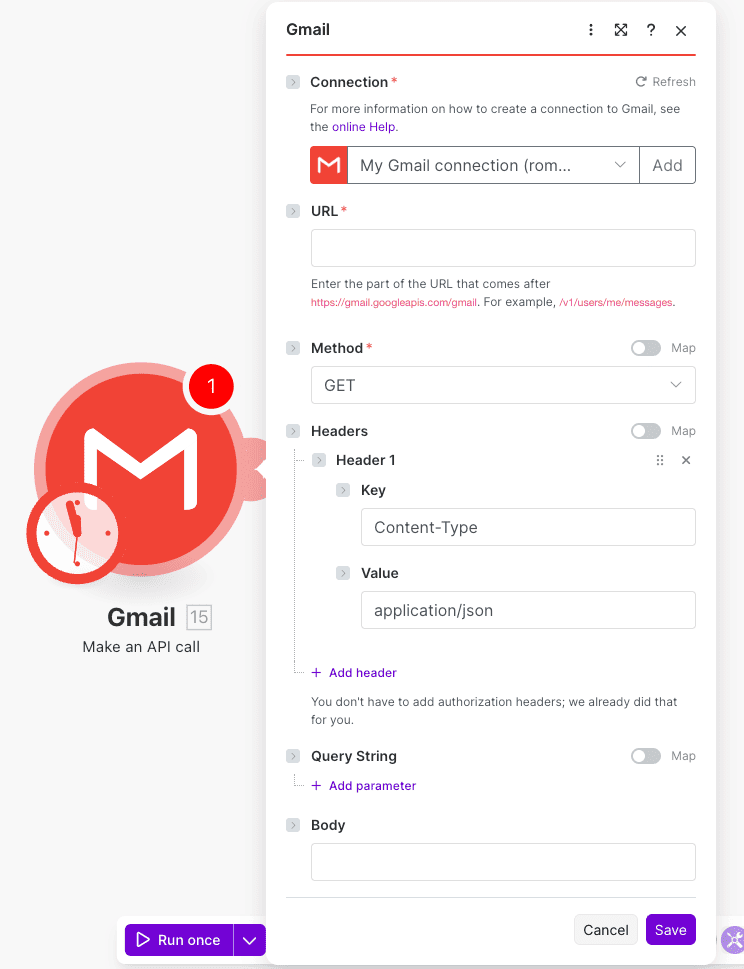
The most flexible action, Make an API call lets you interact directly with Gmail's API for advanced operations not covered by standard actions. It requires API knowledge but unlocks unlimited possibilities.
Parameters include: Connection (required), URL (required—the API endpoint path), Method (required—GET, POST, etc.), Headers (optional key-value pairs, with Content-Type: application/json recommended), Query String (optional additional parameters), and Body (optional payload for POST requests).
Use cases include accessing advanced Gmail features not available in standard actions, performing batch operations for efficiency, and implementing custom functionality specific to your workflow needs.
Build your first workflow with our team
Drop your email and we'll send you the catalog of automations you can ship today.
- Free n8n & Make scenarios to import
- Step-by-step setup docs
- Live cohort + community support
Frequently asked questions
Is the Gmail Make integration free?
The Gmail integration itself is included with all Make plans, including the free tier. However, your overall automation capacity depends on your Make subscription—free accounts include 1,000 operations per month, while paid plans offer significantly more. Each action or trigger execution counts as one or more operations. For personal email automation, the free plan often suffices, but business workflows typically require a paid subscription to handle higher volumes without interruption.What data can I sync between Gmail and Make?
The Gmail Make integration gives you access to comprehensive email data including sender/recipient addresses, subject lines, full message bodies (plain text and HTML), timestamps, labels, thread information, and attachments. You can extract this data to sync with CRMs, databases, spreadsheets, project management tools, and virtually any other Make-compatible application. The Search and Watch triggers retrieve emails based on your criteria, while Get an email fetches complete details for any specific message.How long does it take to set up the Gmail Make integration?
Initial setup takes about 5 minutes—simply add a Gmail module to your scenario, authenticate via Google's OAuth flow, and you're connected. Building your first simple automation (like forwarding emails or creating CRM contacts) typically takes 15-30 minutes. More complex workflows with multiple conditions, filters, and connected apps may require 1-2 hours for initial configuration. The Watch emails trigger runs at intervals you define (as frequently as every minute on paid plans), ensuring near-real-time automation once configured.