Auto Backup n8n Workflows → Google Drive
Let’s be honest: manually exporting workflows is something you’ll do once, maybe twice, then completely forget about. By the time you actually need a backup, your last export is three months old and missing all your recent work.
The full automation, in your inbox
Auto Backup n8n Workflows → Google Drive

Auto Backup n8n Workflows → Google Drive: Never Lose Your Automations Again (Free n8n Workflow + Video + Tutorial + Download)
Requirements: n8n instance & API keys.
! You'll needRequirements: n8n instance & API keys.
- A self-hosted n8n instance with terminal access.
- API credentials for the services used in this workflow.
The full automation, in your inbox
n8n workflow breakdown.
01 Step 01Configure the Scheduled Backup Trigger.
The automation starts with a Schedule Trigger node—the heartbeat of your backup system. This node determines when and how often your workflows get backed up, running silently in the background without any manual intervention.
In this configuration, we're setting the workflow to execute every 6 hours. That means you'll have 4 backups per day: at midnight, 6am, noon, and 6pm. This interval strikes the right balance between protection and storage efficiency. Frequent enough to minimize data loss, but not so frequent that your Google Drive fills up with redundant copies.
💡 Tip: For testing, you don't need to wait 6 hours. Go back to the canvas and click "Execute Workflow" to run it manually and verify everything works before activating.
 Parameters
- Trigger Interval: Hours — Sets the time unit for scheduling (options include Minutes, Hours, Days, Weeks)
- Hours Between Triggers: 6 — The workflow runs every 6 hours (valid range: 1-23)
- Trigger at Minute: 0 — Executes exactly at the top of the hour (e.g., 6:00, not 6:15)
02 Step 02Create a Timestamped Backup Folder in Google Drive.
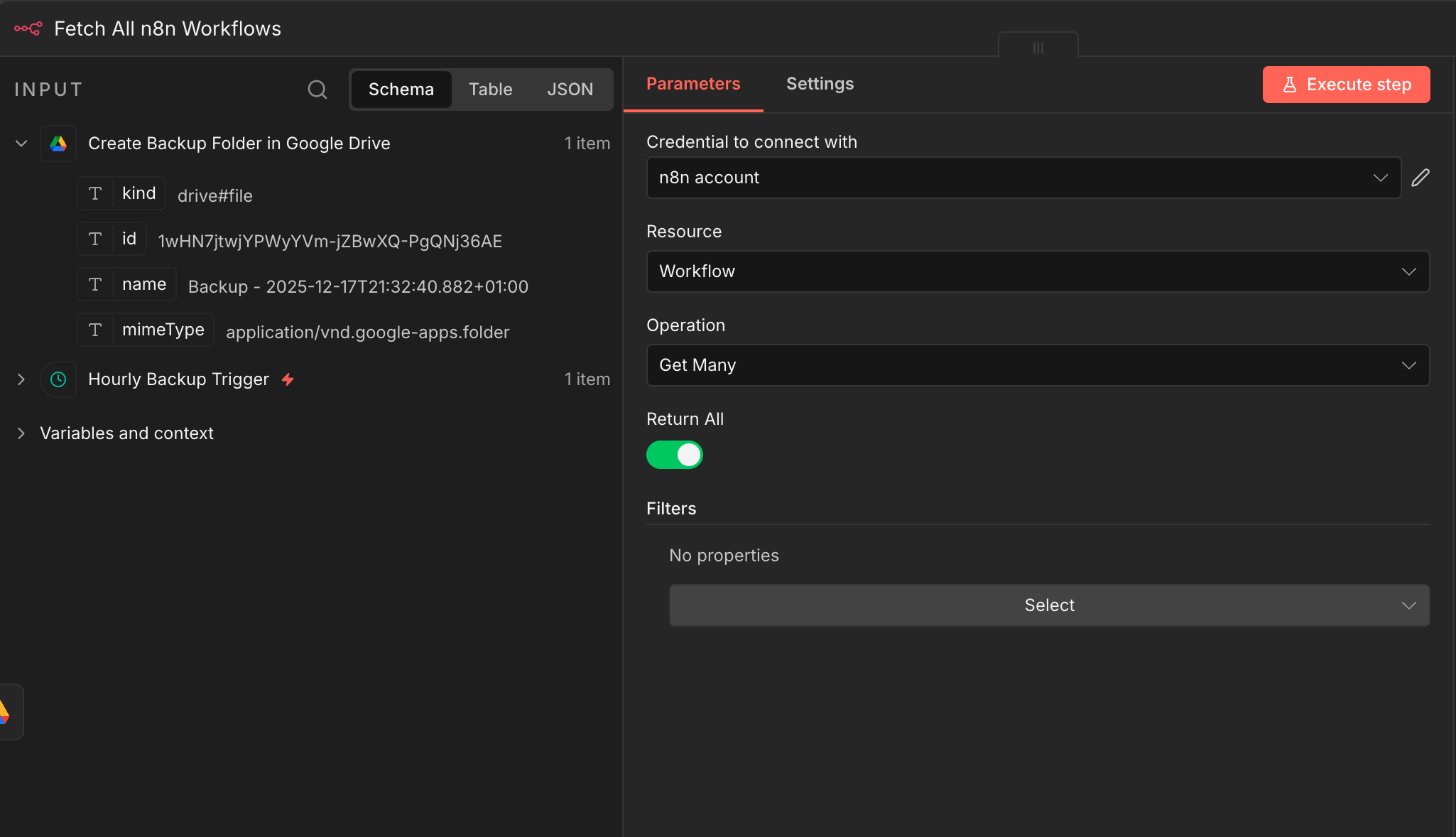
Before uploading any files, we need somewhere to put them. This Google Drive node creates a new folder for each backup run, automatically named with the current timestamp. This gives you a clean, chronological archive where you can easily identify when each backup was made.
The folder name uses an n8n expression that inserts the exact date and time:
Backup - 2025-12-17T21:34:35.207+01:00. No two folders will ever have the same name, and you can sort them chronologically with a glance.💡 Tip: Create a dedicated "n8n Backups" folder in your Google Drive first, then select it as the Parent Folder. This keeps your backup archive organized and easy to find.
 Parameters
- Credential to connect with: Select your Google Drive credential configured in n8n
- Resource:
Folder— Specifies we're working with folders, not files - Operation:
Create— Creates a new folder in Drive - Folder Name:
Backup - {{ $now }}— Dynamic expression that inserts the current timestamp - Parent Drive: From list → My Drive — The root Drive location (or select a Shared Drive if applicable)
- Parent Folder: From list → [YOUR_BACKUP_FOLDER] — Select the parent folder where backup subfolders will be created
- Options: No additional options configured
03 Step 03Fetch All Workflows from Your n8n Instance.
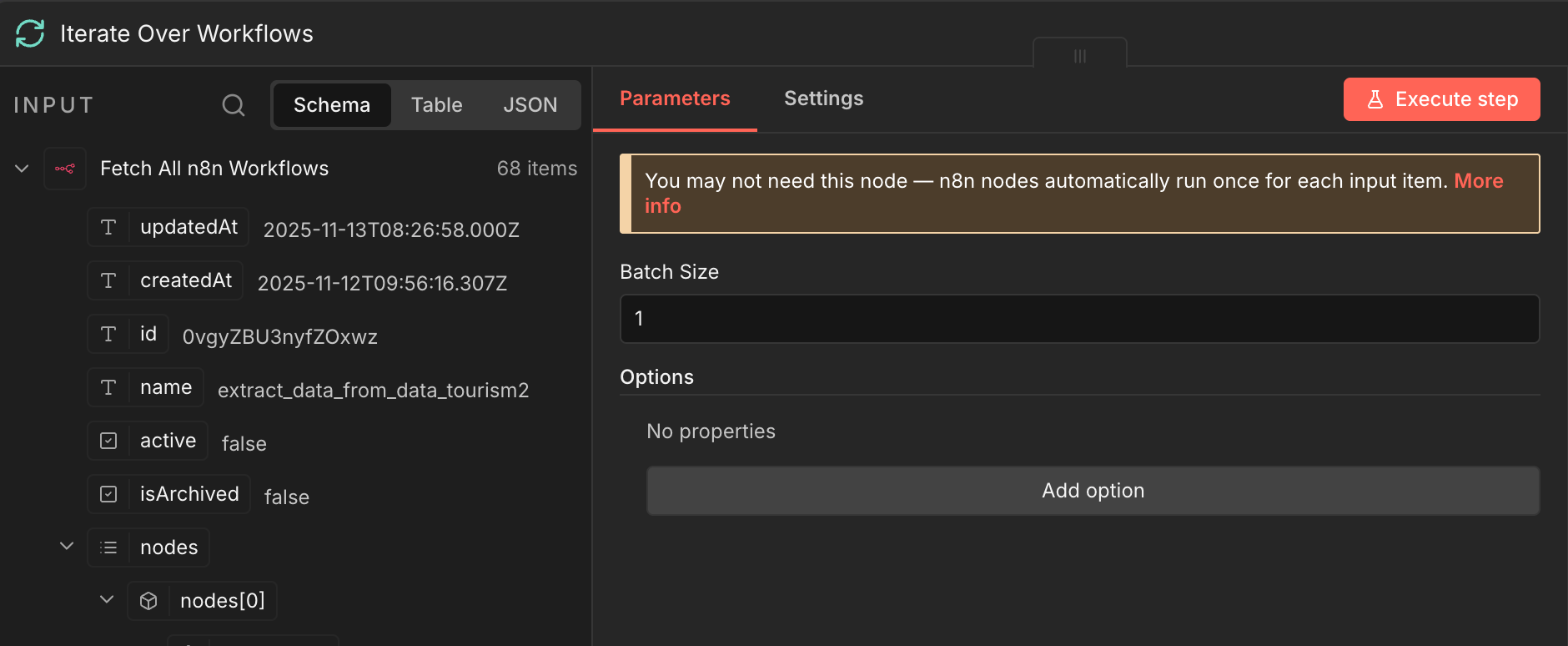
Now we pull the actual data to back up. This n8n node uses your instance's API to retrieve every single workflow—active or inactive, recently modified or untouched for months. Nothing gets left behind.
The node returns complete workflow objects including all nodes, connections, settings, and metadata. Each workflow becomes an item in the output, ready to be processed individually in the next steps.
💡 Tip: Make sure your n8n API credential has read access to workflows. You can create an API key in your n8n instance settings under "API" section.
 Parameters
- Credential to connect with: Select your n8n account credential (API access to your instance)
- Resource:
Workflow— Targets workflow resources specifically - Operation:
Get Many— Retrieves multiple workflows in one call - Return All: Enabled (toggle ON) — Fetches every workflow without pagination limits
- Filters: No properties — No filtering applied; captures all workflows regardless of status
04 Step 04Loop Through Each Workflow Individually.
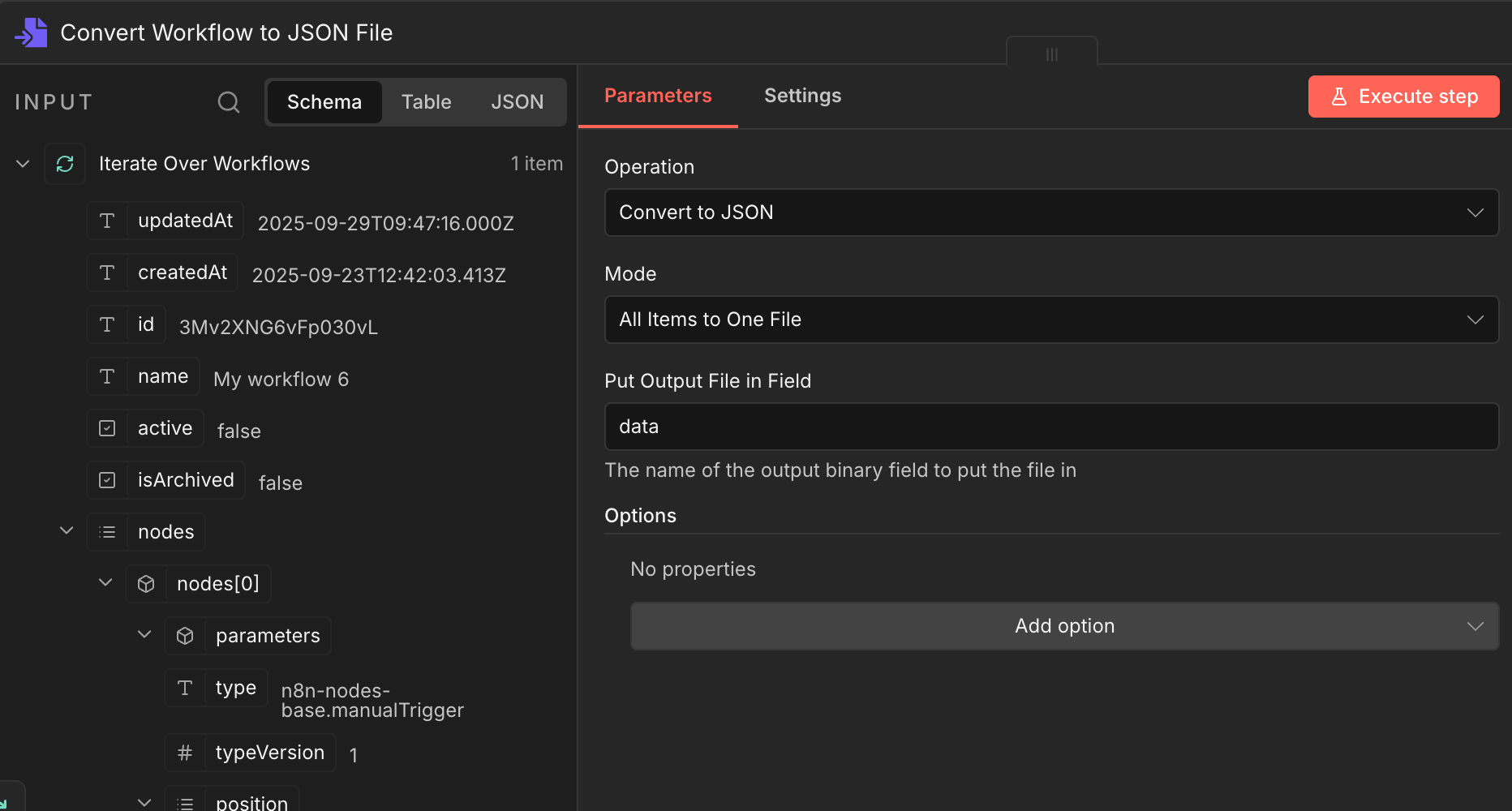
With potentially dozens or hundreds of workflows returned from the previous step, we need to process them one at a time. The Loop Over Items node handles this iteration, ensuring each workflow gets converted and uploaded individually.
Setting the batch size to 1 means each workflow is processed sequentially. This prevents any race conditions with file uploads and makes the automation more reliable, especially for larger n8n instances.
💡 Tip: If you have a very large number of workflows (100+) and want faster execution, you could increase the batch size. However, keeping it at 1 ensures maximum reliability and easier troubleshooting.
 Parameters
- Batch Size: 1 — Processes one workflow at a time through the loop
- Options: No additional options configured
05 Step 05Convert Each Workflow to a JSON File.
Each workflow arrives as structured JSON data, but we need to package it as an actual file for uploading to Google Drive. The Convert to File node transforms the workflow data into a downloadable JSON file format.
The "All Items to One File" mode consolidates the current workflow (remember, we're processing one at a time thanks to the loop) into a single JSON file. This file contains the complete workflow definition—every node, every connection, every parameter—ready for import back into n8n.
💡 Tip: The output file is stored in a binary field called "data." The next node (Google Drive Upload) will reference this exact field name to know which file to upload.
 Parameters
- Operation:
Convert to JSON— Transforms data into JSON file format - Mode:
All Items to One File— Creates one consolidated file from the input data - Put Output File in Field:
data— The binary field name where the JSON file is stored for the next node
- Operation:
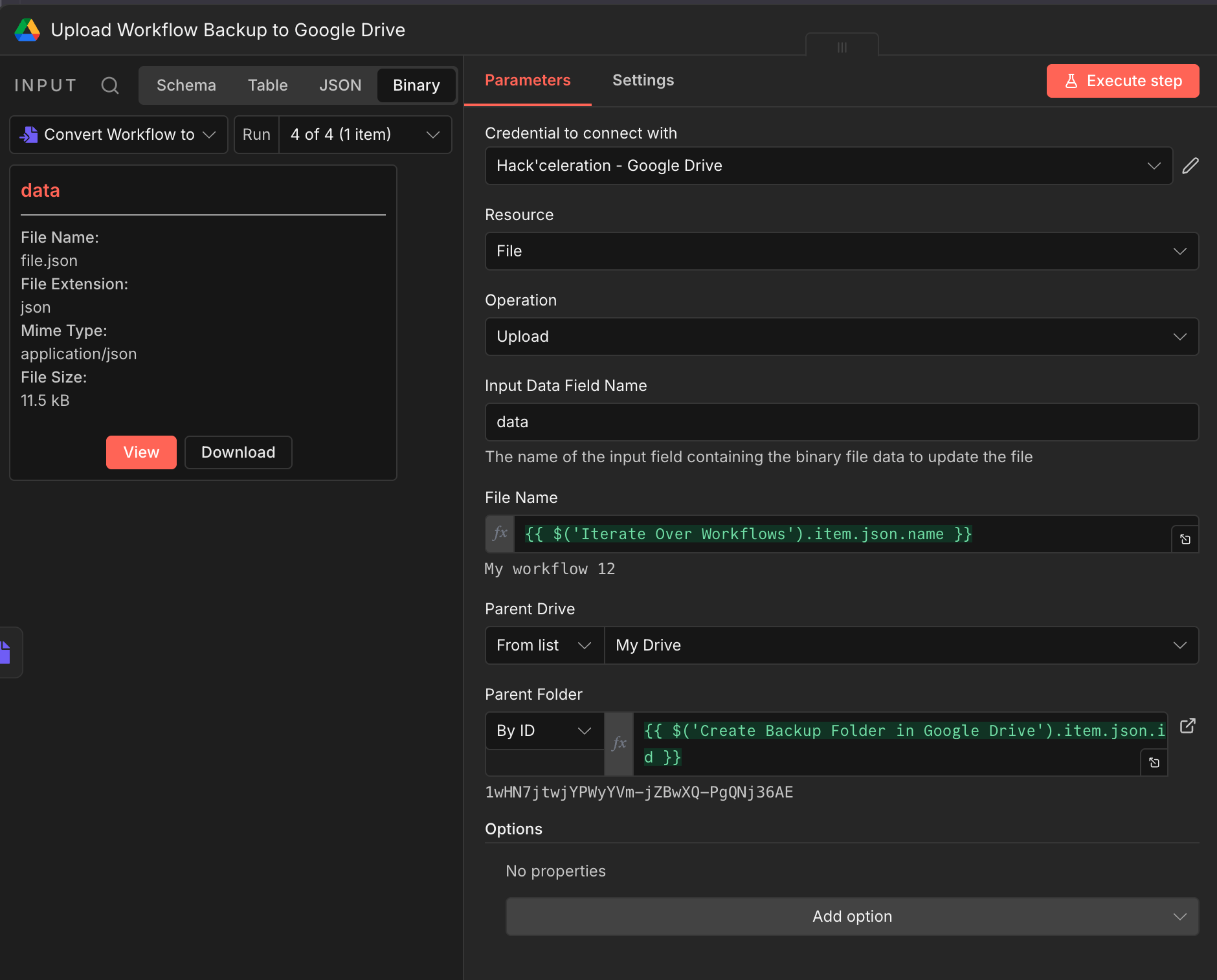
06 Step 06Upload the Backup File to Google Drive.
The final step uploads each JSON file to the timestamped folder we created earlier. Two n8n expressions make this dynamic: one pulls the workflow name to use as the filename, and another references the folder ID from step 2 to ensure files land in the correct backup folder.
After this node executes, your Google Drive will contain a new folder with one JSON file for each workflow in your n8n instance. Each file is named after the original workflow, making it easy to find and restore specific automations.
💡 Tip: The expression
$('Create Backup Folder in Google Drive').item.json.idpulls the folder ID from the node we named earlier. If you rename that node, update this expression to match.Parameters- Credential to connect with: Select your Google Drive credential configured in n8n
- Resource:
File— Specifies we're uploading a file - Operation:
Upload— Sends the file to Google Drive - Input Data Field Name:
data— Must match the binary field name from the previous Convert node - File Name:
{{ $('Iterate Over Workflows').item.json.name }}— Dynamic expression that uses the original workflow name as the filename - Parent Drive: From list → My Drive — Or your Shared Drive if applicable
- Parent Folder: By ID →
{{ $('Create Backup Folder in Google Drive').item.json.id }}— References the folder ID created in step 2 - Options: No additional options configured
Get the ready-to-import n8n JSON plus the install guide
Drop your email and we'll send you the complete scenario.
- n8n JSON ready to import
- Written setup guide
- Video tutorial included
Why Automating n8n Backups Is a Game-Changer for Automation Teams
Your n8n workflows represent hours—sometimes weeks—of development time. They're the backbone of your automated operations, handling everything from lead processing to data synchronization to client deliverables. Losing them isn't just inconvenient; it's potentially catastrophic.Common problems with manual backup approaches:You forget to export workflows regularly (let's be honest, it happens)Manual exports don't capture your entire instance, just one workflow at a timeNo version history means you can't roll back to a working state after a bad editTeam members make changes without anyone saving a backup firstServer migrations or updates occasionally cause data lossWhat automated backups give you:Complete peace of mind knowing every workflow is protected, automaticallyPoint-in-time restore capability—go back to any backup from the past days or weeksInstant disaster recovery—import the JSON file and you're back in businessVersion history that lets you see how workflows evolved over timeZero ongoing effort after initial 10-minute setupFor n8n administrators managing production workflows, freelancers handling client automations, or agencies running multiple n8n instances—this automation is non-negotiable infrastructure. It's the safety net that lets you iterate confidently, knowing you can always recover if something goes wrong. If you need help building complex automations, our workflow creation agency can assist.
The full automation, in your inbox.
n8n JSON, written guide and video tutorial, everything to ship this in under 15 minutes.
- Complete n8n scenario JSON
- Step-by-step setup documentation
- Full video walkthrough