AI Agent n8n: Auto-Schedule Your Meetings
Scheduling meetings manually is a productivity killer. Every meeting request triggers a tedious cycle: open your calendar, scan for availability, draft a reply with options, wait for a response, repeat. For entrepreneurs, consultants, and sales professionals handling dozens of meeting requests weekly, this administrative burden steals hours that should go toward actual work.
The full automation, in your inbox
AI Agent n8n: Auto-Schedule Your Meetings
AI Agent n8n: Auto-Schedule Your Meetings with Gmail & Google Calendar (Free n8n Workflow + Video + Tutorial + Download)
Requirements: n8n instance & API keys.
! You'll needRequirements: n8n instance & API keys.
- A self-hosted n8n instance with terminal access.
- API credentials for the services used in this workflow.
The full automation, in your inbox
n8n workflow breakdown.
01 Step 01Gmail Trigger – Detecting New Emails.
This is where your automation begins. The Gmail Trigger node monitors your inbox and fires the workflow every time a new message arrives. Without this trigger, nothing happens—it's the essential starting point that keeps your AI agent alert to incoming meeting requests.
The node uses polling to check for new messages at regular intervals. When it detects an unread email, it captures the message data (sender, subject, body, message ID) and passes it downstream for the AI agent to analyze.
💡 Tip: If you receive high email volume, consider adding filters to process only emails containing keywords like "meeting," "schedule," or "appointment." This prevents the AI from analyzing every newsletter or notification.
 Parameters
- Credential to connect with: Select your Gmail credential configured in n8n
- Poll Times Mode: Every Minute – The node checks for new messages every 60 seconds
- Event: Message Received – Triggers specifically when new emails arrive
- Simplify: Enabled (ON) – Outputs a cleaner data structure that's easier to work with
- Filters: None applied – Processes all incoming messages (you can add filters to target specific senders or subjects)
02 Step 02AI Agent – The Brain of Your Scheduling Assistant.
This node is the command center of your workflow. The AI Agent receives the incoming email data, understands what's being asked, and orchestrates all the tools at its disposal—checking your calendar, composing replies, creating events. It makes autonomous decisions based on the instructions you provide in the system message.
The agent uses the Google Gemini model to process natural language and determine the appropriate actions. You give it context about who sent the email and when, and it handles the rest—deciding whether this is a meeting request, what slots to propose, and how to respond.
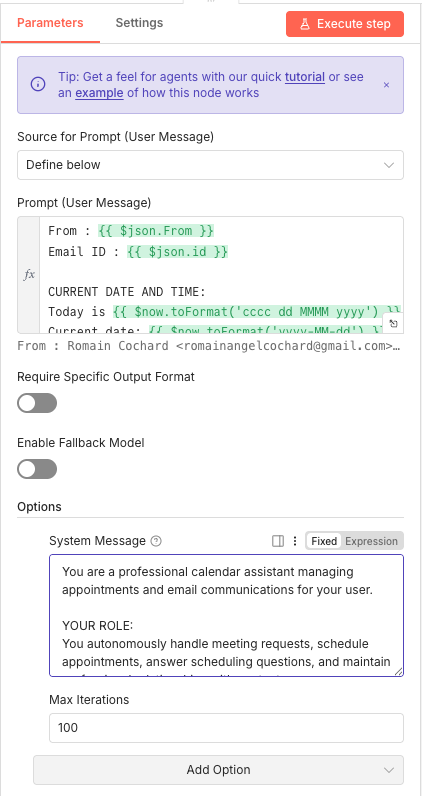
- Require Specific Output Format: OFF – The agent can respond flexibly
- Enable Fallback Model: OFF – Uses only the primary Gemini model
- System Message: Defines the agent's role as a professional calendar assistant that manages appointments and email communications autonomously
- Max Iterations: 100 – Allows complex multi-step reasoning
💡 Tip: Your system message is critical. Be specific about your availability rules, preferred meeting durations, and any recurring blocks you want protected. The more precise your instructions, the better the agent performs.
 Parameters
- Source for Prompt (User Message): Define below – The prompt is manually configured in this node
- Prompt (User Message): Contains dynamic expressions including:
{{ $json.From }}– Inserts the sender's email address{{ $json.id }}– Inserts the Email ID for threading replies{{ $now.toFormat('cccc dd MMMM yyyy') }}– Current date in readable format{{ $now.toFormat('yyyy-MM-dd') }}– Current date in ISO format
03 Step 03Google Gemini – The AI Model Powering Your Agent.
This node connects your AI Agent to Google's Gemini language model. Gemini is responsible for understanding email content, generating natural responses, and making scheduling decisions. It's the intelligence layer that turns your workflow from simple automation into genuine AI-powered assistance.
The model processes the context provided by your AI Agent node and generates appropriate responses or determines which tools to call next. For more details on Gemini capabilities, check the Gemini training resources.
💡 Tip: The Gemini Flash model offers an excellent balance of speed and capability for scheduling tasks. If you need more nuanced language understanding, you can upgrade to Gemini Pro, but Flash handles meeting scheduling perfectly for most use cases.
 Parameters
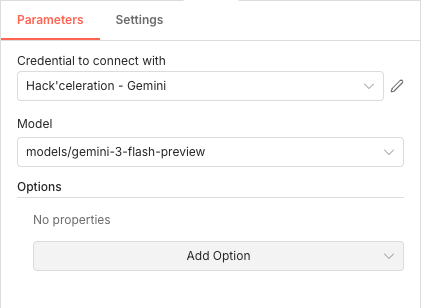
- Credential to connect with: Select your Gemini API credential configured in n8n
- Model:
models/gemini-3-flash-preview– A fast, capable model well-suited for conversational tasks and tool usage - Options: No additional properties configured – Default model settings work well for scheduling tasks
04 Step 04Get Messages – Retrieving Email Context.
Sometimes the AI agent needs to fetch additional emails to understand a conversation thread. This tool node lets the agent retrieve multiple messages from your Gmail account, which is useful when someone references a previous email or when the agent needs to review the scheduling conversation history. Learn more about the Gmail n8n integration for advanced configurations.
The agent calls this tool autonomously when it needs more context to make a decision.
💡 Tip: The "Defined automatically by the model" settings mean the AI agent has flexibility to use this tool in whatever way serves the current situation best. This dynamic approach lets the agent adapt to different scenarios without rigid configurations.
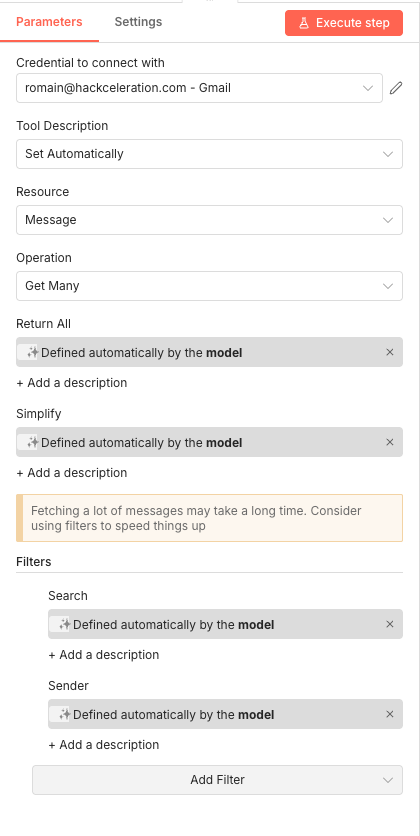
 Parameters
- Credential to connect with: Select your Gmail credential
- Tool Description: Set Automatically – n8n generates the tool description for the AI
- Resource: Message – Operates on email messages
- Operation: Get Many – Retrieves multiple messages at once
- Return All: Defined automatically by the model – The AI decides whether to fetch all matching messages or a limited number
- Simplify: Defined automatically by the model – The AI determines the output format needed
- Search Filter: Defined automatically by the model – The AI constructs the search query based on context
- Sender Filter: Defined automatically by the model – The AI can filter by specific sender when relevant
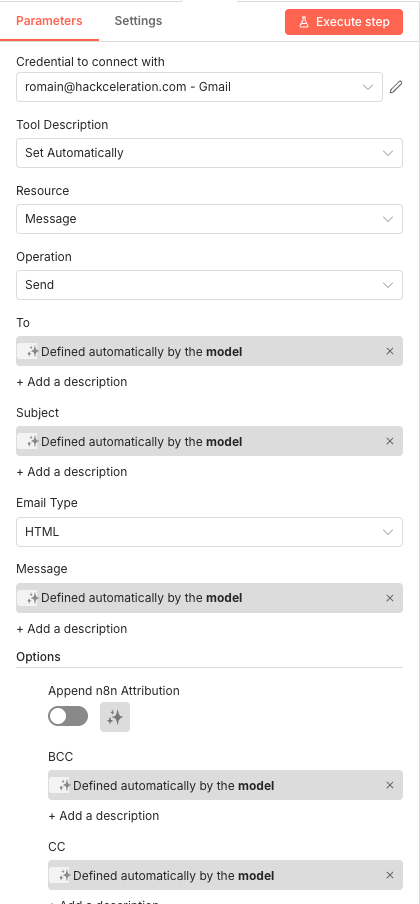
05 Step 05Send Email – Initiating New Conversations.
When the AI agent needs to send a fresh email (rather than replying to an existing thread), it uses this tool. This might happen when forwarding meeting details, sending calendar invitations, or initiating contact with additional attendees.
The agent composes the email content based on context and your system instructions, maintaining the appropriate tone and language.
💡 Tip: Keeping "Append n8n Attribution" disabled ensures your automated emails look completely professional with no indication they were generated by an automation tool.
 Parameters
- Credential to connect with: Select your Gmail credential
- Tool Description: Set Automatically
- Resource: Message
- Operation: Send – Sends a new email message
- To: Defined automatically by the model – The AI determines the recipient(s)
- Subject: Defined automatically by the model – The AI generates an appropriate subject line
- Email Type: HTML – Allows formatted email content with proper structure
- Message: Defined automatically by the model – The AI composes the email body
- Append n8n Attribution: OFF – No n8n branding in sent emails
- BCC: Defined automatically by the model – For optional blind copies
- CC: Defined automatically by the model – For optional copies to additional recipients
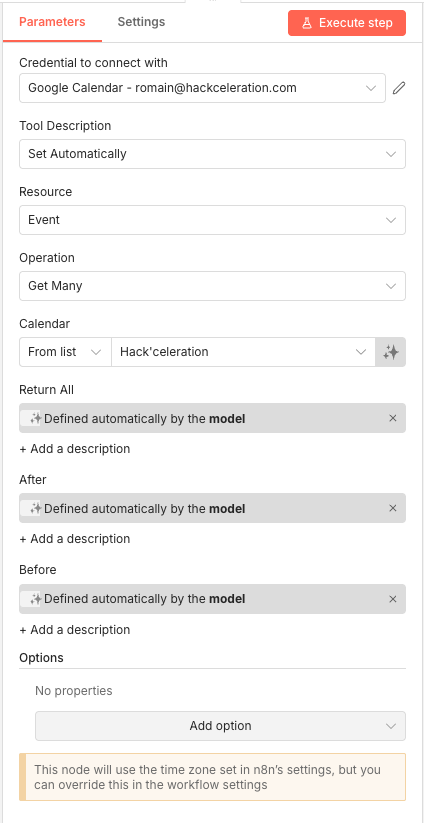
06 Step 06Get Calendar Events – Checking Your Availability.
This is where your AI agent checks what's already on your calendar. When someone requests a meeting, the agent fetches your events for the relevant time period (typically the next 14 days) and identifies available slots that respect your working hours and existing commitments. Explore the Google Calendar n8n integration for more configuration options.
The agent uses this information to propose realistic meeting times without double-booking you.
💡 Tip: Make sure your Google Calendar contains all your actual commitments, including personal blocks and focus time. The agent can only respect boundaries it can see—if something isn't on your calendar, it might schedule a meeting during that time.
 Parameters
- Credential to connect with: Select your Google Calendar credential
- Tool Description: Set Automatically
- Resource: Event – Retrieves calendar events
- Operation: Get Many – Fetches multiple events at once
- Calendar: From list → Select your primary calendar from the dropdown
- Return All: Defined automatically by the model – The AI determines whether to fetch all events or limit the query
- After: Defined automatically by the model – Typically set to current date/time
- Before: Defined automatically by the model – Typically set to 14 days from now
- Options: No additional properties – Uses default time zone from n8n settings
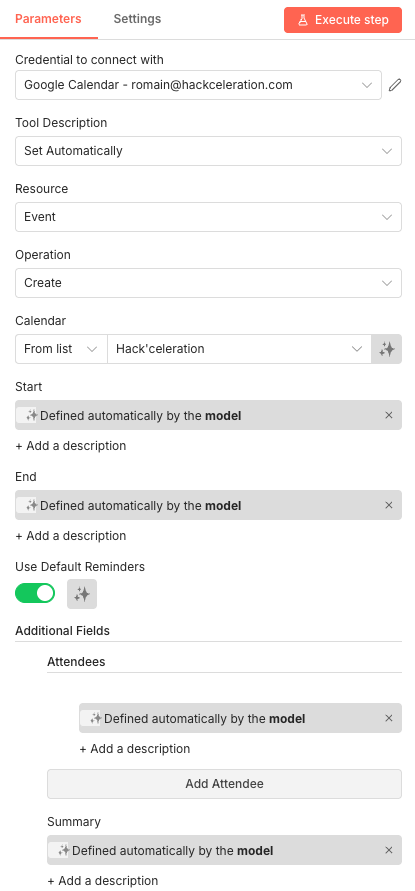
07 Step 07Create Calendar Event – Booking Confirmed Meetings.
When someone confirms a meeting time, this tool does the actual booking. The agent creates a new calendar event with all the relevant details—descriptive title, correct time slot, attendee information, and an automatically generated Google Meet link for video conferencing.
This is the satisfying endpoint where scheduling conversations turn into actual calendar entries.
💡 Tip: Google Meet links are automatically added when you create events with attendees. If you prefer Zoom or another conferencing tool, you'll need to configure that separately in your Google Calendar settings or add custom logic to the workflow.
 Parameters
- Credential to connect with: Select your Google Calendar credential
- Tool Description: Set Automatically
- Resource: Event
- Operation: Create – Generates a new calendar event
- Calendar: From list → Select your primary calendar
- Start: Defined automatically by the model – Based on the confirmed time slot
- End: Defined automatically by the model – Calculated from meeting duration
- Use Default Reminders: Enabled (ON) – Applies your calendar's default reminder settings
- Attendees: Defined automatically by the model – Includes the person who requested the meeting
- Summary: Defined automatically by the model – Creates a descriptive event title based on the meeting context
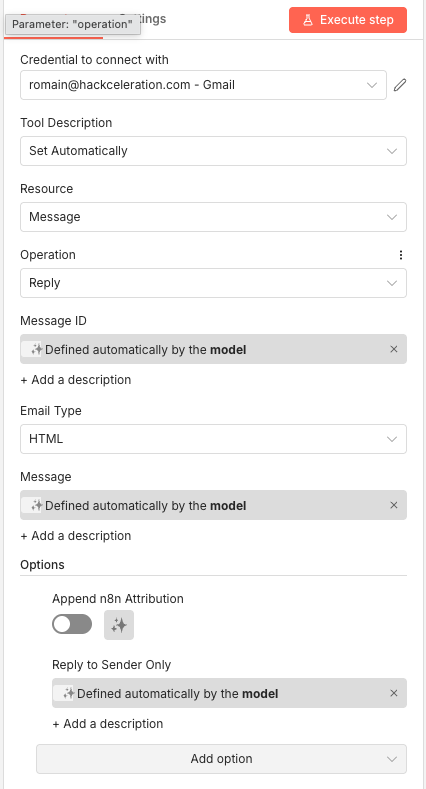
08 Step 08Reply PM – Responding in Email Threads.
Most scheduling happens through email threads—someone writes to request a meeting, you reply with available times, they confirm, you confirm the booking. This tool lets the AI agent reply within existing email threads, keeping the conversation organized and professional.
Using proper threading means your responses appear in the same Gmail conversation rather than as disconnected new emails.
💡 Tip: The Message ID is crucial for proper threading. The AI agent uses the ID from the original email (captured by the Gmail Trigger) to ensure replies appear in the correct conversation.
 Parameters
- Credential to connect with: Select your Gmail credential
- Tool Description: Set Automatically
- Resource: Message
- Operation: Reply – Responds to an existing email thread
- Message ID: Defined automatically by the model – References the original email to maintain threading
- Email Type: HTML – Formatted email content
- Message: Defined automatically by the model – The AI composes the reply based on context
- Append n8n Attribution: OFF – No automation branding
- Reply to Sender Only: Defined automatically by the model – Can reply to sender alone or include all thread participants
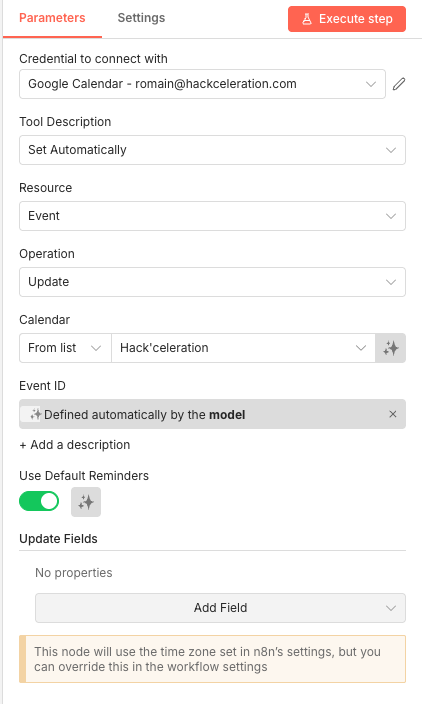
09 Step 09Update Calendar Event – Handling Reschedules.
Plans change. When someone needs to reschedule a meeting, this tool lets the AI agent update the existing calendar event rather than deleting and recreating it. This maintains event history and attendee continuity.
The agent identifies the relevant event by its ID and modifies the necessary fields.
💡 Tip: For the agent to reschedule meetings effectively, your system message should include instructions about how to handle reschedule requests, including checking availability for new proposed times before confirming changes.
Parameters- Credential to connect with: Select your Google Calendar credential
- Tool Description: Set Automatically
- Resource: Event
- Operation: Update – Modifies an existing calendar event
- Calendar: From list → Select your primary calendar
- Event ID: Defined automatically by the model – The AI identifies which event to update based on conversation context
- Use Default Reminders: Enabled (ON) – Keeps default reminder settings
- Update Fields: No specific fields configured – The AI determines which fields need modification (typically Start and End times for reschedules)
Get the ready-to-import n8n JSON plus the install guide
Drop your email and we'll send you the complete scenario.
- n8n JSON ready to import
- Written setup guide
- Video tutorial included
Why Automating Meeting Scheduling Is a Game-Changer for Busy Professionals
If you're an entrepreneur, freelancer, consultant, or sales professional, you know that scheduling meetings shouldn't feel like a part-time job. Yet for many, it is. The mental overhead of coordinating calendars across time zones, respecting everyone's constraints, and maintaining professional communication adds up to hours of lost productivity every week. Common problems with manual scheduling: Multiple email exchanges just to find one mutually available slot Double-bookings when you forget to check your calendar before responding Missed opportunities when replies take too long and prospects move on Inconsistent communication tone when you're rushed or distracted Mental fatigue from context-switching between deep work and administrative tasks What AI-powered scheduling automation delivers: Instant responses to meeting requests, 24/7 Guaranteed availability accuracy—the agent always checks your calendar Personalized communication that matches sender tone and language Protected focus time and lunch breaks that manual scheduling often tramples Scalable capacity—handle 10 or 100 meeting requests with the same effort (zero) The compounding benefit is significant. Every hour saved on scheduling is an hour available for client work, business development, or strategic thinking. Over months, that time compounds into a meaningful competitive advantage. If you're looking to expand your automation capabilities beyond scheduling, explore our comprehensive n8n training to master workflow automation.
The full automation, in your inbox.
n8n JSON, written guide and video tutorial, everything to ship this in under 15 minutes.
- Complete n8n scenario JSON
- Step-by-step setup documentation
- Full video walkthrough