AI Agent n8n: Convert No-Follow Backlinks
Managing backlink outreach manually is one of the most time-consuming tasks in SEO. For every no-follow link you want to convert, you need to find the right contact email, research the website, write a compelling message, and send it—often repeating this process dozens or hundreds of times.
The full automation, in your inbox
AI Agent n8n: Convert No-Follow Backlinks
AI Agent n8n: Convert No-Follow Backlinks to Do-Follow with Automated Outreach (Free n8n Workflow + Video + Tutorial + Download)
Requirements: n8n instance & API keys.
! You'll needRequirements: n8n instance & API keys.
- A self-hosted n8n instance with terminal access.
- API credentials for the services used in this workflow.
The full automation, in your inbox
n8n workflow breakdown.
01 Step 01Manual Trigger - Start the Workflow Execution.
The Manual Trigger node is the starting point of your backlink outreach workflow. When you click the "Execute" button in n8n, this node fires and kicks off the entire automation sequence.
This trigger type is perfect for outreach campaigns where you want to control exactly when emails go out. You might run this weekly after updating your backlink spreadsheet, or on-demand when you've identified a new batch of no-follow links to convert.
💡 Tip: For ongoing campaigns, consider replacing this with a Schedule Trigger to automatically process new backlinks daily or weekly without manual intervention.
 Parameters
- Node Type: Manual Trigger - no configuration required
- Output: Empty JSON object
{}that signals workflow start - Execution: Click "Execute step" or "Test workflow" to run
02 Step 02Backlink - Retrieve Your No-Follow Backlink List from Google Sheets.
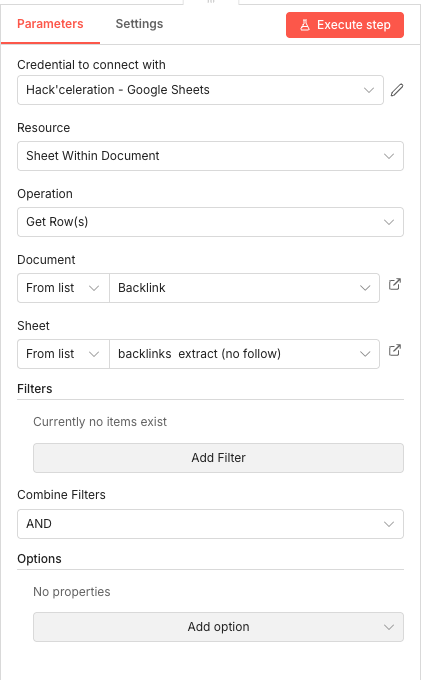
This Google Sheets node retrieves your list of no-follow backlinks that need outreach. It connects to your spreadsheet and pulls all rows from your designated backlink tracking sheet, feeding this data into the automation for processing.
Your spreadsheet should contain at minimum two columns: the source URL (where your backlink appears) and the target URL (your page being linked to). The workflow will use this information to personalize outreach emails and track which sites have been contacted.
💡 Tip: Structure your Google Sheet with clear column headers like "URL Source", "Target URL", "Contact Status", and "Date Contacted" to track your outreach progress over time.
 Parameters
- Credential to connect with: Select your Google Sheets credential configured in n8n
- Resource: Sheet Within Document
- Operation: Get Row(s)
- Document: From list → Select your backlink tracking spreadsheet
- Sheet: From list → Select your sheet containing no-follow backlinks
- Filters: None configured - retrieves all rows
- Combine Filters: AND (default)
03 Step 03SplitInBatches - Process Backlinks One at a Time.
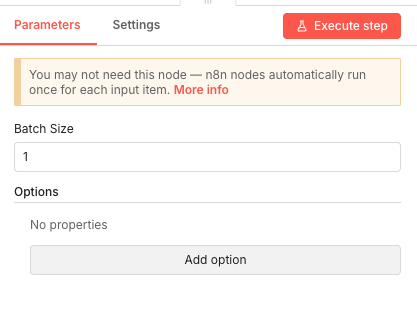
The SplitInBatches node takes your entire backlink list and processes it one item at a time. This is crucial for outreach automation because it prevents overwhelming external APIs (like Apify) and ensures each email is properly generated before moving to the next.
By setting the batch size to 1, you guarantee that each backlink goes through the complete workflow—email scraping, AI generation, and sending—before the next one starts. This sequential processing also makes it easier to debug issues and ensures rate limits aren't exceeded.
💡 Tip: If you're processing large backlink lists (100+), consider adding a Wait node after the email send to space out your outreach over time and avoid triggering spam filters.
 Parameters
- Batch Size: 1 - processes one backlink at a time
- Options: No additional properties configured
04 Step 04Function1 - Clean and Normalize Source URLs.
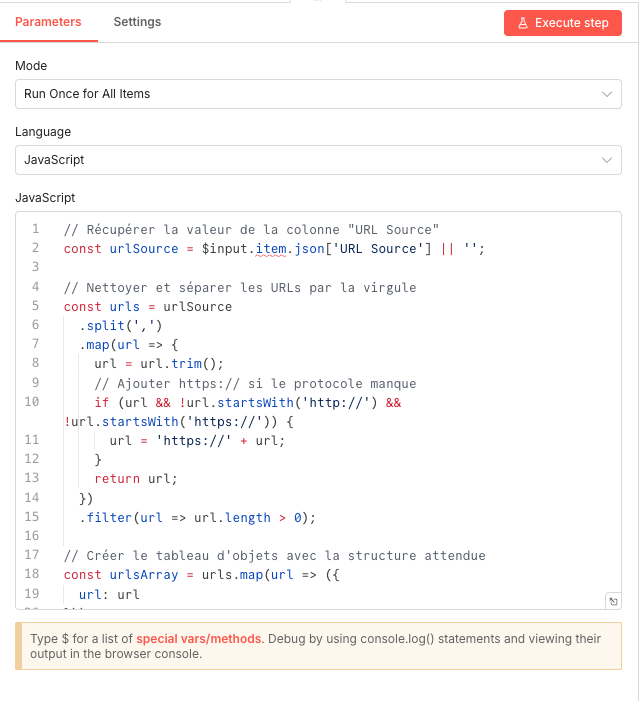
This JavaScript Function node cleans and standardizes the URLs from your backlink data before sending them to the email scraper. It handles common issues like missing protocols, extra whitespace, and multiple URLs stored in a single cell.
The code takes the "URL Source" field, splits it by commas if multiple URLs exist, trims whitespace, and ensures each URL has the proper "https://" prefix. The output is a clean array of URL objects ready for the Apify scraper.
💡 Tip: If your spreadsheet contains URLs in different formats, extend this function to handle edge cases like trailing slashes or www prefixes for consistent scraping results.
 Parameters
- Mode: Run Once for All Items
- Language: JavaScript
- JavaScript Code: Retrieves URL Source field, splits by comma, trims whitespace, adds https:// if missing, returns array of URL objects
05 Step 05Website Emails Scraper - Extract Contact Emails Using Apify.
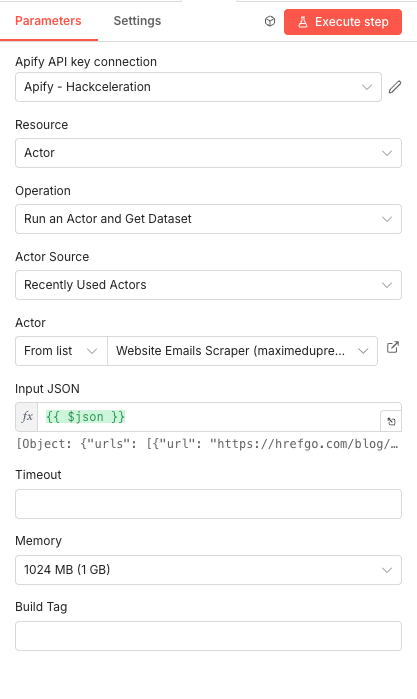
This Apify node runs the Website Emails Scraper actor to find contact email addresses from your backlink source websites. It crawls each URL, searching for email addresses on contact pages, footers, and throughout the site content.
The scraper returns all discovered emails along with metadata about where they were found. This information is crucial for the AI to select the most appropriate contact—whether that's a webmaster, editor, or general contact address. Learn more about Apify's scraping capabilities to maximize your data extraction.
💡 Tip: Apify charges based on compute units, so the 1GB memory setting balances cost and performance. For sites with complex JavaScript, you might need to increase memory for complete email extraction.
 Parameters
- Credential to connect with: Select your Apify API credential configured in n8n
- Resource: Actor
- Operation: Run an Actor and Get Dataset
- Actor Source: Recently Used Actors (or search for "Website Emails Scraper")
- Actor: Website Emails Scraper (by maximedupre)
- Input JSON:
{{ $json }}- passes the cleaned URL data - Memory: 1024 MB (1 GB)
06 Step 06IF 1 - Check If Emails Were Found.
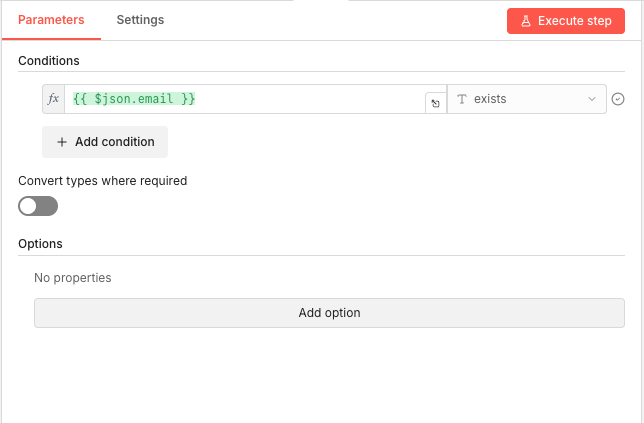
This IF node acts as a quality gate, checking whether the Apify scraper successfully found any email addresses. If emails exist, the workflow continues to email generation. If not, that backlink is skipped and the workflow moves to the next one.
This conditional check prevents the AI from trying to generate emails when there's no contact information available, saving API costs and avoiding errors in the workflow execution.
💡 Tip: Consider adding a second branch that logs skipped backlinks to a separate sheet so you can manually find contact information for sites where automated scraping failed.
 Parameters
- Condition:
{{ $json.email }}→ exists - Convert types where required: Off
- Options: No additional properties configured
- Condition:
07 Step 07Merge - Aggregate Email Data for AI Processing.
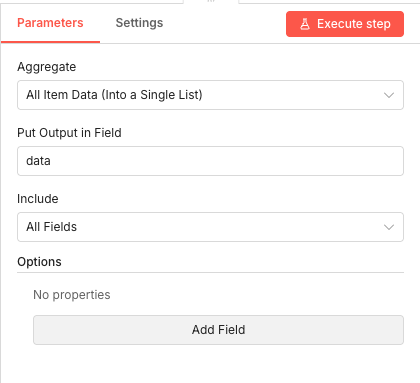
The Merge node consolidates all scraped email data into a single structured list. When Apify returns multiple emails from a website, this node aggregates them into one data object that can be passed to the AI for analysis.
This aggregation is important because the AI agent needs to see all available contact options to make an intelligent selection. A webmaster email should be prioritized over a generic info@ address, and the AI can only make this decision if it has access to the complete list.
💡 Tip: The "data" field name becomes important in your AI prompt—make sure your system message references this field when instructing the AI to analyze available contacts.
 Parameters
- Aggregate: All Item Data (Into a Single List)
- Put Output in Field: data
- Include: All Fields
- Options: No additional fields configured
08 Step 08AI Outreach Email Generator - Configure the AI Agent.
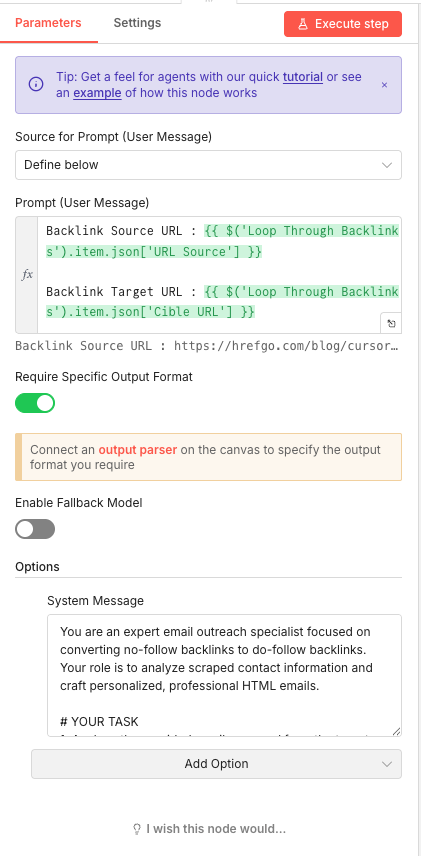
This AI Agent node is the brain of your outreach automation. It receives the scraped email data along with backlink information, then generates a personalized outreach email designed to convert the no-follow link to do-follow.
The agent uses a carefully crafted system prompt that instructs it to analyze contacts, select the best recipient, and write a professional HTML email. The prompt includes guidelines for tone, structure, and persuasion techniques that improve response rates. Explore more AI agent use cases for your automation projects.
💡 Tip: Test different system prompts to optimize response rates. Mentioning specific value your content provides to their readers often increases conversion rates significantly.
 Parameters
- Source for Prompt (User Message): Define below
- Prompt (User Message): Backlink Source URL and Target URL from the loop
- Require Specific Output Format: Enabled (connect to output parser)
- Enable Fallback Model: Disabled
- System Message: Expert email outreach specialist instructions for converting no-follow backlinks
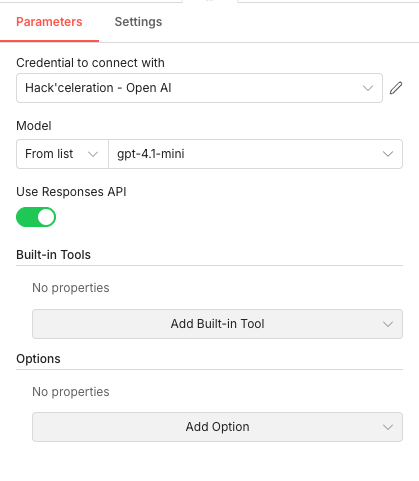
09 Step 09OpenAI1 - Language Model Configuration.
This OpenAI node connects your AI Agent to the GPT-4.1 Mini model, which provides the language understanding and generation capabilities. The model analyzes the contact data and backlink information to produce contextually appropriate outreach emails.
GPT-4.1 Mini offers an excellent balance of quality and cost for outreach emails. It's smart enough to understand context and write persuasively, while keeping API costs manageable for high-volume campaigns.
💡 Tip: For higher-stakes outreach (enterprise sites, high-DA domains), consider switching to GPT-4 for more nuanced and sophisticated email generation.
 Parameters
- Credential to connect with: Select your OpenAI API credential configured in n8n
- Model: From list → gpt-4.1-mini
- Use Responses API: Enabled (toggle on)
- Built-in Tools: None configured
- Options: No additional options configured
10 Step 10Generate Email - Define Output Structure.
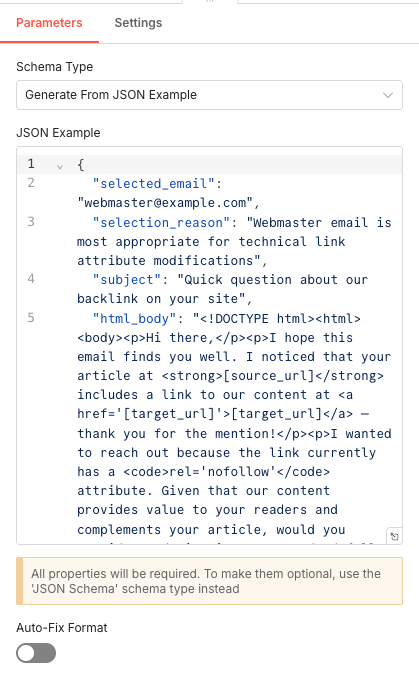
This Structured Output Parser node defines exactly what format the AI should return. By providing a JSON schema, you ensure the AI output includes all necessary fields: selected email, selection reason, subject line, and HTML body.
This structured approach prevents parsing errors downstream and ensures every generated email contains all required components. The schema acts as a contract between the AI and the rest of your workflow.
💡 Tip: The
selection_reasonfield is useful for debugging and quality control—review these periodically to ensure the AI is making good contact selection decisions.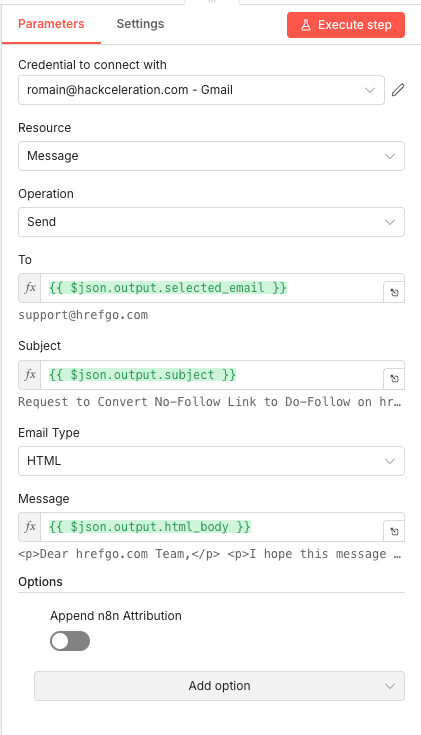 Parameters
- Schema Type: Generate From JSON Example
- JSON Example: Object with selected_email, selection_reason, subject, and html_body fields
- Auto-Fix Format: Disabled (toggle off)
11 Step 11Send Email - Deliver Outreach via Gmail.
The final node sends your AI-generated outreach email through Gmail. It pulls the recipient address, subject line, and HTML body directly from the AI output, delivering a fully personalized message to each webmaster.
Using Gmail (rather than a dedicated email service) keeps your outreach appearing personal and authentic. The HTML format ensures professional presentation while the dynamic content makes each message unique.
💡 Tip: Set up a professional email signature in your Gmail settings that will automatically append to these outreach emails, adding credibility and contact information for responses.
Parameters- Credential to connect with: Select your Gmail credential configured in n8n
- Resource: Message
- Operation: Send
- To:
{{ $json.output.selected_email }}- dynamically pulls the AI-selected recipient - Subject:
{{ $json.output.subject }}- uses the AI-generated subject line - Email Type: HTML
- Message:
{{ $json.output.html_body }}- sends the AI-generated HTML email body - Options: Append n8n Attribution: Disabled (toggle off)
Get the ready-to-import n8n JSON plus the install guide
Drop your email and we'll send you the complete scenario.
- n8n JSON ready to import
- Written setup guide
- Video tutorial included
Why Automating Backlink Outreach Is a Game-Changer for SEO Professionals
Link building remains one of the most impactful—and most time-consuming—aspects of SEO. Converting no-follow backlinks to do-follow links is a particularly high-value activity because you're working with sites that already reference your content. The relationship exists; you just need to optimize it.The problems with manual outreach:Finding contact emails requires visiting each site and hunting through pagesWriting personalized emails takes 10-15 minutes per messageTracking who you've contacted across dozens of sites becomes chaoticMaintaining consistency in tone and quality is difficult at scaleThe repetitive nature leads to burnout and declining effortThe benefits of automated outreach:Process 50+ backlinks in the time it takes to manually handle 5AI-generated emails maintain personalization while ensuring qualityEvery email includes specific details about the backlink relationshipComplete audit trail in your Google Sheet for follow-up trackingConsistent professional tone across all communicationsFor SEO consultants managing multiple client campaigns, this automation transforms backlink outreach from a dreaded task into a scalable service offering. For in-house SEO teams, it frees up hours each week to focus on strategy rather than repetitive execution. Tools like Ahrefs or Semrush can help you identify no-follow backlinks to target. The key insight is that personalization at scale isn't about copying and pasting templates—it's about intelligently adapting your message to each recipient. That's exactly what this AI-powered workflow delivers.
The full automation, in your inbox.
n8n JSON, written guide and video tutorial, everything to ship this in under 15 minutes.
- Complete n8n scenario JSON
- Step-by-step setup documentation
- Full video walkthrough