AI Agent n8n: Auto-Score Tender Proposals
Manual tender evaluation is a nightmare. You’re dealing with multiple PDF submissions, cross-referencing each one against your original RFP requirements, trying to maintain consistency across evaluations, and documenting everything for audit trails. One proposal might take 2-3 hours to evaluate properly. Multiply that by 10 submissions, and you’ve lost an entire week.
The full automation, in your inbox
AI Agent n8n: Auto-Score Tender Proposals

AI Agent n8n: Auto-Score Tender Proposals – Automate RFP Evaluation with Multi-Criteria Scoring (Free Workflow + Video + Tutorial + Download)
Requirements: n8n instance & API keys.
! You'll needRequirements: n8n instance & API keys.
- A self-hosted n8n instance with terminal access.
- API credentials for the services used in this workflow.
The full automation, in your inbox
n8n workflow breakdown.
01 Step 01Configure the Tender Response Submission Form.
This is where everything begins. The n8n Form Trigger node creates a public web form where vendors can submit their proposals directly. When a vendor accesses the form URL, they see a clean interface asking them to upload their proposal document—no login required, no complicated steps.
The form is configured specifically for PDF uploads only, ensuring you receive proposals in a consistent format that the workflow can process. Once a vendor submits their document, the workflow triggers automatically, starting the evaluation process without any manual intervention.
💡 Tip: Copy the Production URL (not the Test URL) when you're ready to share with vendors. The test URL only works when your workflow is in test mode.
 Parameters
- Form Title:
Tender Response Submission– This appears as the heading vendors see when accessing the form - Form Description:
Submit your proposal for the TechVision HR Automation project. Please upload your complete response as a single PDF– Customize this to match your specific RFP project name - Authentication:
None– The form is publicly accessible (add authentication if you need restricted access) - Form Element Label:
Proposal Document (PDF only)– Clear instruction for vendors - Element Type:
File– Enables file upload capability - Accepted File Types:
.pdf– Restricts uploads to PDF format only - Respond When:
Form Is Submitted– Triggers the workflow immediately upon submission
- Form Title:
02 Step 02Set the RFP Document ID Reference.
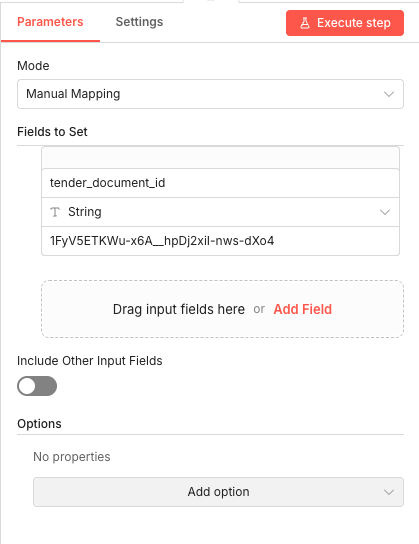
This node stores the Google Drive file ID of your original RFP document. Instead of hardcoding the ID throughout the workflow, you define it once here. This makes it easy to switch between different RFP projects—just update this single value.
The workflow uses this ID to download and extract text from your RFP, which the AI then uses as the baseline for evaluating incoming proposals. Think of it as telling the system "this is the standard we're evaluating against."
💡 Tip: To find your Google Drive file ID, open your RFP document in Google Drive and look at the URL. The ID is the long string between
/d/and/viewor/edit.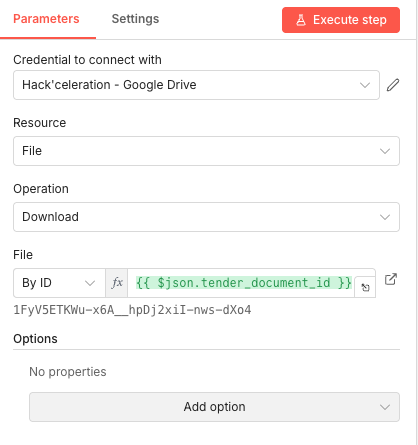 Parameters
- Mode:
Manual Mapping– Allows explicit field definition - Field Name:
tender_document_id– The variable name used by subsequent nodes - Data Type:
String– File IDs are text strings - Value:
[YOUR_RFP_DOCUMENT_ID]– Replace with your actual Google Drive file ID (found in the document's URL after/d/) - Include Other Input Fields:
Off– Only passes the defined field forward
- Mode:
03 Step 03Download the RFP Document from Google Drive.
Now the workflow fetches your original RFP document from Google Drive. This node uses the document ID you set in the previous step to download the file as binary data, which will then be converted to extractable text.
The Google Drive integration handles all the authentication and file retrieval automatically. You just need to have your credential configured and the document ID ready.
💡 Tip: Make sure your Google Drive credential has read access to the folder containing your RFP document. If you get permission errors, check the sharing settings on the document.
 Parameters
- Credential to connect with: Select your Google Drive credential configured in n8n
- Resource:
File– We're working with a single file, not a folder - Operation:
Download– Retrieves the file content - File Selection Method:
By ID– Uses the specific file ID rather than searching - File ID:
{{ $json.tender_document_id }}– Expression pulling the ID from the previous node
04 Step 04Extract Text from the RFP PDF.
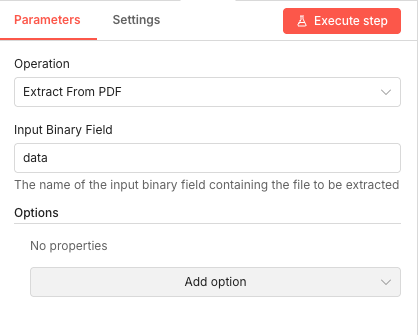
This node converts your RFP PDF into plain text that the AI can analyze. The Extract From File node processes the binary data downloaded from Google Drive and outputs clean, readable text content.
PDF extraction is crucial because the AI needs actual text to compare against vendor proposals. Without this step, the workflow would just have raw file data that can't be processed intelligently.
💡 Tip: This extraction works best with text-based PDFs. If your RFP contains primarily images or scanned documents, you'll need to use OCR capabilities instead.
 Parameters
- Operation:
Extract From PDF– Specifically designed for PDF text extraction - Input Binary Field:
data– The default field name where the downloaded file content is stored
- Operation:
05 Step 05Store the RFP Content for AI Analysis.
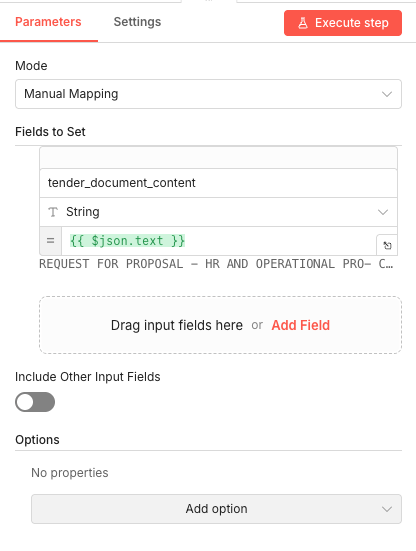
This node takes the extracted RFP text and stores it in a clearly named field. The AI agent will reference this content later when comparing vendor proposals against your requirements.
By explicitly naming the field
tender_document_content, the workflow maintains clear data organization. This makes it easy to understand what data is flowing where, especially when debugging or modifying the workflow.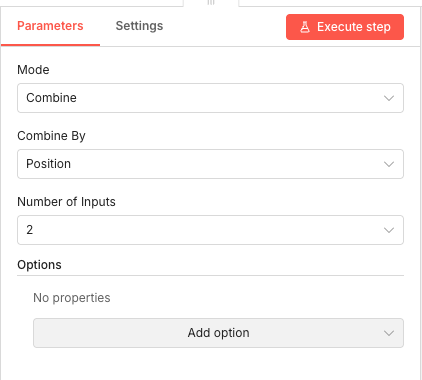 Parameters
- Mode:
Manual Mapping– Explicit field definition - Field Name:
tender_document_content– Descriptive name for the RFP text - Data Type:
String– Text content - Value:
{{ $json.text }}– Expression pulling the extracted text from the previous node - Include Other Input Fields:
Off– Keeps the data clean
- Mode:
06 Step 06Merge RFP and Proposal Data Streams.
The workflow has two parallel data streams at this point: one containing the RFP content, and one containing the vendor's submitted proposal. This Merge node combines them so the AI agent can access both documents simultaneously.
The "Combine by Position" mode aligns the data items so that each evaluation has access to both the original requirements and the proposal being evaluated. This is essential for the comparison analysis.
💡 Tip: If you're processing multiple proposals simultaneously, make sure each proposal is matched with the correct RFP content. The position-based merge works perfectly for single-proposal evaluation.
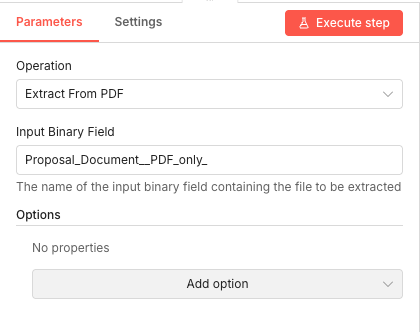 Parameters
- Mode:
Combine– Merges data from multiple inputs - Combine By:
Position– Aligns items based on their index position - Number of Inputs:
2– Expecting exactly two data streams to merge
- Mode:
07 Step 07Extract Text from the Vendor Proposal PDF.
Just like we extracted text from the RFP, this node extracts text from the vendor's submitted proposal PDF. The binary field name matches the form field label from Step 1, converted to an n8n-compatible format.
This extraction enables the AI to read and analyze the actual proposal content, comparing it point-by-point against your RFP requirements.
💡 Tip: The binary field name is automatically generated from your form field label. If you change the label in Step 1, update this field name accordingly.
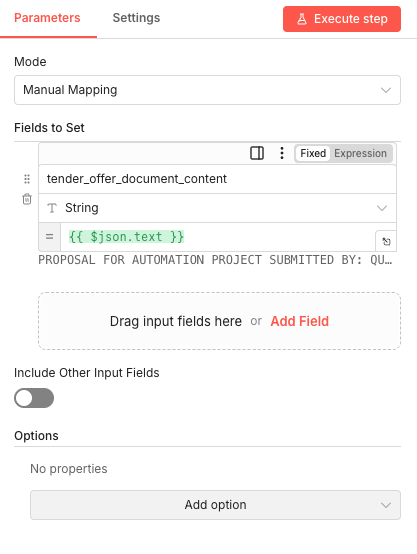 Parameters
- Operation:
Extract From PDF– PDF text extraction - Input Binary Field:
Proposal_Document__PDF_only_– This matches the form field label with spaces replaced by underscores
- Operation:
08 Step 08Store the Vendor Proposal Content.
This node stores the extracted proposal text in a named field, mirroring what we did for the RFP content. Having both documents stored with clear field names makes the AI prompt construction straightforward.
The workflow now has both the RFP requirements and the vendor proposal as accessible text data, ready for the AI evaluation.
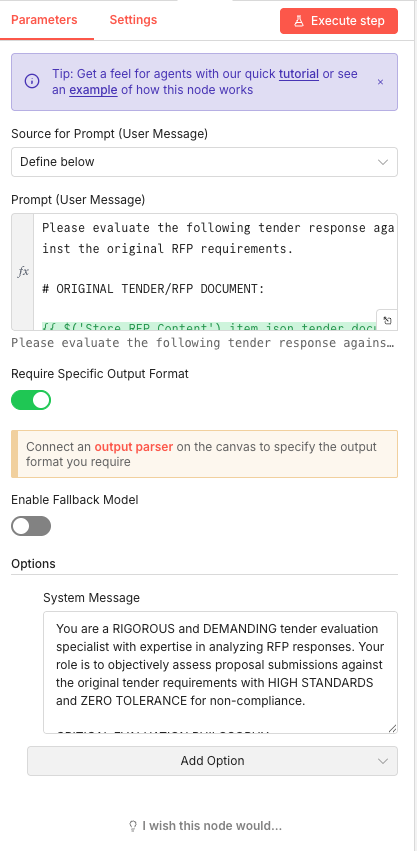 Parameters
- Mode:
Manual Mapping– Explicit field definition - Field Name:
tender_offer_document_content– Descriptive name for the proposal text - Data Type:
String– Text content - Value:
{{ $json.text }}– Expression pulling the extracted proposal text - Include Other Input Fields:
Off– Clean data passing
- Mode:
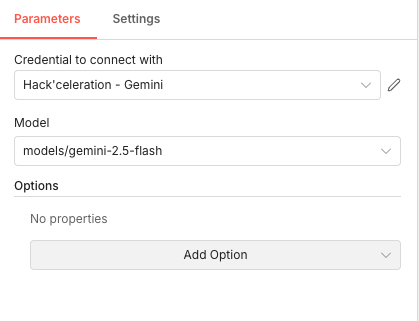
09 Step 09Configure the AI Evaluation Agent.
This is the core of the automation. The AI Agent node sends both documents to Google Gemini with specific instructions to perform a rigorous, multi-criteria evaluation. The system message establishes the AI's role as a "demanding tender evaluation specialist with ZERO TOLERANCE for non-compliance."
The prompt includes the RFP content dynamically, asking the AI to evaluate the proposal against those specific requirements. The "Require Specific Output Format" toggle ensures the AI returns structured data that can be processed by subsequent nodes.
💡 Tip: The system message significantly impacts evaluation quality. A more demanding tone produces more thorough, critical analysis. Adjust based on your evaluation standards.
 Parameters
- Source for Prompt:
Define below– Prompt is written directly in the node - Prompt (User Message):
Please evaluate the following tender response against the original RFP requirements. {{ $('Store RFP Content').item.json.tender_doc }}– Combines instruction with dynamic RFP content - Require Specific Output Format:
Enabled– Forces structured JSON output for downstream processing - Enable Fallback Model:
Disabled– Uses only the primary model - System Message:
You are a RIGOROUS and DEMANDING tender evaluation specialist with expertise in analyzing RFP responses. Your role is to objectively assess proposal submissions against the original tender requirements with HIGH STANDARDS and ZERO TOLERANCE for non-compliance.
- Source for Prompt:
10 Step 10Select the Google Gemini Model.
This sub-node specifies which Google Gemini model powers the AI evaluation. The Gemini 2.5 Flash model offers excellent performance for document analysis tasks while maintaining fast response times.
The model selection affects both the quality of analysis and the processing speed. Flash models are optimized for quick responses without sacrificing too much analytical depth.
💡 Tip: If you need more thorough analysis and don't mind longer processing times, consider using
gemini-2.5-proinstead.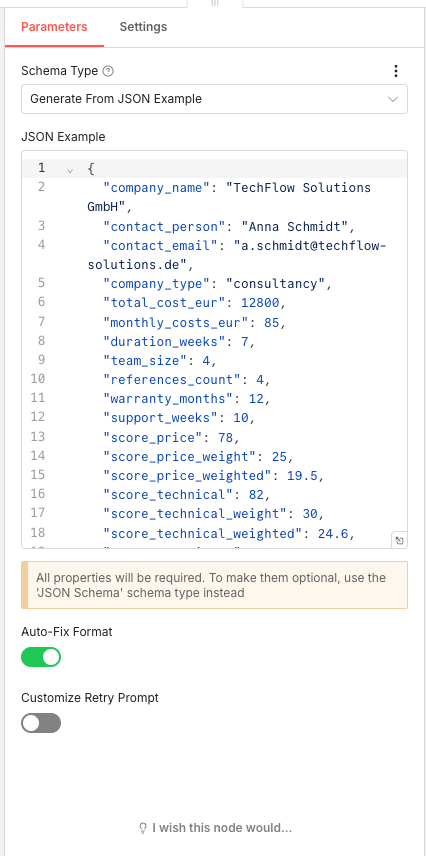 Parameters
- Credential to connect with: Select your Google Gemini credential configured in n8n
- Model:
models/gemini-2.5-flash– Fast, capable model for document analysis
11 Step 11Define the Structured Output Schema.
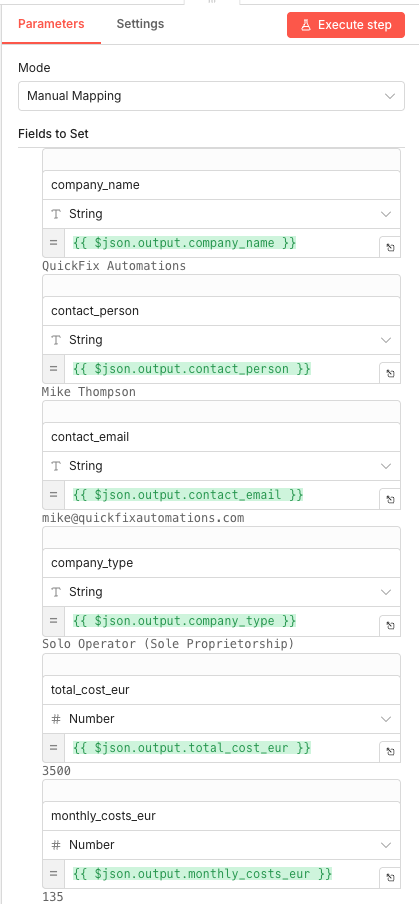
This Output Parser node defines exactly what data structure the AI should return. By providing a JSON example, you're telling Gemini "give me back data that looks like this." This ensures consistent, machine-readable output that can be processed automatically.
The schema includes company details, cost figures, timeline information, individual criterion scores with weights, compliance flags, and qualitative assessments. Every field you need for your evaluation dashboard is defined here.
- Auto-Fix Format:
Enabled– Automatically corrects minor formatting issues in AI output💡 Tip: If the AI occasionally returns malformed JSON, the Auto-Fix Format toggle helps recover from minor errors without failing the workflow.
 Parameters
- Schema Type:
Generate From JSON Example– Creates schema automatically from sample data - JSON Example: Complete structure including:
company_name,contact_person,contact_email,company_type– Vendor identificationtotal_cost_eur,monthly_costs_eur– Financial dataduration_weeks,team_size,references_count– Project detailswarranty_months,support_weeks– Support termsscore_price,score_price_weight,score_price_weighted– Price criterion (0-100 score, weight, calculated weighted score)score_technical,score_technical_weight,score_technical_weighted– Technical compliance criterion- Additional scores for experience, timeline, warranty, innovation
gdpr_compliant,budget_compliant,mandatory_integrations_met– Compliance flagsstrengths,weaknesses,risks,recommendation– Qualitative analysis
- Auto-Fix Format:
12 Step 12Map Extracted Data to Individual Fields.
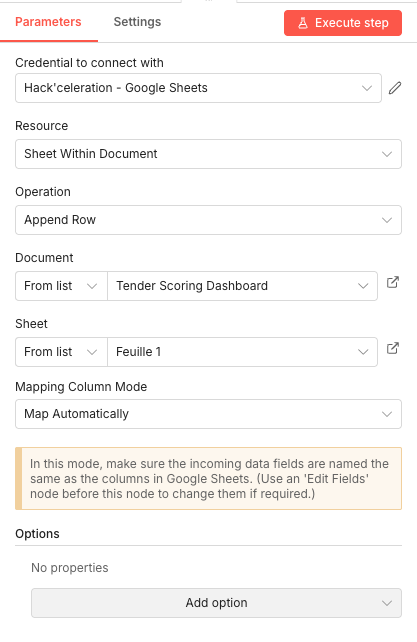
This Set node extracts specific values from the AI's structured output and maps them to individual fields. This transformation prepares the data for the Google Sheets integration, where each field becomes a column value.
The expressions reference the
outputobject from the AI response, pulling out company details, cost figures, and other evaluated metrics.💡 Tip: The Number data type for cost and score fields ensures proper sorting and calculations in your Google Sheets dashboard.
 Parameters
- Mode:
Manual Mapping– Explicit field-by-field mapping - Fields configured:
company_name(String):{{ $json.output.company_name }}contact_person(String):{{ $json.output.contact_person }}contact_email(String):{{ $json.output.contact_email }}company_type(String):{{ $json.output.company_type }}total_cost_eur(Number):{{ $json.output.total_cost_eur }}monthly_costs_eur(Number):{{ $json.output.monthly_costs_eur }}- Additional fields for all scores, compliance flags, and qualitative assessments
- Mode:
13 Step 13Save Results to the Google Sheets Dashboard.
The final node appends all evaluation data to your Google Sheets dashboard. With automatic column mapping enabled, each field from the previous node automatically matches to a column with the same name in your spreadsheet.
Every vendor submission now gets a complete row in your dashboard, enabling instant side-by-side comparison. Sort by weighted total score, filter by compliance status, or analyze specific criteria—all your evaluation data is structured and ready for decision-making.
💡 Tip: Create your Google Sheet first with column headers matching exactly the field names from Step 12. The automatic mapping only works when names match precisely.
Parameters- Credential to connect with: Select your Google Sheets credential configured in n8n
- Resource:
Sheet Within Document– Working with a specific sheet in a document - Operation:
Append Row– Adds new data at the bottom of the sheet - Document Selection:
From list– Select[YOUR_TENDER_DASHBOARD_DOCUMENT]from your Google Sheets - Sheet Selection:
From list– Select your target sheet (e.g., "Evaluations" or "Dashboard") - Mapping Column Mode:
Map Automatically– Fields are matched to columns by name
Get the ready-to-import n8n JSON plus the install guide
Drop your email and we'll send you the complete scenario.
- n8n JSON ready to import
- Written setup guide
- Video tutorial included
Why Automating Tender Proposal Evaluation is a Game-Changer for Procurement Teams
Tender evaluation sits at the intersection of high stakes and high tedium. You're making decisions worth thousands or millions of euros based on your ability to accurately compare vendor proposals against complex requirements. Yet the process itself is manual, inconsistent, and exhausting.The problems with manual evaluation:Each proposal takes 2-4 hours to evaluate thoroughlyEvaluation criteria get applied inconsistently across submissionsReviewer fatigue leads to missed details in later proposalsDocumentation for audit trails requires additional timeComparison across multiple proposals requires repeated reference-checkingWhat automation delivers:Consistent, objective scoring across all submissionsComplete evaluations in minutes instead of hoursDetailed justifications documented automaticallyInstant side-by-side comparison in a structured dashboardAudit-ready documentation of every evaluation decisionThe AI doesn't get tired by the fifth proposal. It applies the same rigorous standards to submission #10 as it did to submission #1. And because everything is documented in structured data, you have a clear record of how each score was determined. This doesn't replace human judgment—it augments it. You still make the final decision. But instead of spending your time extracting data from PDFs and filling out comparison spreadsheets, you're reviewing AI-generated insights and focusing on the nuances that matter. Looking to implement similar automation workflows for your team? Explore how our experts can help.
The full automation, in your inbox.
n8n JSON, written guide and video tutorial, everything to ship this in under 15 minutes.
- Complete n8n scenario JSON
- Step-by-step setup documentation
- Full video walkthrough