Instagram scraper without cookies
Web scraping is a method used to automatically extract data from websites. There are two main types: scraping public pages that don’t require login, and scraping secured platforms like Instagram, Facebook, or LinkedIn, which do. These platforms protect their data by limiting requests and blocking suspicious activity. To scrape Instagram at scale without using cookies, it’s essential to bypass these restrictions smartly—without violating platform rules. Instead of using login-based cookies, prefer automated tools that simulate human behavior, space out requests, and structure your output for easy use. By following these best practices, you can collect reliable data while avoiding blocks or account bans.
The full automation, in your inbox
Quick Definition – Understand Web Scraping in One Minute
Tutorial: Scrape Instagram Without Limits and Without Using Cookies (2025)
Requirements to Start Scraping Instagram with Apify
! You'll needRequirements to Start Scraping Instagram with Apify
- Create a Free Account on Apify
- Creating an Apify account is quick and easy.
- To get started, go to the official Apify site using this link.
- Just enter your email address and a secure password to register.
- Apify uses a freemium model: you’ll get a limited number of free scrapes each month.
The full automation, in your inbox
Tutorials in this guide.
Manually Scrape Instagram with Apify (No Cookies Needed).
In this first tutorial, you’ll learn how to manually scrape Instagram with Apify — completely cookie-free. We’ll show you how to install and configure the Apify actor for different scraping needs: posts, comments, profiles, reels, or mentions. You’ll get a clear, step-by-step walkthrough to fine-tune each type of Instagram scraping. The entire process is supported by a video tutorial to make it easy to follow. This method is perfect if you want full control over your Instagram scraping, without any technical hassle.
- 01
Requirements to Start Scraping Instagram with Apify
Create a Free Account on Apify
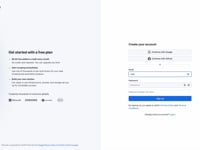
Creating an Apify account is quick and easy. To get started, go to the official Apify site using this link. Just enter your email address and a secure password to register.
Apify uses a freemium model: you’ll get a limited number of free scrapes each month. After that, usage is billed—but pricing stays very reasonable considering the platform’s power and reliability.
This video walks you through how to create a free
Apify account to launch cookie-free Instagram scraping with ease. Your browser doesn’t support iframes.Install the Instagram Scraper Actor on Apify
Once your account is created, log in to Apify. In the left-hand menu, click on Apify Store to browse the library of available actors. Look for the actor named Instagram Scraper in the list. If it doesn’t appear right away, use the search bar at the top and type “Instagram Scraper”. When you find it, click on it to open its dedicated page, then hit Install. The actor will be added to your dashboard, ready to be configured for your Instagram scraping needs.
This video shows how to access the
Apify Store, search for the Instagram Scraper actor, and install it in one click. Your browser doesn’t support iframes. - 02
Start Instagram Scraping with Apify: Setup and Execution
Instagram – Tutorial to Scrape Posts with Apify
To scrape Instagram posts using Apify, start by opening the Instagram Scraper actor in your Apify dashboard.
In the settings, paste the Instagram profile URL you want to scrape into the Instagram URL field. You can add multiple URLs by clicking the + Add button underneath to scrape several profiles in one run.
Make sure to select the Scrap Posts option to extract posts, and set the maximum number of posts you want to retrieve (default is 200).
Once everything is set, click Save & Start to launch the scraper. You’ll be redirected to a preloading page where you can follow the scraping process in real time. This page displays key post data including images, comment count, media dimensions, internal ID, hashtags, URLs, captions, and more.
At the bottom of the page, you’ll be able to export your results in the format of your choice: JSON, CSV, XML, Excel, HTML, RSS, or JSONL.
This visual interface gives you full control of your scraping job and helps you collect clean, structured Instagram post data for your campaigns and analyses.
Instagram post scraping result via
Apify: all extracted posts are listed with their data (text, likes, comments, URLs, dimensions, etc.).Instagram – How to Automatically Scrape Comments with Apify
To scrape Instagram comments, go back to your Instagram Scraper actor on Apify. This time, instead of entering a profile URL, paste the URL of the Instagram post you want to extract comments from. You can add multiple post URLs by clicking the + Add button to scrape comments from several posts at once. Note: the maximum number of comments per post is limited to 50.
Once your URLs and parameters are set, click Save & Start to begin scraping. You’ll be redirected to a preloading page where comments will appear in real time. Each comment includes the text, author, timestamp, number of likes, and other relevant details. At the bottom of the page, you’ll be able to export the data in your preferred format: JSON, CSV, XML, Excel, HTML, RSS or JSONL.
This method gives you a fast and structured view of interactions on any Instagram post — perfect for analysis or targeted marketing strategies.
This video shows how to launch
comment scraping for an Instagram post using Apify: enter the post URL, select the appropriate scraping option, and run the actor using "Save & Start". Your browser doesn’t support iframes.Instagram – How to Scrape Profile Mentions with Apify
To scrape Instagram profile mentions with Apify, go back to your Instagram Scraper actor. This time, simply enter the URL of the profile you want to analyze in the input field. Make sure to select the option Scrape Mentions, which will collect all the posts where the profile has been mentioned or tagged by other users.
You can add multiple profiles by clicking the + Add button to scrape mentions across different accounts. Once your configuration is done, click Save & Start to launch the run.
The results will appear in a live preview, showing all posts where the profile was mentioned. You’ll get access to useful metadata like post URLs, captions, number of likes, and images. At the bottom of the page, export your data in the format of your choice: JSON, CSV, Excel, HTML, RSS, or JSONL.
Scraping mentions is a smart way to monitor brand visibility, track user-generated content, or stay updated on collaboration opportunities.
This video shows the results of an
Instagram profile mention scraping. It displays all posts where the profile was tagged, including metadata and visual content, all extracted using Apify.Instagram – Scrape Reels from a Profile Using Apify
To extract Instagram Reels from a profile, start by opening the Instagram Scraper actor on Apify. This time, enter the Instagram profile URL you want to scrape Reels from.
Reels are short-form videos inspired by TikTok and are among the most engaging content on Instagram. Scraping Reels lets you collect the videos themselves along with valuable data like view count, likes, comments, and other key metrics.
You can add multiple profile URLs by clicking the + Add button to scrape Reels from several accounts at once. Once your settings are configured, launch the scraping by clicking Save & Start.
After starting the process, a live preview page will appear showing all the extracted Reels and their detailed information. You can then export the data in your preferred format: JSON, CSV, XML, Excel, HTML, RSS, or JSONL.
This feature is perfect for analyzing a profile’s top-performing video content and refining your strategy accordingly.
Scraping results for
Instagram Reels using Apify: all collected data is displayed (URLs, views, likes, duration, captions, etc.).Instagram – Scrape profile, post, hashtag or location details with Apify
To extract specific details from an Instagram profile, post, hashtag or location, use the Apify Scraper for Instagram Data module. Simply enter the relevant URL — it can be a user profile, a specific post, a hashtag page, or even a location page.
The module will automatically pull all available data from the input URL: profile bios and metrics, post content, related media for hashtags, or posts linked to a specific location.
You can add multiple URLs using the + Add button to run bulk scraping in one click. Once your URLs are set, hit Save & Start to launch the scraping process.
A real-time monitoring page will display all extracted data, which you can then export in your preferred format (JSON, CSV, Excel, and more).
This flexible feature is ideal to get a full picture of Instagram profiles, posts, tags, or locations — helping you fuel your competitive research, marketing strategy, or content planning.
Scraping result using
Apify – detailed data from an Instagram profile, with support for scraping posts, hashtags, or locations. All key information is displayed clearly. Your browser doesn’t support iframes.
Automatically Scrape Instagram with Make (No Cookies Required).
In this second tutorial, you’ll learn how to automatically scrape Instagram using Make, without cookies. We’ll guide you through creating a preformatted Google Sheet to neatly organize all extracted data. This automation builds clearly structured, named sheets containing detailed Instagram profile information pulled from a list in Google Sheets. By the end, you’ll have a simple, powerful system to centralize and use your Instagram scraping data—no tech headaches involved.
- 01
Step 1: Monitor New Entries and Prepare Google Sheets with Optimized Organization in Google Drive
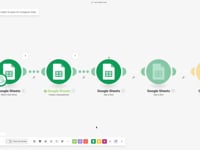
Start by adding a Watch Rows module in Make to continuously monitor new entries in your source Google Sheets. This is where you’ll input your list of Instagram accounts to scrape. Next, add a Create Spreadsheet module to automatically generate a new Google Sheets file. This file will contain two key sheets: “Profile Information” to store Instagram profile data, and “Post Information” to organize post data. Why? This structure clearly separates the datasets, improves readability, and helps prevent errors when inserting results. Then, insert two Add a Row modules to create headers in each sheet. These headers ensure your columns are correctly labeled and your scraped data lands in the right place. Finally, include a Google Drive – Move File module to automatically move the newly created file to a specific Google Drive folder. This keeps your documents well-organized and easy to find. monitoring new rows in Google Sheets, then creates a working spreadsheet with dedicated tabs for profiles and posts. A Google Drive module then automatically organizes the file in the right folder. - 02
Step 2: Extract Instagram Profile Data via Apify and Add it to Google Sheets
In this step, add the native Apify Scraper for Instagram Data module to extract profile information from Instagram.
The main parameter to set is the Instagram username, which should be pulled directly from your Google Sheets list.
This module fetches detailed profile data such as full name, biography, follower count, profile picture, and more.
Important: some descriptions can be very long. To avoid errors when writing to Google Sheets, use the
substring()function in Make to limit text size (e.g., to 5000 characters).Then, add an Add a Row module to insert this data line by line into the “Profile Information” sheet, following the column structure defined by the headers.
Apify Extract Instagram Profile module retrieves public account data. The results are then automatically added to Google Sheets using the Addero module. Your browser doesn’t support iframes. - 03
Step 3: Scrape Instagram Posts from Profiles and Organize the Data into Dedicated Sheets
To collect posts from Instagram profiles, insert the native Apify Scraper for Instagram Data module and configure it in “Extract Instagram Posts” mode. Provide the target Instagram username and limit the results to a maximum of 5 posts per profile.
This module retrieves key details like captions, hashtags, mentions, number of likes, comments, publish date, and content type (photo, video, carousel).
Just like with profiles, use the
substring()function in Make to limit long text fields and prevent errors when writing to Google Sheets.Finish this step by inserting the post data into the “Post Information” sheet using an Add a Row module.
Apify Extract Instagram Posts module pulls content from the target profile.
The results are structured and automatically inserted into a dedicated Google Sheets tab for posts. - 04
Step 4: Prepare individual sheets for comments with automatic creation and structure
For each retrieved post, insert a Create Sheet module that creates a new tab named with the post’s unique ID. This allows you to store comments per post clearly and separately in your spreadsheet.
Then, add an Add a Row module to set up a comment-specific header including fields like comment text, author, date, likes, and more. This step ensures that your comments are well structured and ready for use in future workflows or analysis.
automatically creates a new sheet in Google Sheets, adds a structured header, and then triggers the Apify Scraper to extract all comments related to that post. - 05
Step 5: Scrape Instagram post comments and store data in corresponding sheets
To scrape post comments, insert a native Apify Scraper for Instagram Data module configured with the “Extract Instagram Comments” mode. This step fetches up to 10 comments per post, including the text, author, profile picture, like count, date, and any replies.
Use an Add a Row module to insert each comment into the sheet created in the previous step, matching the corresponding Instagram post. Make sure to handle edge cases where comments might be turned off to avoid execution errors.
the results are automatically sent to Google Sheets.
Each post has its own tab filled with comments collected by Apify and inserted line by line. - 06
Step 6: View and Use Scraped Data in Google Sheets – Clean and Automated Organization
At the end of the automation, a Google Sheets spreadsheet is automatically generated to centralize all extracted data. This file includes two main preformatted sheets: “Profile Information” to store key details from Instagram profiles, and “Post Information” where all scraped posts are listed with their details (captions, likes, comments, etc.).
For each scraped post, a dedicated sheet is created using its unique ID. These sheets contain the full list of related comments, with all relevant information (text, author, date, likes).
This setup makes it easy to browse through profiles, their posts, and user interactions — allowing you to analyze and reuse your data in a clear, organized, and fully automated way.
all data scraped with Make and Apify is neatly centralized in Google Sheets.
You can navigate across the different tabs to explore profiles, posts, and their associated comments — all automatically organized by the automation. Your browser doesn’t support iframes.
Automatically Scrape Instagram with n8n (No Cookies Required).
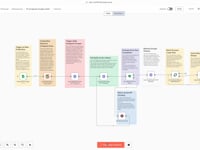
In this third tutorial, you’ll learn how to automate Instagram scraping using n8n — still without using any cookies. We start by retrieving a list of profiles from a Google Sheet, then use a custom HTTP request to Apify to extract profile data. That data is then inserted directly into the same spreadsheet, neatly organized. What’s special here is that n8n doesn’t have a native Apify module, so we connect everything using fully customized API requests. This method gives you an easy and clean way to automate Instagram data extraction using a powerful, flexible tool like n8n.
- 01
Step 1: Detect New Instagram Profiles via Google Sheets
The first step is to configure a Google Sheets trigger. This module monitors your spreadsheet — named “n8n” here — and starts the workflow as soon as a new row is added with an Instagram profile URL to scrape. It’s crucial that you replace the Google Sheets document ID with your own file’s ID. Without it, the automation won’t know where to look for new profiles. Also, make sure your Google Sheets credentials are properly connected to n8n or Make to authorize the integration. If you download the automation, a template file is included, but it’s this setup that makes everything work properly.
Automatically detect new Instagram profiles to scrape from Google Sheets.
The Google Sheets Trigger module ensures that each new row starts the n8n workflow, so your Instagram scraping runs hands-free. - 02
Step 2: Dynamic Creation and Setup of Sheets in Google Sheets
The goal here is to keep your data clean and organized. This module automatically creates a new sheet inside your main Google Sheets document. The sheet name is dynamic and matches the Instagram username you’re about to scrape. Once again, it’s crucial to set the correct document ID — it should be the same one used in the previous step.
Automatically create a Google Sheets tab for each Instagram profile scraped.
This setup ensures each profile gets its own separate sheet, making your data easier to manage, read, and analyze later on.
The Create Sheet module dynamically generates one tab per profile, automatically named with its username, making your data clean and well-organized. - 03
Step 3: Launch and Monitor Instagram Scraping via Apify
This is the most technical and critical part of your automation. This module sends a POST request to the Apify API to launch an actor that will scrape the Instagram profile. You must insert your Apify API key in the Authorization header using the format: Bearer your_api_key.
The JSON request body should contain your scraping parameters, for example: “{
“addParentData”: false,
“directUrls”: [
“{{ $(‘Google Sheets Trigger’).item.json.Url_profil }}”
],
“enhanceUserSearchWithFacebookPage”: false,
“isUserReelFeedURL”: false,
“isUserTaggedFeedURL”: false,
“resultsLimit”: 2,
“resultsType”: “posts”,
“searchLimit”: 1,
“searchType”: “hashtag”
}”Here, directUrls is dynamically pulled from your Google Sheet. The resultsLimit defines how many posts you want to retrieve — feel free to adjust based on your needs.
Then, you’ll add another module to check the status of the actor’s execution. Again, use the same API key in the headers, and use the runId returned just after the initial POST to track the execution state. If the status isn’t SUCCEEDED, it loops again after a short delay using a Wait node. This avoids spamming the API and ensures the actor has time to finish.
Pro tip: Add a condition to detect failed executions (e.g. status FAILED or ABORTED) to break the loop and prevent infinite execution. This is a smart way to keep your automation stable if something goes wrong.
Launching and monitoring Instagram scraping from n8n using Apify.
The workflow checks the run status continuously using an HTTP module and an IF condition. If the scraping isn’t complete, a 2-second delay is triggered before checking again. Your browser doesn’t support iframes. - 04
Step 4: Process and Batch Insert Scraped Data into Google Sheets
Once the scraping is complete, this module retrieves the results in JSON format from the Apify API (dataset endpoint). It then processes the JSON by breaking it into batches to avoid hitting Google Sheets API limits.
These batches are added row by row into the specific sheet created in Step 2, corresponding to the scraped profile. The sheet name is dynamic and must be passed correctly to ensure the data lands in the right place.
Thanks to this step, you get a clean and structured Google Sheets file with all the scraped information—ready to use, analyze, or connect to other tools.
Processing scraped results and automatically inserting them into Google Sheets.
After the scraping is complete, the data is fetched with an HTTP module and then sent one by one using a Loop into the corresponding sheet via Append Row. - 05
Step 5: Automatic Visualization of Scraped Data in Google Sheets
At this stage, all scraped data is automatically displayed in your Google Sheets. You can view the number of posts, comments, or any other elements you’ve configured in your scraping settings. The list updates in real-time, making it easy to use the data for analysis, reporting, or further automation workflows.
Viewing the results of the Instagram scraping in Google Sheets.
This video shows a timelapse of a Google Sheet being filled automatically, row by row, with data from scraped posts. Each profile gets its own dedicated tab.
The full automation, in your inbox.
n8n JSON, written guide and video tutorial, everything to ship this in under 15 minutes.
- Complete n8n scenario JSON
- Step-by-step setup documentation
- Full video walkthrough