Automatically Merge Duplicate Companies in HubSpot (Video + Downloadable n8n Workflow)
The full automation, in your inbox
Automatically Merge Duplicate Companies in HubSpot (Video + Downloadable n8n Workflow)

Automatically Merge Duplicate Companies in HubSpot (Free n8n Workflow + Video + Downloadable Guide)
Prerequisite: Define a Unique Identifier to Detect Duplicates in HubSpot
! You'll needPrerequisite: Define a Unique Identifier to Detect Duplicates in HubSpot
- A self-hosted n8n instance with terminal access.
- API credentials for the services used in this workflow.
The full automation, in your inbox
n8n workflow breakdown.
01 Step 01Choose Your Trigger.
The first step is to define when the workflow should run. In the provided workflow, we’ve included a Schedule Trigger that’s already set to execute daily at midnight.
This trigger allows the automation to search for and merge duplicate companies every night without any manual action. Of course, you can easily adjust the schedule to fit your needs: daily, weekly, or at a specific time of your choice.
02 Step 02Retrieve All Companies with Their LinkedIn Company ID.
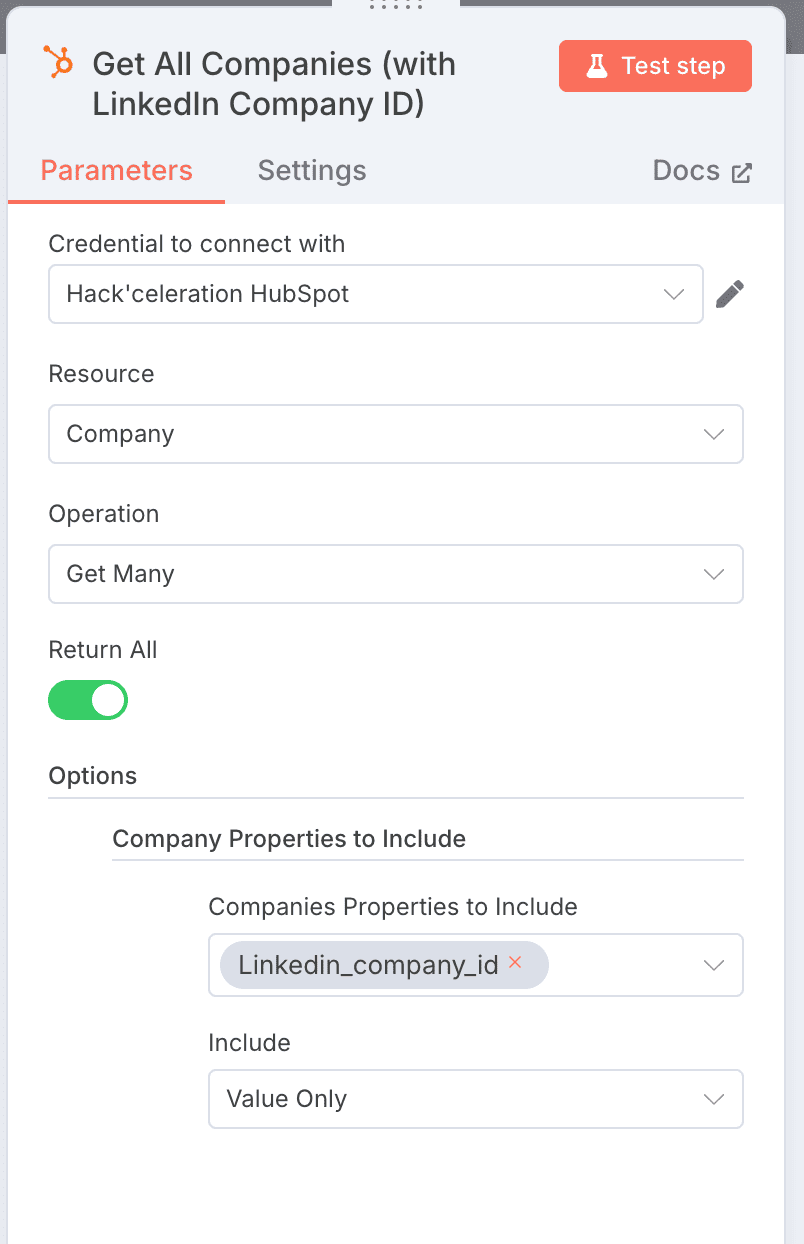
This step uses the HubSpot - Get Many Companies module in n8n. The goal is to fetch all companies from your CRM, making sure to include only those that have a LinkedIn Company ID, as outlined in the prerequisites above.
The module is configured with Return All = true to pull all company records without limitation. In the Company Properties To Include field, we add linkedin-company-id, which is the key property for identifying duplicates. Finally, the Include Value Only option is enabled to retrieve only the raw property values, simplifying the next steps of the workflow.
03 Step 03Loop Through Each Company (Loop Over Items).
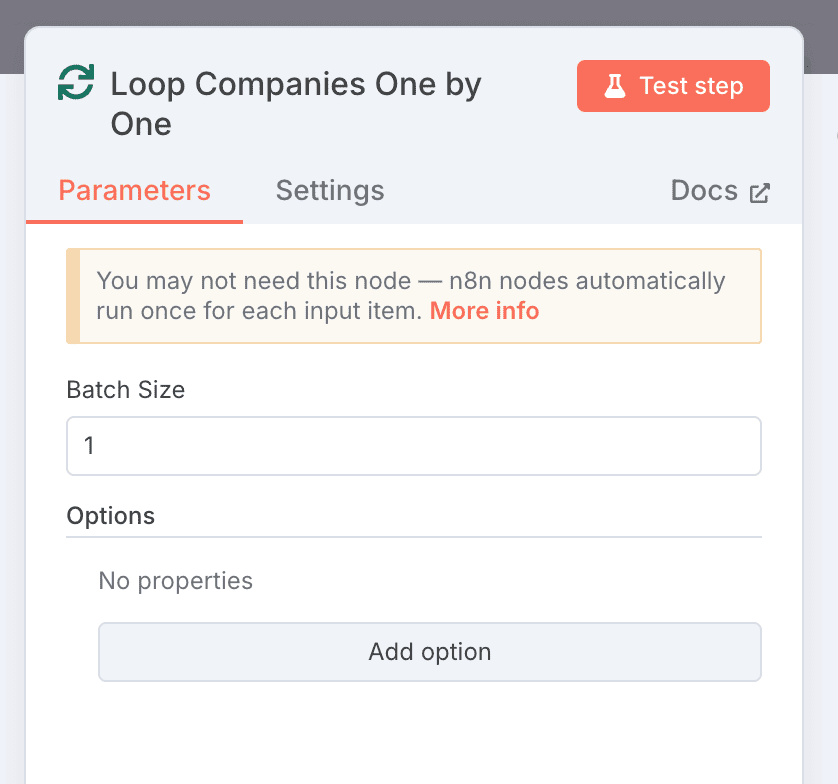
Once all companies have been retrieved, the workflow uses a Loop Over Items module to process each company one by one. This helps control the flow and prevents sending large batches of requests that could overload the HubSpot API.
The Batch Size is set to 1, ensuring that each company is processed individually. This method keeps the automation smooth and stable, allowing you to check and merge duplicates step by step without risking errors from processing too much data at once.
04 Step 04API Rate Limit Control (Adding a Delay).
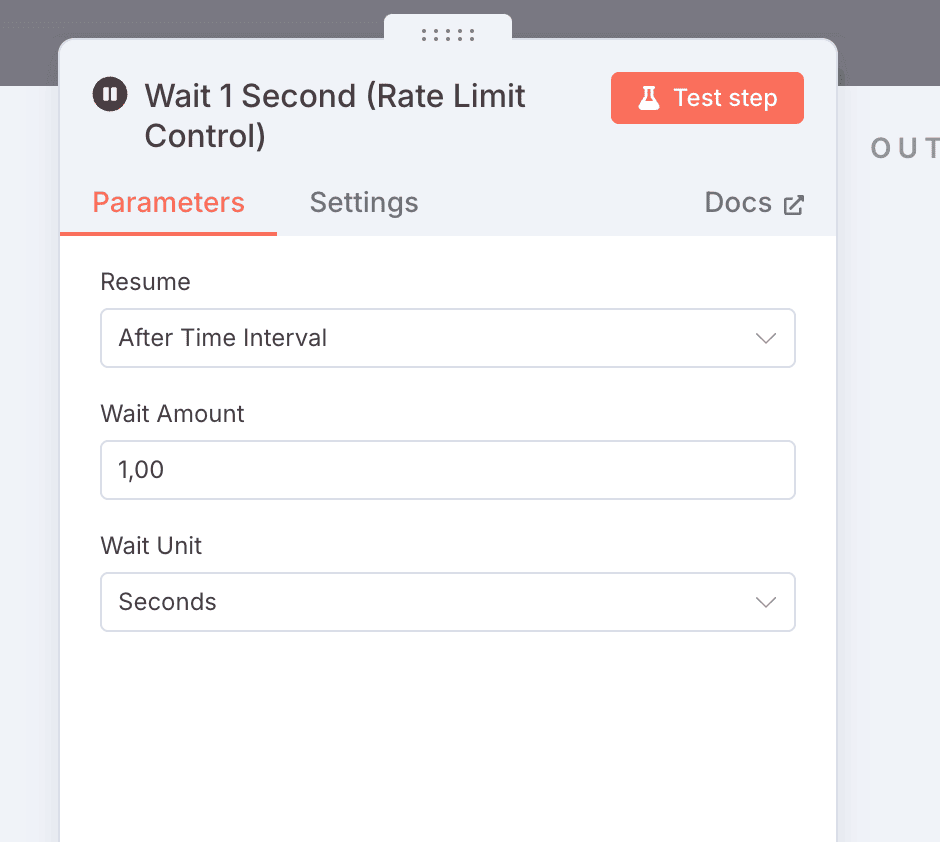
To prevent overloading the HubSpot API, the workflow includes a Delay module configured with a 1-second delay between each request. This control is essential to respect the API rate limits set by HubSpot and to ensure the automation runs smoothly.
Even though the previous loop processes companies one by one (Batch Size = 1), it’s crucial to add this 1-second pause to avoid exceeding HubSpot’s allowed quota, which could cause errors or temporarily block API access.
05 Step 05Check for the LinkedIn Company ID (IF Condition).
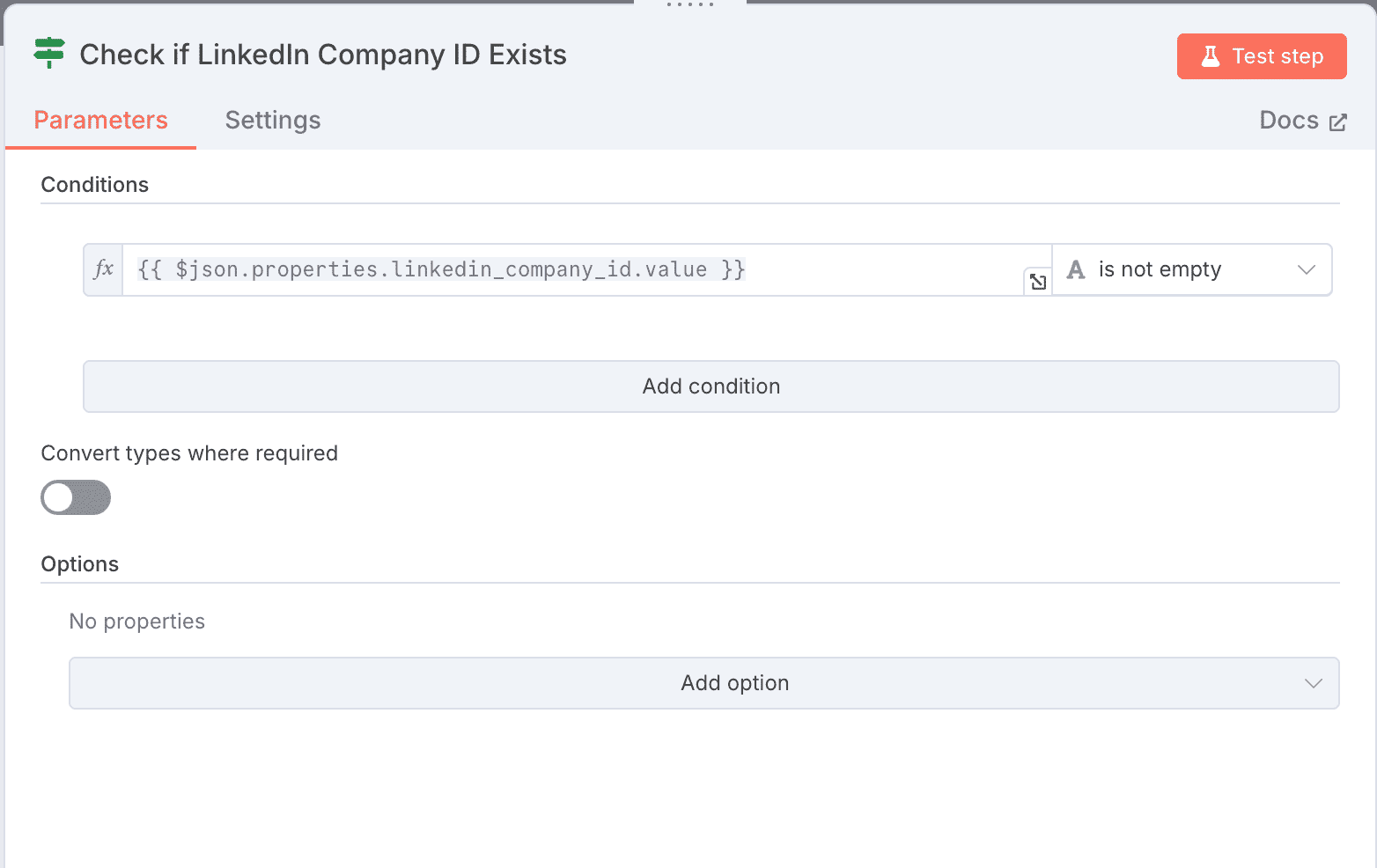
Before proceeding with the merge, the workflow includes a verification step using an IF module. This step checks whether the LinkedIn Company ID property exists for the company currently being processed (data retrieved from the previous loop).
The condition tests whether the LinkedIn Company ID field is not empty (not empty):
- If TRUE: the condition is met, and the workflow continues to search for duplicates and proceed with merging.
- If FALSE: no action is taken, and the workflow moves on to the next company in the loop.
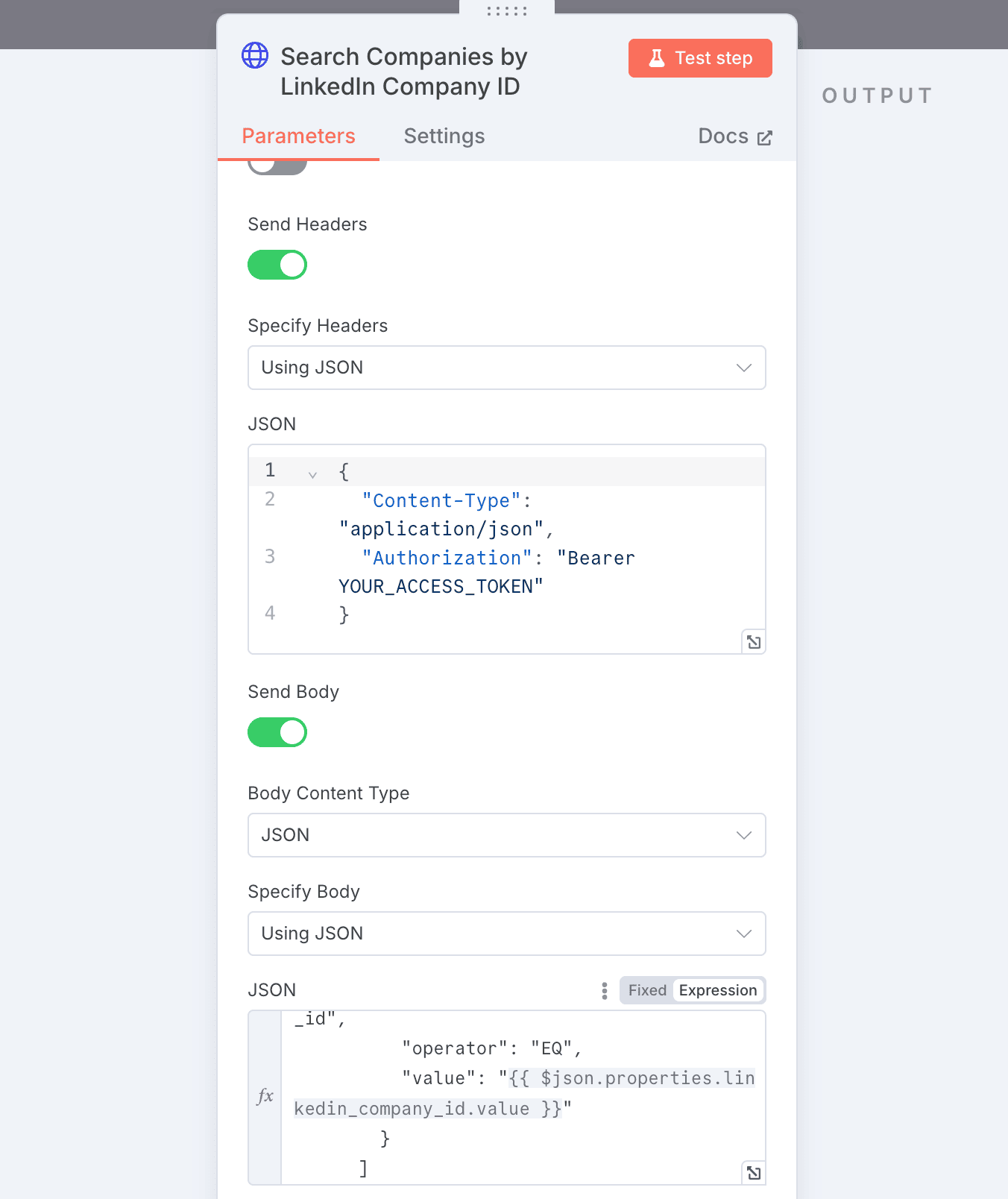
06 Step 06Search Companies by LinkedIn Company ID (Custom API Call).
This is a crucial step: it identifies all duplicate companies based on the LinkedIn Company ID. To achieve this, we use an HTTP Request module to perform a custom query to the HubSpot API.
Why this approach? Currently, n8n does not offer a native HubSpot module that allows searching for companies using a custom property (like the LinkedIn Company ID). The native module only supports searches by domain, which isn’t sufficient for this use case.
We make an API call to the following endpoint:
https://api.hubapi.com/crm/v3/objects/companies/search, authenticating the request using your HubSpot credentials.➡️ Technical parameters:
- Headers: Content-Type: application/json + Bearer Token (your HubSpot access token)
- Method: POST
- Body:
{
  "filterGroups": [
    {
      "filters": [
        {
          "propertyName": "linkedin_company_id",
          "operator": "EQ",
          "value": "{{ $json.properties.linkedin_company_id.value }}"
        }
      ]
    }
  ],
  "properties": [
    "name",
    "domain",
    "linkedin_company_id"
  ],
  "limit": 2
}
This body searches for all companies where the LinkedIn Company ID matches the current company being processed. The request returns key information: company name, domain, and LinkedIn ID.
Why set the limit to 2? This ensures we check if there are at least two companies with the same LinkedIn Company ID. If so, we identify a duplicate, and the workflow moves to the next step to merge them. This logic guarantees we only target true duplicates.
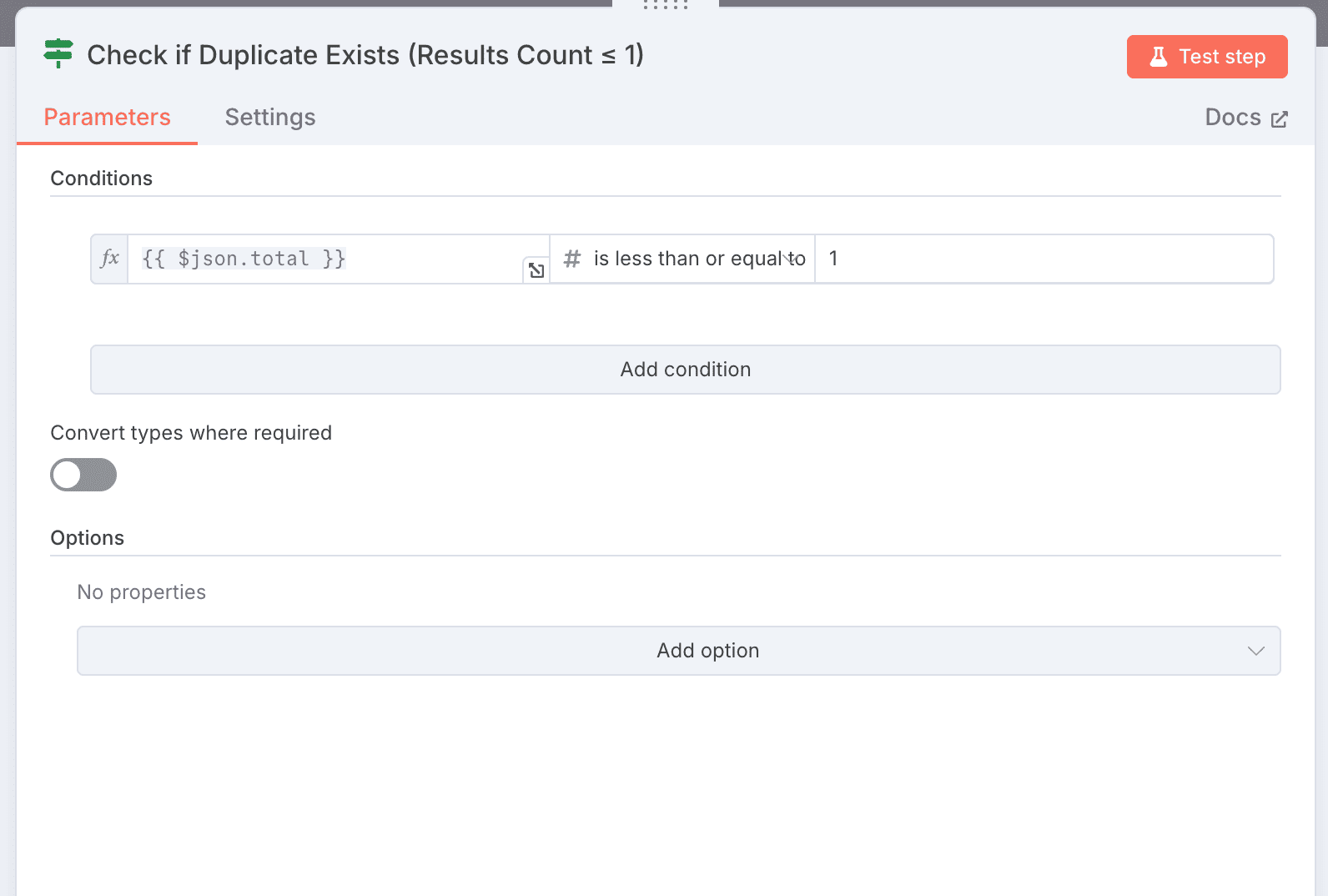
07 Step 07Check for a Duplicate (IF Condition).
After retrieving the search results from the API, the workflow checks whether there is actually a duplicate to process. To do this, we use an IF module that checks the size of the returned results.
The condition verifies if the number of companies found (
{{ $json.total }}) is less than or equal to 1:- If TRUE: this means no duplicate was detected (0 or only 1 company found). The workflow loops back to process the next company.
- If FALSE: at least 2 companies were found (a confirmed duplicate). The workflow proceeds to the next step to merge them.
This verification is essential to avoid unnecessary or incorrect merge attempts when no duplicate is present.
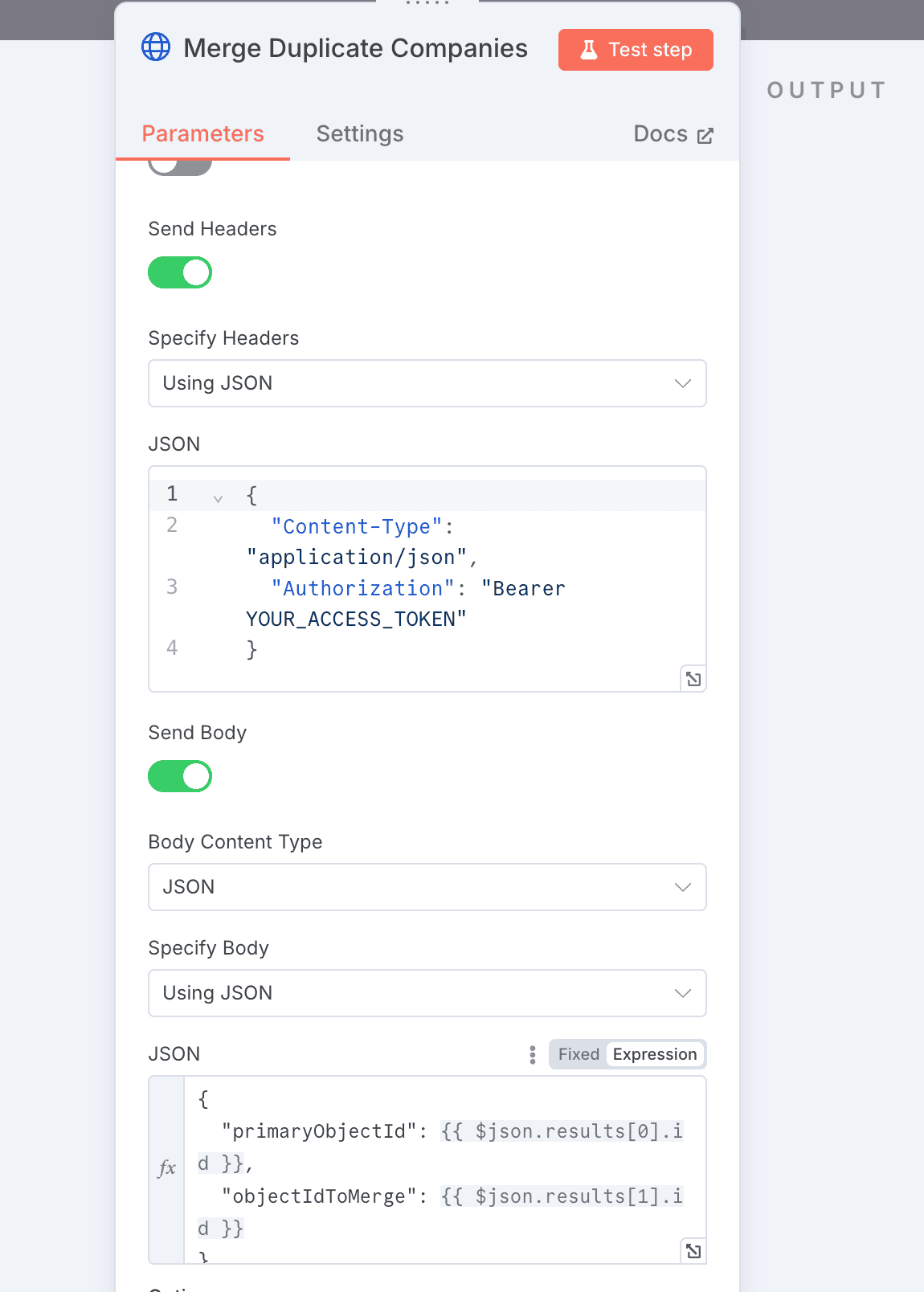
08 Step 08Merge the Companies (Custom API Call).
This is the final step: the workflow merges the companies identified as duplicates. Since HubSpot does not offer a native function in n8n to merge companies, we use an HTTP Request module to perform a custom API call.
The request is sent to the following endpoint:
https://api.hubapi.com/crm/v3/objects/companies/merge, using your HubSpot credentials (Bearer Token in the headers).➡️ The body used to perform the merge:
{
  "primaryObjectId": {{ $json.results[0].id }},
  "objectIdToMerge": {{ $json.results[1].id }}
}
This body tells HubSpot which company should remain (the primary company) and which one should be merged (the duplicate). This operation consolidates the data from both company records into a single record.
Once the merge is complete, the workflow automatically loops back to continue processing and checking the remaining companies until all records have been reviewed and merged if necessary.
Get the ready-to-import n8n JSON plus the install guide
Drop your email and we'll send you the complete scenario.
- n8n JSON ready to import
- Written setup guide
- Video tutorial included
Why Merging Duplicate Companies in HubSpot Is Crucial for Your CRM
Keeping a clean and well-organized HubSpot CRM is crucial for maintaining high data quality and maximizing the efficiency of your sales and marketing teams. Duplicate companies lead to errors, distort reports, and complicate customer relationships. Problems caused by duplicates: Inaccurate or conflicting data in your pipelines. Risk of contacting the same client or prospect multiple times. Less effective marketing campaigns due to segmentation errors. Wasted time for your teams manually checking and fixing data. Benefits of automatically merging duplicates in HubSpot: Centralized key information for each company. Better customer experience with accurate, up-to-date data. Automated repetitive tasks to boost productivity. Reliable analytics and reports to guide your sales strategy. By automating the merging of duplicate companies in HubSpot, you ensure a high-performing CRM, save valuable time, and reduce the risk of errors. This automation is a powerful lever to improve your customer database management and accelerate your business growth.
The full automation, in your inbox.
n8n JSON, written guide and video tutorial, everything to ship this in under 15 minutes.
- Complete n8n scenario JSON
- Step-by-step setup documentation
- Full video walkthrough