AI Agent n8n Auto Receipt Scanner to Google Sheets Sheets
Manual receipt processing is a time sink that nobody enjoys. You snap photos of receipts, then spend hours squinting at faded thermal paper, typing numbers into cells, double-checking your work. Miss a decimal point? Your quarterly reports are wrong. Forget to categorize an expense? Good luck finding it later during tax prep.
The full automation, in your inbox
AI Agent n8n: Auto Receipt Scanner to Google Sheets
AI Agent n8n: Auto Receipt Scanner to Sheets
Requirements: what you'll need first.
! You'll needRequirements: what you'll need first.
- n8n instance: Self-hosted or n8n Cloud account — learn more in our n8n review
- Google Cloud Platform account: For Gemini API access (free tier available)
- Google account: For Google Drive and Google Sheets
The full automation, in your inbox
Step-by-step n8n workflow breakdown.
01 Step 01Daily Trigger — Schedule Your Automated Receipt Processing.
The Daily Trigger node serves as the entry point for your entire receipt scanning pipeline. Instead of manually running the workflow whenever you have new receipts, this scheduler ensures the automation executes consistently every single day without any intervention.
By setting the trigger to fire at midnight, you create a “set and forget” system. Toss your receipt photos into the designated Google Drive folder throughout the day, and the workflow handles everything while you sleep.
 Parameters
- Trigger Interval: Days — The workflow runs on a daily schedule
- Days Between Triggers: 1 — Executes every single day without skipping
- Trigger at Hour: Midnight — Fires at 12:00 AM in your configured timezone
- Trigger at Minute: 0 — Triggers at exactly the top of the hour (00:00)
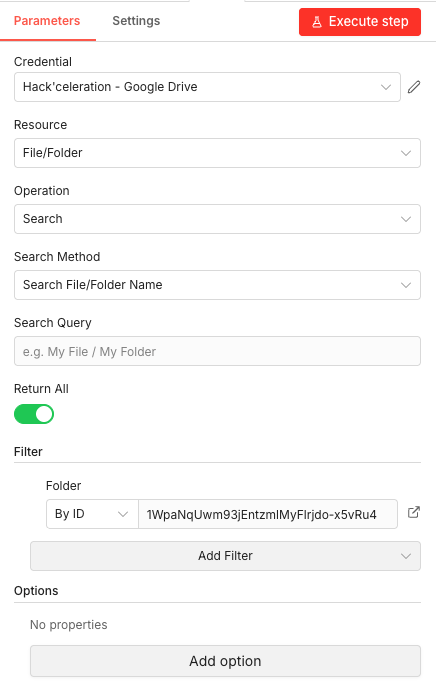
02 Step 02Google Drive Search — Scan Your Receipts Folder for New Images.
This Google Drive node scans your designated “Receipts” folder to identify all files waiting to be processed. It’s the reconnaissance step — finding out what’s new since the last run so the workflow knows exactly which images to analyze.
The node returns a list of all files in the folder, including their unique IDs, names, and metadata. These file IDs become crucial in subsequent steps for downloading, analyzing, and moving each receipt.
 Parameters
- Credential to connect with: Select your Google Drive credential configured in n8n
- Resource:
File/Folder— Specifies we’re searching for files or folders - Operation:
Search— Performs a search query against Google Drive - Search Method:
Search File/Folder Name— Searches based on file or folder names - Return All: ON (enabled) — Returns every matching file instead of a limited number
- Filter > Folder: By ID — Filters results to a specific folder
- Folder ID: Copy this from your Google Drive folder URL (the string after
/folders/)
03 Step 03Loop Over Items — Process Each Receipt Individually.
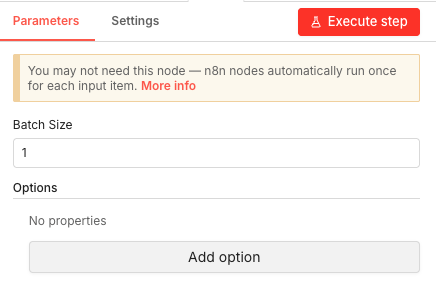
The Loop Over Items node (technically a “Split in Batches” node) ensures each receipt image is processed as an individual unit through the entire pipeline. While n8n nodes typically handle multiple items automatically, this explicit loop gives you precise control over the flow.
Setting the batch size to 1 means each receipt goes through download → AI analysis → Google Sheets append → file move as a complete sequence before the next receipt begins. This prevents race conditions and keeps your data organized.
 Parameters
- Batch Size: 1 — Processes exactly one receipt per iteration through the downstream nodes
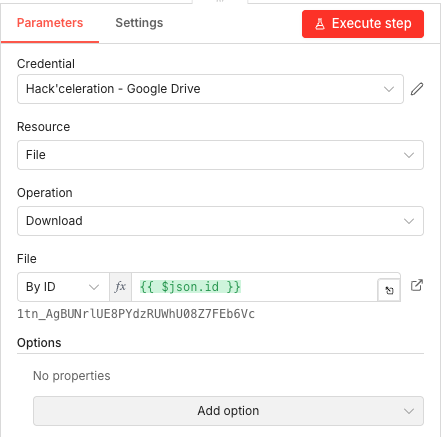
04 Step 04Download Receipt Image — Fetch the File from Google Drive.
This Google Drive node downloads the actual receipt image file so it can be sent to Gemini AI for analysis. The file ID is pulled dynamically from the current loop item, meaning each iteration downloads the specific receipt currently being processed.
The downloaded image is stored in n8n’s binary data format, making it ready to pass directly to the Gemini vision AI node. This approach works with any image format — JPEG, PNG, HEIC — that Google Drive can store and Gemini can analyze.
 Parameters
- Credential to connect with: Select your Google Drive credential configured in n8n
- Resource:
File— Operates on individual files - Operation:
Download— Retrieves the file content from Google Drive - File: By ID — Uses a file ID to identify which file to download
- File ID:
{{ $json.id }}— Dynamic expression that pulls the file ID from the current item in the loop
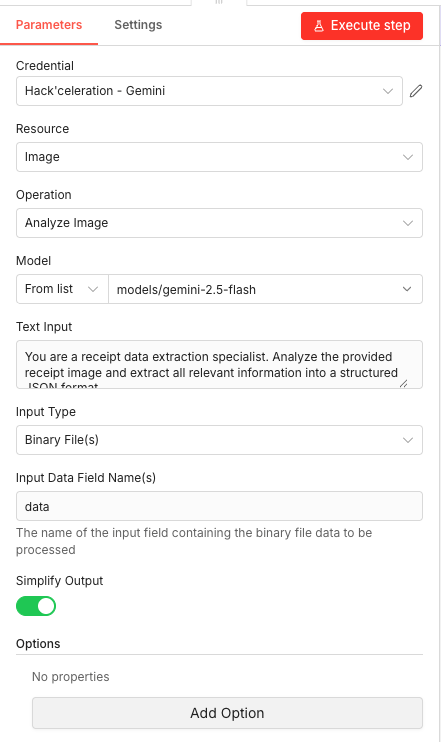
05 Step 05Analyze Image with Gemini AI — Extract Structured Receipt Data.
This is the intelligence core of your workflow. The Google Gemini node sends your receipt image to Google’s Gemini 2.5 Flash vision model along with detailed instructions for extracting structured data. Gemini “reads” the receipt and returns comprehensive JSON containing every detail it can identify.
The prompt is critical — it instructs Gemini exactly what to look for: company information, transaction timestamps, individual line items with quantities and prices, automatic category assignments, tax breakdowns, totals, and payment methods.
 Parameters
- Credential to connect with: Select your Google Gemini API credential configured in n8n
- Resource:
Image— Indicates we’re sending image data for analysis - Operation:
Analyze Image— The specific Gemini capability being invoked - Model: From list →
models/gemini-2.5-flash— Google’s latest multimodal model optimized for vision tasks - Text Input: Your prompt instructing Gemini how to analyze the receipt
- Input Type:
Binary File(s)— The receipt image is passed as binary data from the previous download - Input Data Field Name(s):
data— The field name where n8n stores the downloaded binary file - Simplify Output: ON (enabled) — Cleans up the raw API response into a simpler format
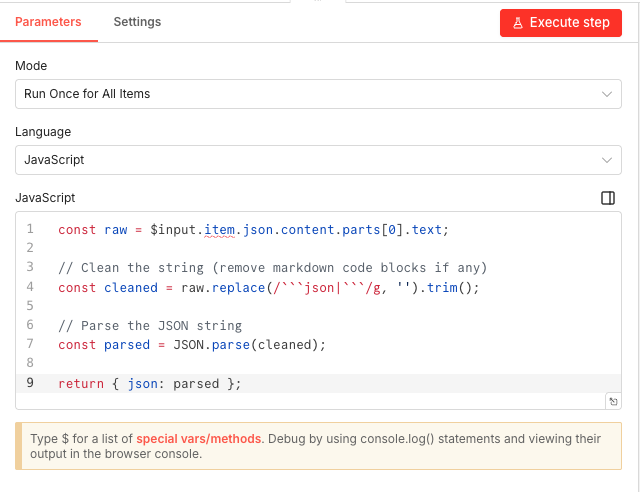
06 Step 06Code Node — Clean and Parse the AI Response.
The Code node processes Gemini’s raw text response and converts it into a proper JavaScript object that n8n can work with. Even though we asked Gemini for pure JSON, AI models sometimes wrap their responses in markdown code blocks. This node strips that formatting and parses the clean JSON.
This transformation is essential because the Google Sheets node needs structured JSON data with named fields to map to spreadsheet columns.
 Parameters
- Mode:
Run Once for All Items— Executes the code block a single time for the incoming data - Language:
JavaScript— Uses JavaScript for the transformation logic
- Mode:
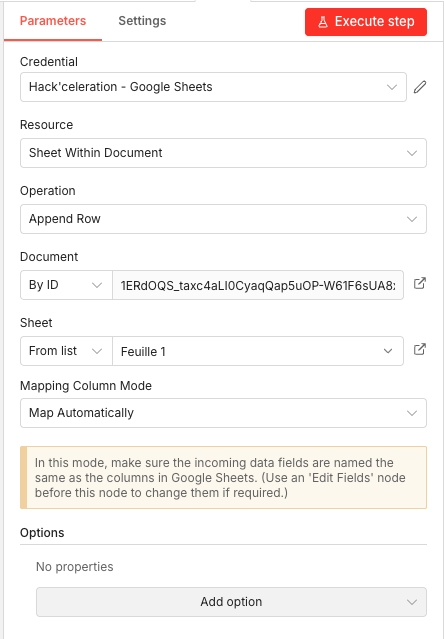
07 Step 07Google Sheets — Append Extracted Data to Your Spreadsheet.
The Google Sheets node takes all the structured receipt data extracted by Gemini and appends it as a new row in your expense tracking spreadsheet. Using automatic column mapping, the node matches incoming JSON field names directly to your spreadsheet column headers.
This means your Google Sheet needs column headers that exactly match the field names returned by Gemini:
company_name,transaction_date,total,payment_method, etc.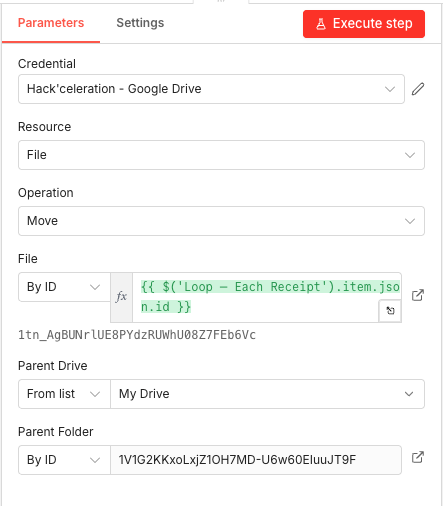 Parameters
- Credential to connect with: Select your Google Sheets credential configured in n8n
- Resource:
Sheet Within Document— Targets a specific sheet inside a Google Sheets file - Operation:
Append Row— Adds a new row at the end of existing data - Document: By ID → The unique ID from your Google Sheets URL
- Sheet: From list → Select your target sheet (e.g., “Sheet1” or “Expenses”)
- Mapping Column Mode:
Map Automatically— Matches JSON field names to spreadsheet column headers automatically
08 Step 08Move Processed Receipt — Archive to Prevent Duplicate Processing.
The final step moves the processed receipt from your inbox folder to a “Processed” archive folder. This prevents the same receipt from being analyzed again on the next scheduled run, keeping your workflow efficient and your data free of duplicates.
The node dynamically references the file ID from the loop, ensuring each receipt lands in the archive after its data has been successfully extracted and stored.
Parameters- Credential to connect with: Select your Google Drive credential configured in n8n
- Resource:
File— Operates on file-level objects - Operation:
Move— Relocates the file to a different folder - File: By ID →
{{ $('Loop Over Items').item.json.id }}— Dynamic expression referencing the current receipt’s file ID from the loop node - Parent Drive: From list →
My Drive— Specifies the destination is within your main Google Drive - Parent Folder: By ID → The folder ID of your “Processed” or archive folder
Get the ready-to-import n8n JSON plus the install guide
Drop your email and we'll send you the complete scenario.
- n8n JSON ready to import
- Written setup guide
- Video tutorial included
Why Automating Receipt Scanning Is a Game-Changer for Freelancers and Small Businesses
Expense tracking is one of those tasks that seems simple until it piles up. Every receipt represents a few minutes of manual data entry — but those minutes compound into hours each month, and errors multiply alongside them.
The problems with manual receipt processing:- Thermal paper fades, making receipts illegible weeks after purchase
- Manual transcription introduces typos that throw off your accounting
- Categorizing expenses requires judgment calls that eat up mental energy
- Receipts get lost, forgotten in pockets, or buried in email attachments
- Batch processing at month-end means spending entire afternoons on data entry
- Process receipts the same day they’re captured — no more backlog buildup
- AI-powered extraction eliminates transcription errors entirely
- Automatic categorization based on product types for cleaner expense reports
- Centralized Google Drive storage means receipts are backed up and searchable
- Structured spreadsheet data ready for accounting software import or tax filing
Whether you’re a freelancer tracking deductible business expenses, a small business owner managing operational costs, or a budget-conscious individual wanting visibility into spending patterns, this automation removes the friction between “I have a receipt” and “I have usable financial data.” The workflow runs silently in the background, transforming what used to be a monthly headache into a solved problem. Your receipts scan themselves. Your spreadsheet stays current. Your time stays yours.
The full automation, in your inbox.
n8n JSON, guide and video tutorial.
- Complete n8n scenario
- Setup documentation
- Video walkthrough